> For the complete documentation index, see [llms.txt](https://docs.wproofreader.com/llms.txt). Markdown versions of documentation pages are available by appending `.md` to page URLs; this page is available as [Markdown](https://docs.wproofreader.com/integrations/drupal.md).
# Drupal
WProofreader spelling and grammar checker is available in Drupal through two CKEditor 5 modules developed by CKSource:
* [**CKEditor 5 Premium Features**](https://www.drupal.org/project/ckeditor5_premium_features) — Includes the paid version of WProofreader SDK (cloud or self-hosted). Requires a license and provides full control over configuration and functionality.
{% hint style="info" %}
You don't need a separate license for other premium features in the module to use WProofreader.
{% endhint %}
* [**CKEditor 5 Plugin Pack**](https://www.drupal.org/project/ckeditor5_plugin_pack) — Includes the free version of WProofreader, enabled by default. No sign-up or activation key is required. This version has word processing limits, limited functionality, and no advanced settings management.
Both modules point to the WebSpellChecker cloud service by default (governed by the [Terms of Service](https://webspellchecker.com/legal/terms-of-service/)). The CKEditor 5 Plugin Pack doesn't allow changing this, while the CKEditor 5 Premium Features module lets you choose between cloud and self-hosted deployment. For a detailed comparison of free and paid versions, see [Free vs paid](https://www.drupal.org/docs/extending-drupal/contributed-modules/contributed-module-documentation/ckeditor-5-plugin-pack/wproofreader-free-vs-premium-feature-comparison).
{% hint style="info" %}
One of the above Drupal modules must be installed on your Drupal website before using WProofreader.
{% endhint %}
### Getting started
WProofreader is enabled by default for the main editor and comments that use CKEditor 5 under the hood. It isn't activated for plain text fields or standard inputs.
To obtain a license for WProofreader SDK, [sign up for one of the paid plans](https://wproofreader.com/sdk#pricing) (which differ by the word package included) or [contact us](https://wproofreader.com/contact-us) for Enterprise pricing with self-hosted deployment.
#### Activating WProofreader
WProofreader in [CKEditor 5 Premium Features](https://www.drupal.org/project/ckeditor5_premium_features) for Drupal uses the cloud service by default and requires a service ID as an activation key.
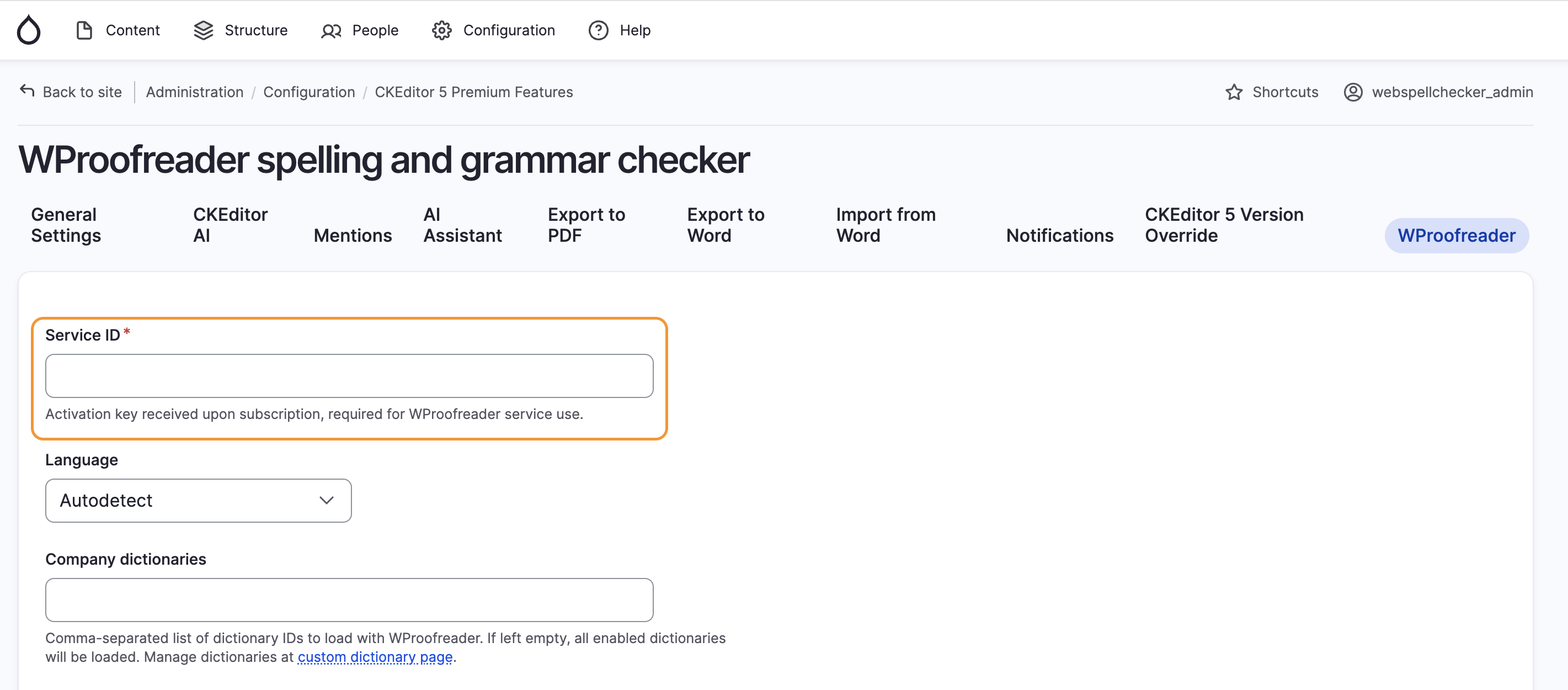
1. Navigate to **Administration > Configuration > CKEditor 5 Premium Features > WProofreader**.
2. Enter your **Service ID** in the corresponding field. You can find this on the [Credentials](https://app.wproofreader.com/credentials) page in the WProofreader admin panel.
3. Click **Save configuration**.
Once a valid activation key is saved, proofreading will be active in all rich text fields using the default settings.
### Settings overview
There's a list of settings available to adjust the default behavior of the proofreading tool:
* **Language.** Change the default language for proofreading.
* **Custom dictionary.** Manage organization-level dictionaries.
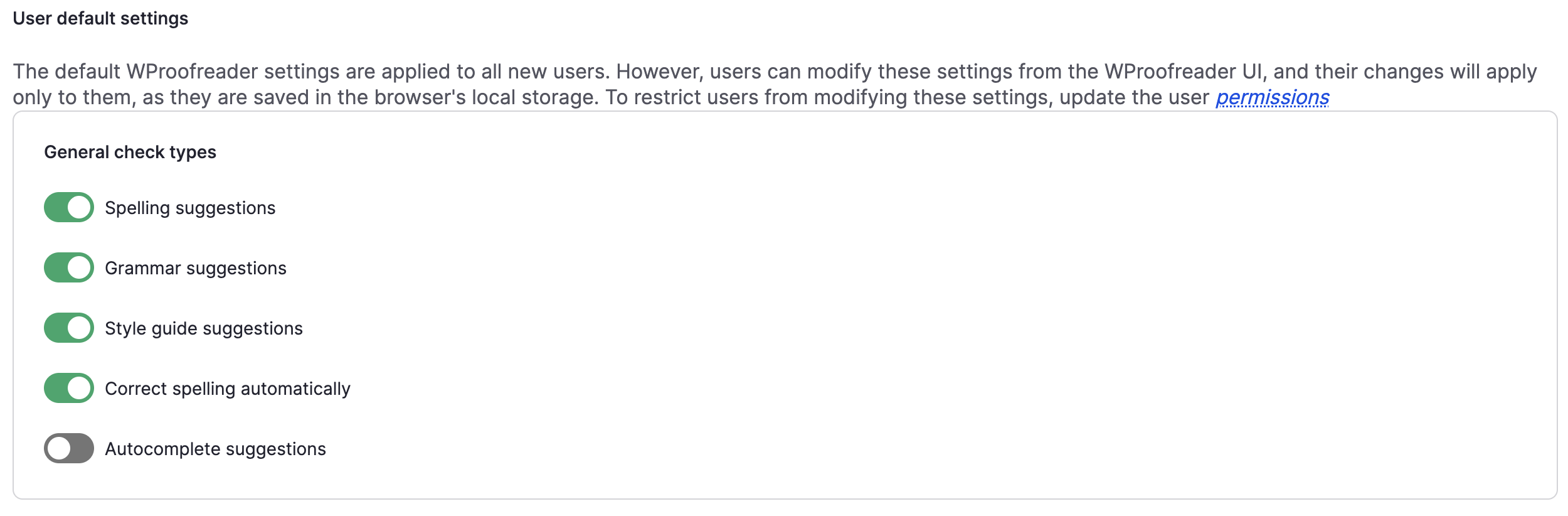
* **General check types.** Enable which types of suggestions (spelling, grammar and style) and functionality (spelling autocorrect and text autocomplete) should be enabled.
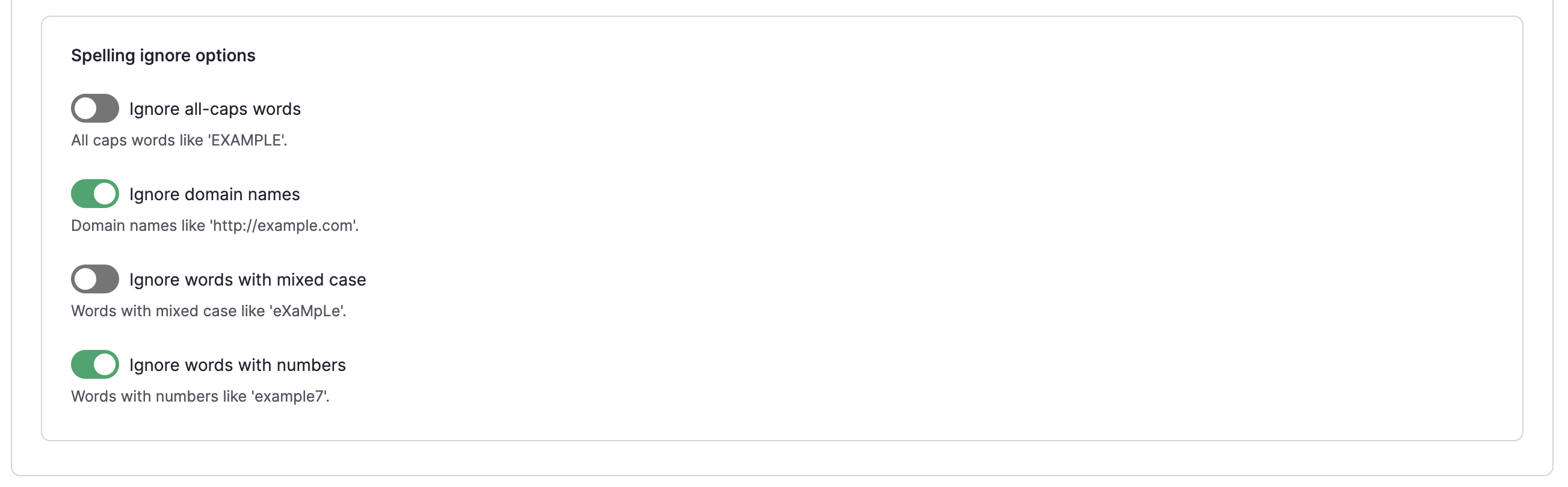
* **Spelling ignore options.** Define if the spellchecker should skip certain types of words during check, such as words written in mixed letters, etc.
* **Advanced features.** Enable advanced proofreading and text rewriting functionality with AI writing assistant.
* **Advanced settings.** Custom configuration options and deployment option.
The following settings are available to customize WProofreader behavior.
#### Language
The default language is set to **Autodetect**. In this mode, WProofreader will try to automatically detect the language of the input text.
{% hint style="info" %}
At least 2–3 correct words are needed for language detection. Only one language is used per sentence. If multiple languages are detected, the one with the higher probability will be used for checking.
{% endhint %}
The language dropdown displays the languages selected during sign-up. You can also modify the available languages from the Settings page in the admin panel. See [How to change the list of languages](/faq/technical/languages/how-to-change-the-list-of-languages.md).
#### Custom dictionary
Custom dictionaries are managed at the organization or global level by subscription or application admins. For the cloud version, they're managed from the admin panel under [Custom dictionary](https://app.wproofreader.com/custom-dictionary).
* If the dictionary ID field is left empty, all enabled dictionaries will be applied.
* If one or more dictionary IDs are specified, only those dictionaries will be loaded for your Drupal site.
#### User default settings
These settings control which check types and features are enabled by default. They're also accessible to end users in the WProofreader UI. Admins can set defaults, but users can override them. User preferences are saved in the browser's local storage until it's cleared. You can restrict user modifications through permissions.
Available check types:
* **Spelling suggestions**
* **Grammar suggestions**
* **Style guide suggestions** — Based on custom rules created in the WProofreader admin panel (shown as yellow underlines). Also includes predefined rules for inclusive language and profanity/offensive language detection. Check out more about [Style suggestions](broken://pages/Oo376uOy7ZJvBhaypPIY) and [Style guide builder](/features/old-style-guide-builder.md).
* **Correct spelling automatically** (autocorrect)
* **Autocomplete suggestions** (text prediction) — Currently available for English only.
{% hint style="info" %}
Not all check types are supported for every language.
{% endhint %}
#### Spelling ignore options
These options apply only to spelling suggestions (red underlines) and are also saved in browser local storage if changed by a user.
#### Advanced features
This section currently contains a single setting: the **AI writing assistant (AIWA)**, which is disabled by default. When enabled, AIWA offers predefined text operations such as rewrite, improve, summarize, and more. Learn more about [AIWA](/features/ai-writing-assistant-aiwa.md).
#### Advanced settings
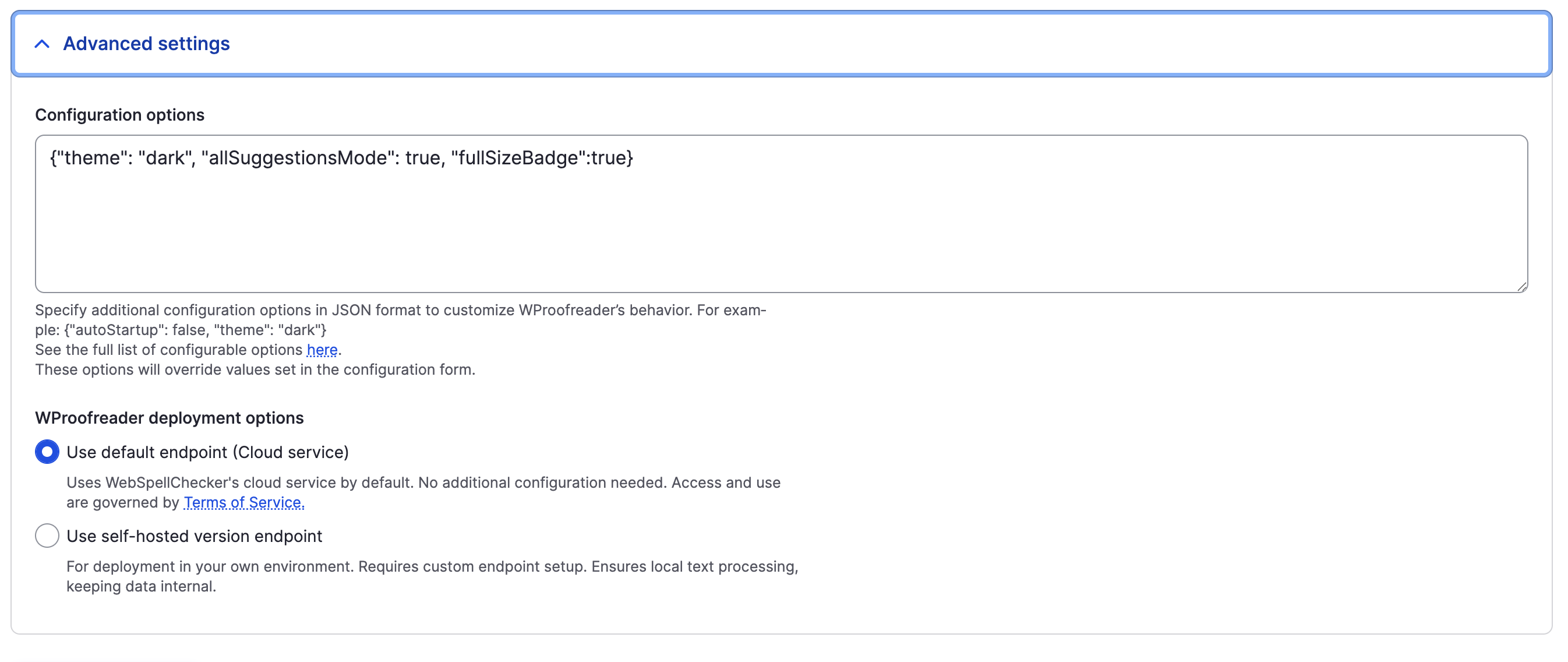
This section contains two main options: one for adding custom configuration options to adjust default settings that aren't available on the UI, and another to update the WProofreader service endpoint and connect to the self-hosted version instead of the cloud service.
**Custom configuration**
Allows you to specify additional WProofreader configuration options that aren't available through the Drupal settings UI. Options must be provided in JSON format.
**Example:**
{% code title="json" %}
```json
{"theme": "dark", "allSuggestionsMode": true, "fullSizeBadge": true}
```
{% endcode %}
These options override values set elsewhere in the configuration form. See the full [Configuration reference](https://webspellchecker.com/docs/api/wscbundle/Options.html) for available options.
**Deployment options**
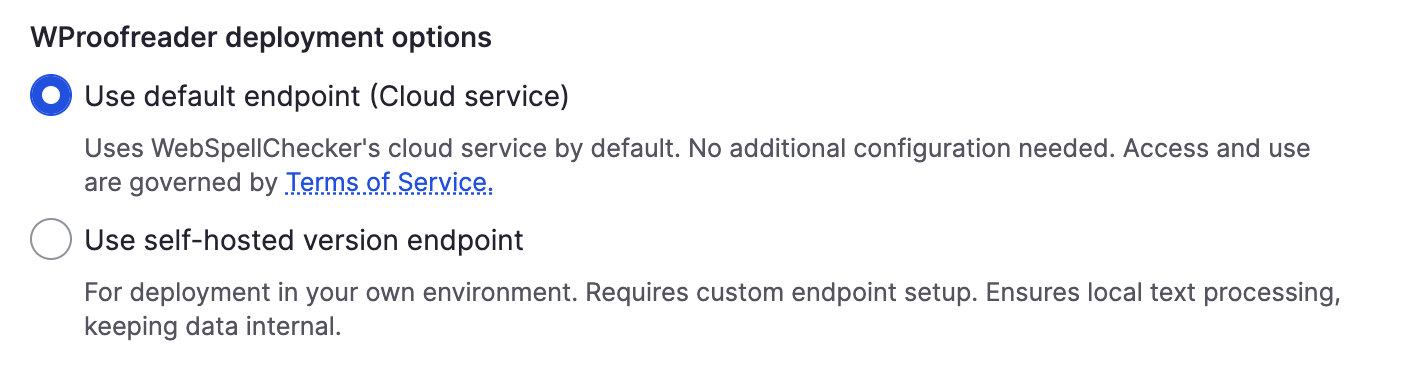
Controls the WProofreader service endpoint. By default, WProofreader uses the cloud service.
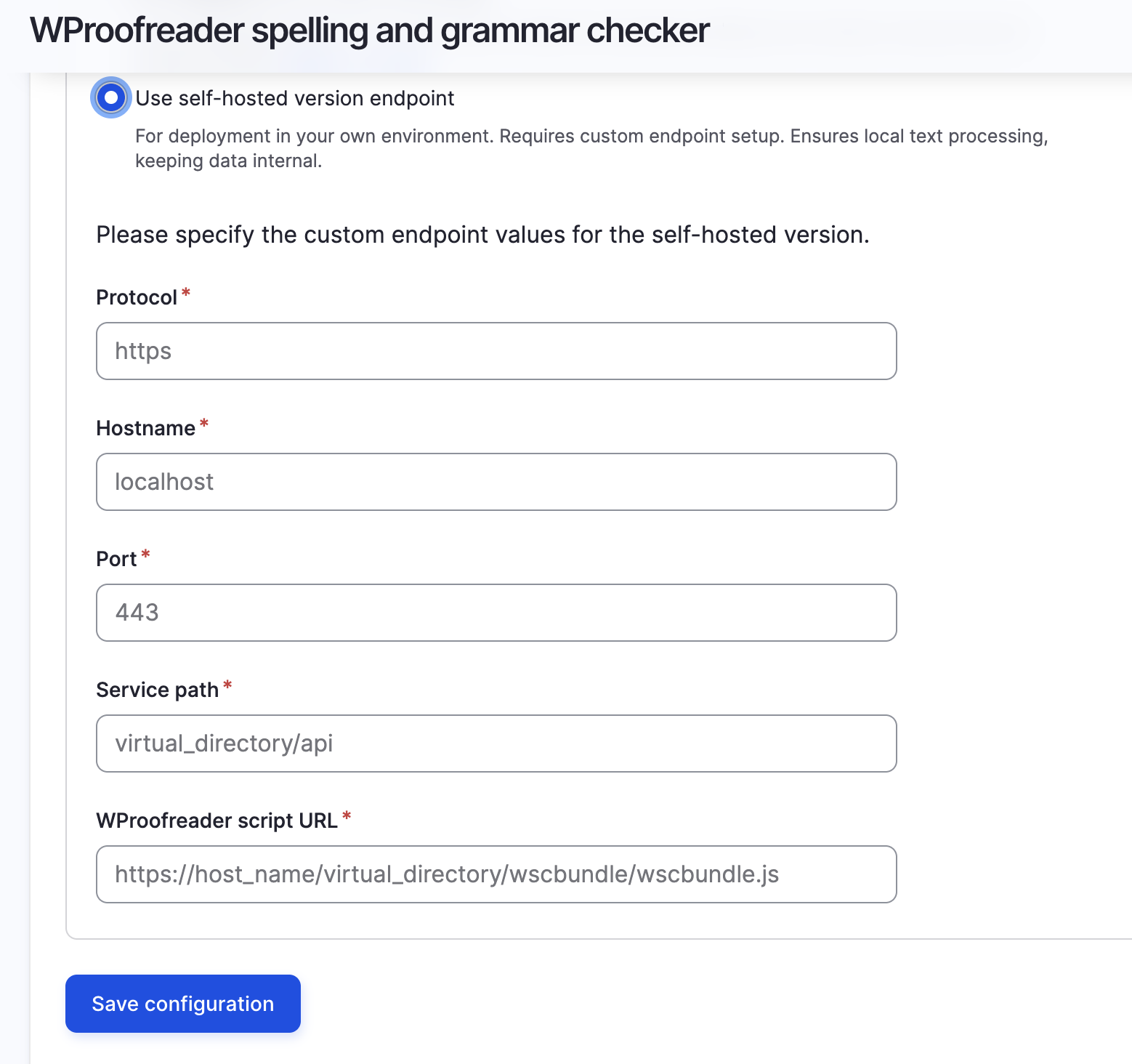
If you have a license for the self-hosted version, select **Use self-hosted version endpoint** and fill in the following fields:
* **Protocol** (e.g., `https`)
* **Hostname** (e.g., `domain.com`)
* **Port** (e.g., `443`)
* **Service path** (e.g., `wscservice/api`)
* **WProofreader script URL** (e.g., `https://host_name/virtual_directory/wscbundle/wscbundle.js`)
The resulting endpoint URL should look like: `https://domain.com/wscservice/api`
Once you've configured the endpoint, click **Save configuration** to apply changes.
{% hint style="info" %}
When using a self-hosted endpoint, you don't need to specify a Service ID. It's only required for the cloud service.
{% endhint %}
### User guide
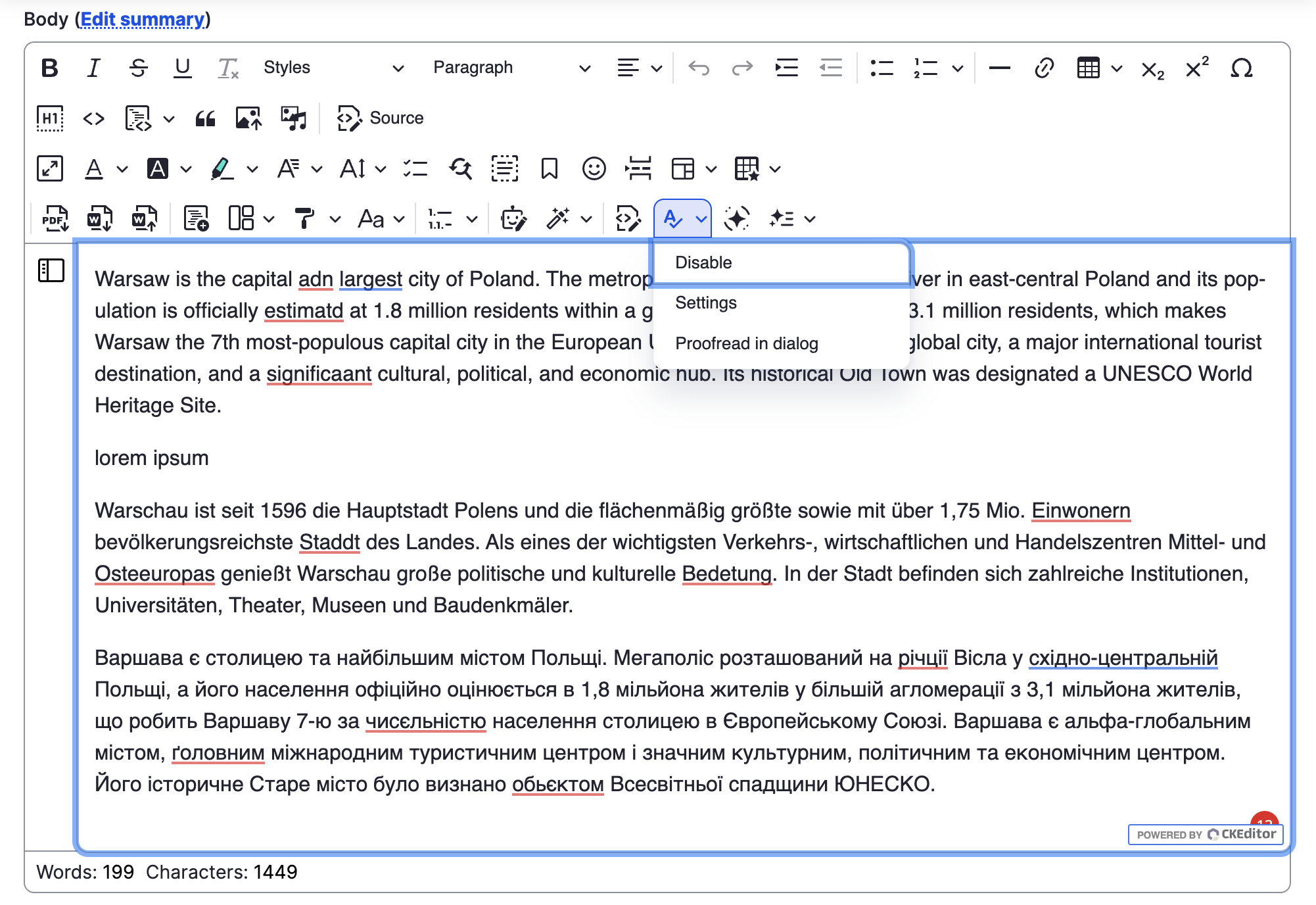
When editing content in any CKEditor 5 field in Drupal, you'll see two UI elements indicating WProofreader is active:
* An **“A“ icon** on the editor toolbar
* An **orange badge (dot)** in the bottom-right corner of the editable field
Both elements open a menu with additional actions: **Proofread in dialog**, **Settings**, and **Disable/Enable**.
For a complete guide on using WProofreader as an end user, see the [User manual](/user-manuals/user-manual.md).
{% hint style="info" %}
You can try a [live demo of WProofreader in CKEditor 5](https://demos.webspellchecker.com/wproofreader-ckeditor5.html) to see it in action.
{% endhint %}