> For the complete documentation index, see [llms.txt](https://docs.wproofreader.com/llms.txt). Markdown versions of documentation pages are available by appending `.md` to page URLs; this page is available as [Markdown](https://docs.wproofreader.com/user-manuals/user-manual.md).
# User manual
[WProofreader SDK](https://webspellchecker.com/wsc-proofreader/) is a 2-in-1 solution that combines spell & grammar check in the as-you-type and proofread in dialog modes and can be conveniently integrated into any HTML editable tag or modern WYSIWYG editor. Check out the list of all [supported integrations](/integrations/supported-integrations.md).
WProofreader is compliant with the [Web Content Accessibility Guidelines (WCAG)](https://www.w3.org/TR/WCAG20/) and [Section 508](https://www.section508.gov/content/learn/laws-and-policies) and comes along with the keyboard navigation. Users with limited abilities can proofread, switch between the modes, tweak WProofreader settings, and complete other tasks using keyboard shortcuts only. Read more in the [Keyboard navigation](/user-manuals/keyboard-navigation.md) guide.
This is a user manual on how to check spelling, grammar, and punctuation with the WProofreader add-on for rich text editors (RTEs) and tweak its settings. This guide is for WProofreader users and developers integrating WProofreader into their clients’ infrastructure.
### **1. Entering text in the input fields**
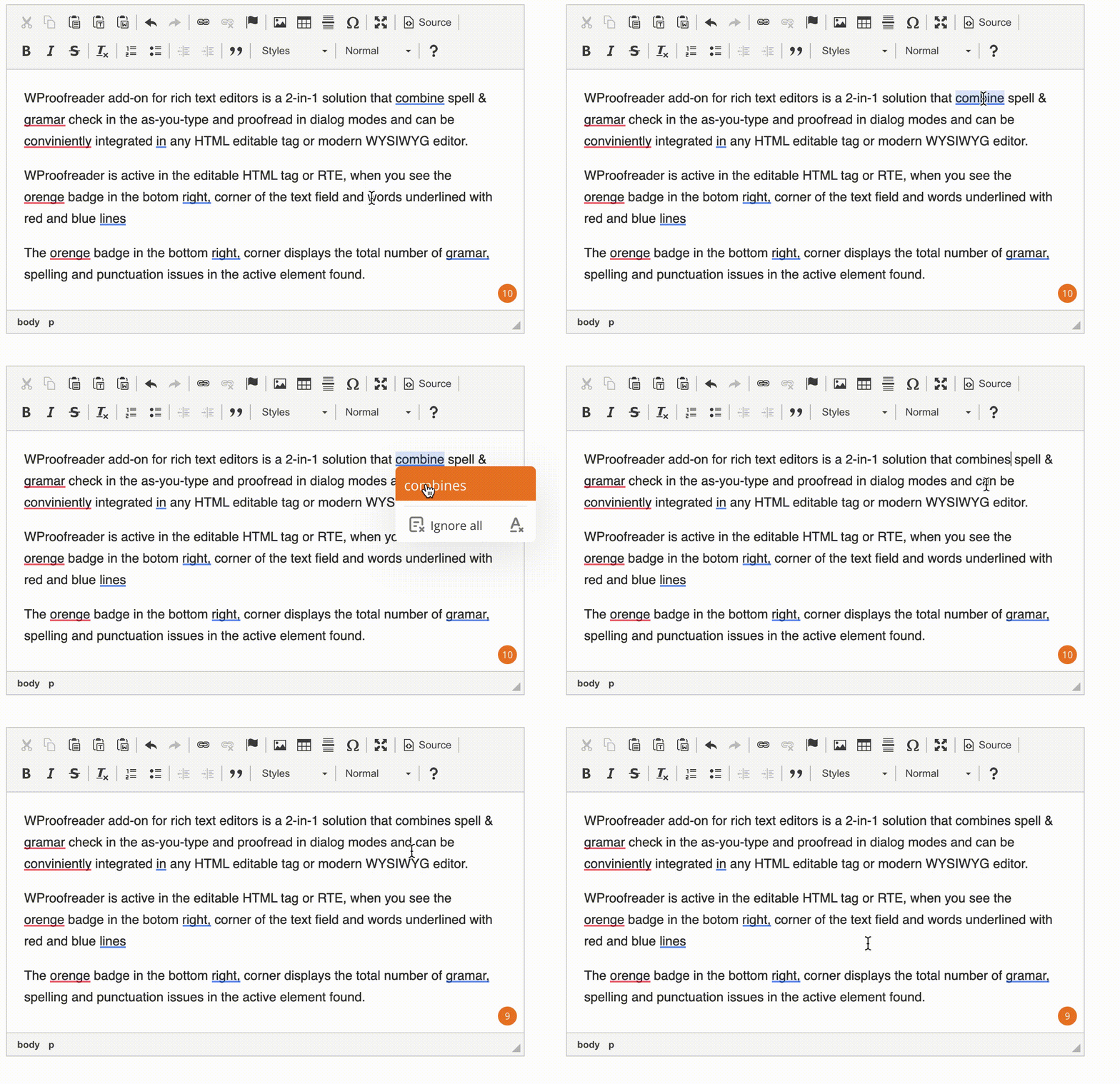
WProofreader is active in the editable HTML element or WYSIWYG (what you see is what you get) editor when you see the badge in the bottom right corner of the text field and words underlined with red, blue and yellow lines. This red badge on hover displays the total number of writing issues in the active element found.
To see the WProofreader suggestions card, hover on a marked word or phrase.
Grammar and punctuation suggestions based on classical engines reference a particular rule, spelling suggestions – on dictionaries and the Levenshtein distance while a selection of suggestions. For grammar-type recommendations, there’s a description in the suggestions card, which is duplicated in the Proofread in dialog mode.
For language dialects that use AI-based English, German and Spanish under the hood, suggestions come without explanation.
While users are checking the text, the badge is displaying the progress circle. Once proofreading is finished, the badge displays the number of writing issues found. Also, the badge will change the color from orange to red in case of appearing some mistakes.
In case of a spelling error, only one word is highlighted. If there are grammar issues or incorrect sentence structure, a whole phrase or even a sentence can be highlighted.
Words written with the hyphen and foreign words are highlighted as a phrase.
### **2. Accepting/rejecting suggestions in the as-you-type mode**
Actions users can take in the suggestions pop-up for writing issues:
* *Accept the suggestion*. Users can select a word/phrase from the list of available suggestions in the pop-up and replace the original highlighted word/phrase.
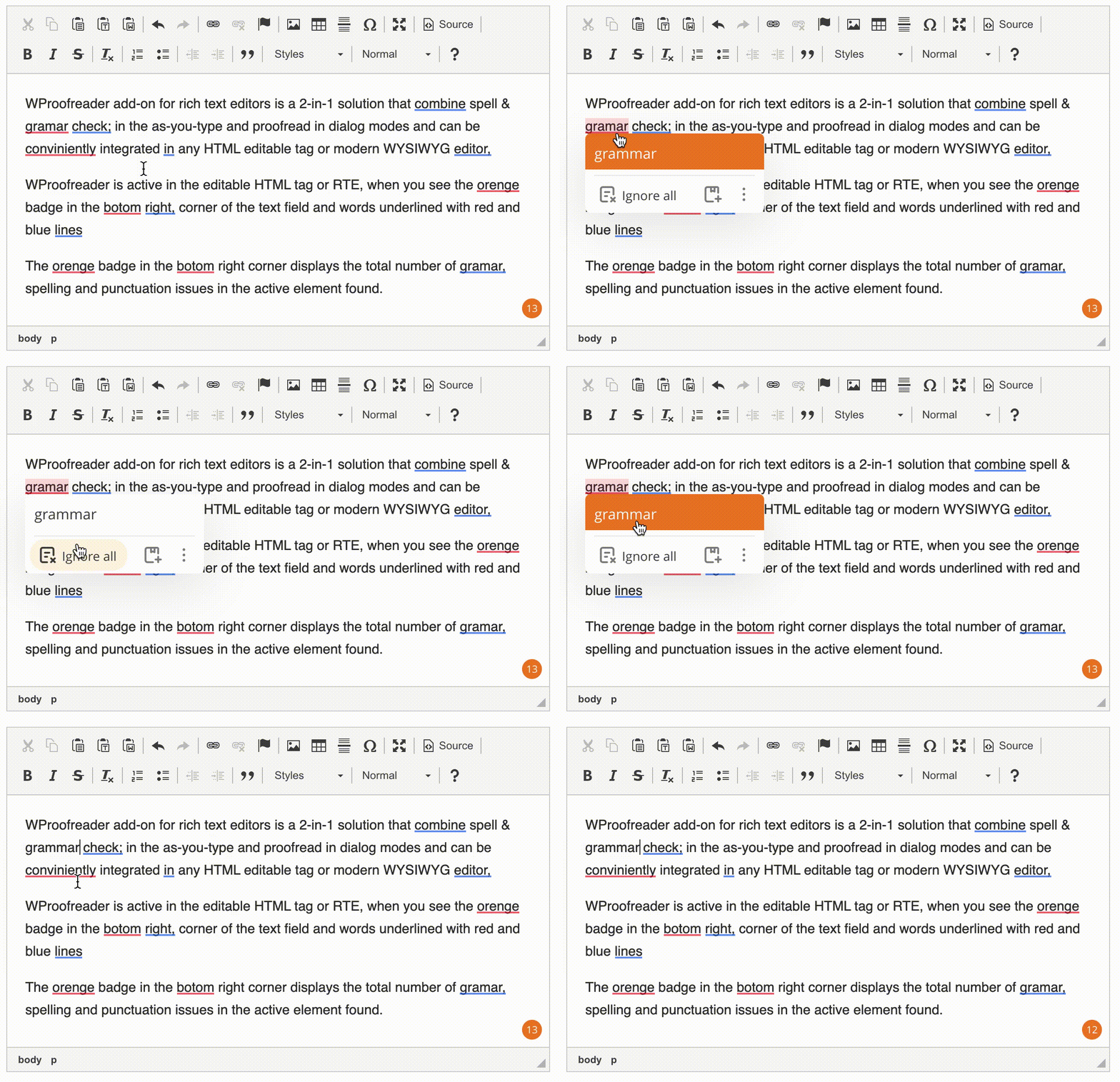
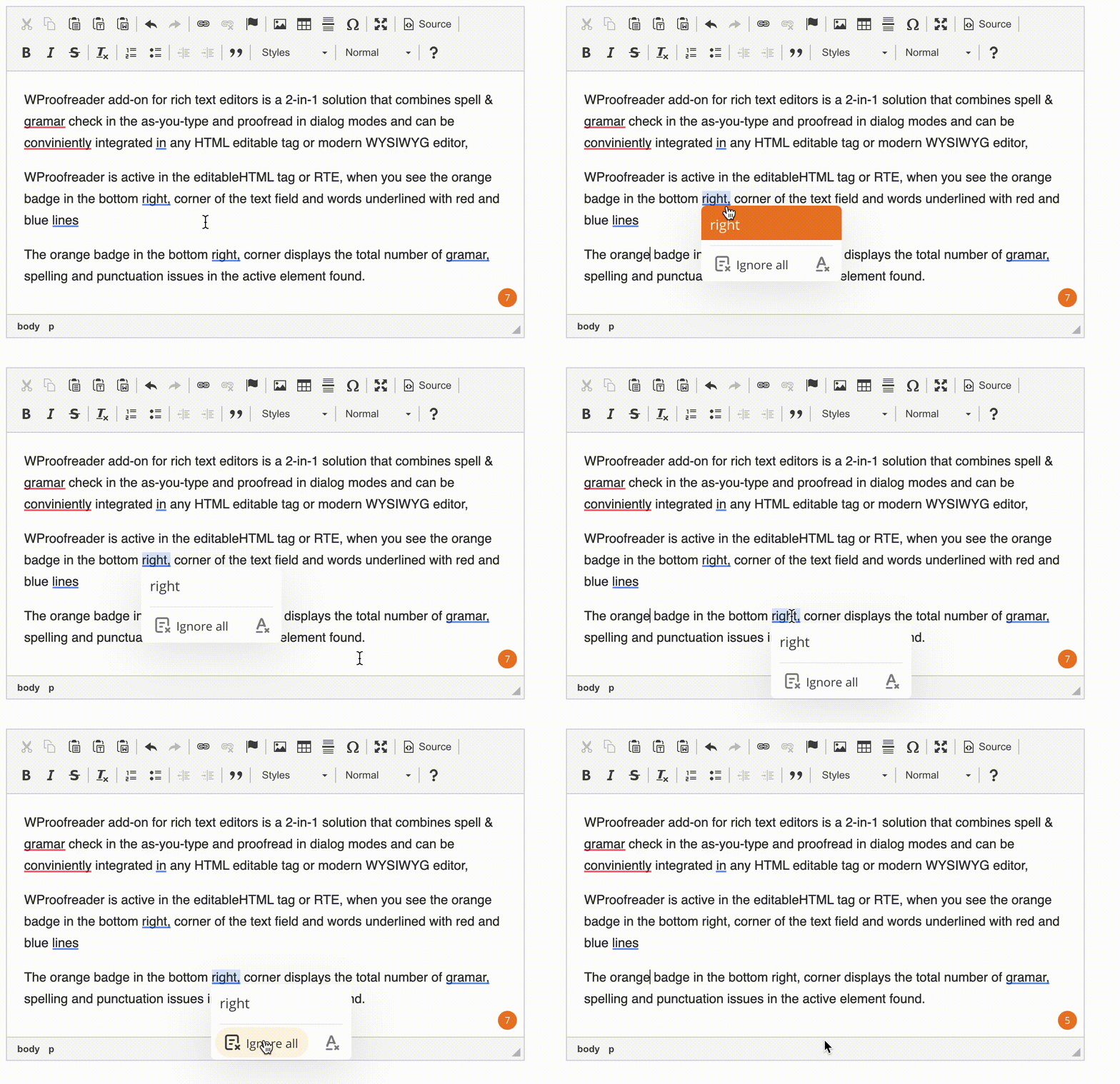
* *Ignore all.* By enabling this option, users allow WProofreader to ignore all entries of a spelling issue for a certain word/phrase in the active text fragment during the current browser session.
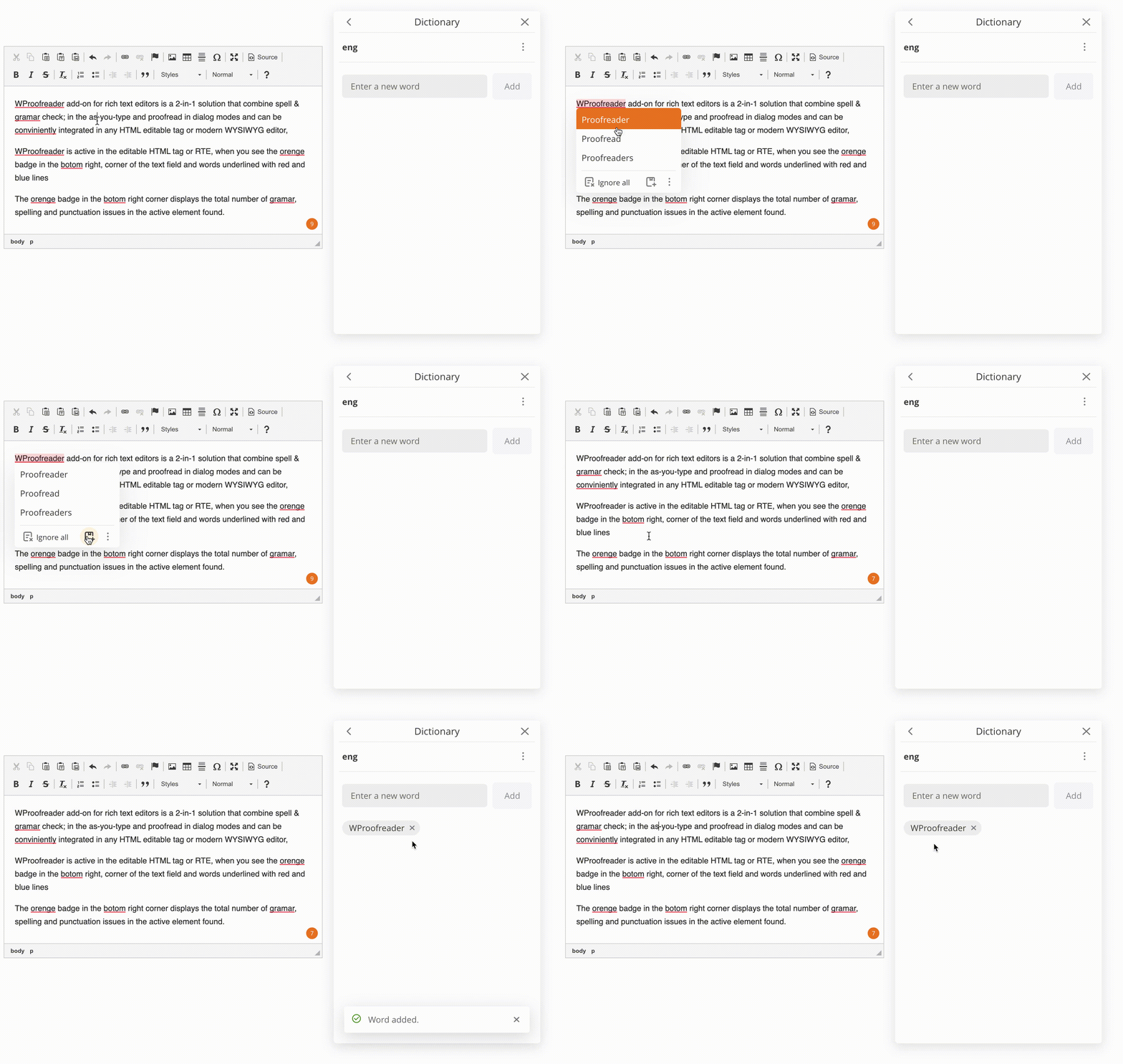
* *Add word.* Available only for spelling issues. Users can add a word to a dictionary, so WProofreader will no longer consider it as a misspelled one.
### **3. Reporting suggestions in the as-you-type mode**
Users can report incorrect or irrelevant suggestions in the suggestion pop-up. The navigation will differ depending on the suggestion type. All reported cases are reviewed by the linguistic team and corrected if they are confirmed to be incorrect. Reports for languages with higher customer usage are reviewed once a month, while reports for languages with lower customer usage may be reviewed less frequently.
* *Report incorrect* for spelling suggestions. Users can navigate to the suggestion pop-up, click the three dots (**More options**), and select **Report incorrect**. After that, the issue is reported, and the word is no longer underlined as a misspelled one during the current browser session. Once the browser tab or browser is closed, the word is underlined again. However, the reported issue has already been submitted and will be reviewed.
{% embed url="" %}
* *Report incorrect* for grammar and style suggestion. Users need to navigate through a suggestion pop-up and click on the flag sign **Report incorrect** in the bottom-right corner. After that, the issue is reported, and the word/phrase is no longer underlined as a mistake during the current browser session. Once the browser tab or browser is closed, the word is underlined again. However, the reported issue has already been submitted and will be reviewed.
{% embed url="" %}
### **4. Proofread in dialog mode**
Users can proofread the text in a separate dialog. The mode is enabled when the user hovers the badge and clicks on the **Proofread in dialog** icon in the Settings dialog.
Proofread in dialog mode is floating, you can drag and drop it to any place on the page, and it duplicates the options of the as-you-type mode. For spelling issues, there are suggestions the user can accept, ignore or add to flagged word to the personal dictionary. For grammar issues, there are suggestions the user can accept or ignore.
When the user enables **Ignore all** option, the total number of issues found and shown in the badge reduces.
Users can navigate with a mouse cursor and keyboard shortcuts through the suggestions in Proofread in dialog mode.
### **5. Tweaking settings**
You can modify WProofreader settings (spelling ignore options, languages, general) and manage personal dictionaries in the Settings dialog. There are two ways to access it:
* navigate to **Settings** in the WProofreader badge in the bottom right corner;
* open Proofread in dialog mode and click the burger button in the top left corner to open WProofreader settings.
### 6. Spelling ignore options
Users can:
* ignore all-caps words (for example, “WSC”);
* ignore domain names (for example, “support@[webspellchecker.net](http://webspellchecker.net)”);
* ignore words with mixed cases (for example, “WebSpellChecker”);
* ignore words with numbers (for example, “2nd”).
Note that enabled/disabled options are remembered and kept in the browser's local storage until it’s cleaned (unless the developer configured not to store user-selected options in the browser storage). Valid only for the current proofreading session. Once the local storage is cleaned, all options are reset to default ones.
### 7. Languages
WProofreader provides spell and grammar checking for [80+ languages](/features/supported-languages.md). The number of languages depends on the license configuration. The default language list can be [extended](broken://pages/5dWbZbJhERL3JFFONXPf) with other languages by the admin or license manager if required.
Also, there is the **language autodetect** feature enabled that allows users to proofread mixed texts. It’s set as a default language option unless another language is predefined by a developer.
WProofreader auto-detector automatically identifies the language of the text and checks spelling, grammar, and punctuation according to its rules. It's important to note that for its proper work, users need to type at least two-three correct words.
### **8. Creating user-level custom dictionaries**
Users can create dictionaries in WProofreader settings.
User custom dictionaries are individual vocabularies of words that are not recognized by WProofreader. All the words added to a dictionary stop be considered as misspellings and may be included in the suggestions list.
Click **Go to Dictionary** in the Settings dialog, enter a dictionary name and click **Create.**
To connect an existing dictionary with a list of previously added words, enter a dictionary name and click **Connect.**
Actions users can take with dictionaries:
* *Rename.* Users can change a dictionary name. Go to dictionary settings, select **Rename**. Enter a new name and click **Rename**. To keep the existing name, click **Cancel**.
* *Add a word.* Users can add new words to dictionaries from the suggestion pop-up, Proofread in dialog mode and the Settings dialog.
* To add a new word from the Settings dialog, enter a new word in the text field and click **Add**.
* To add a new word from the suggestions pop-up, hover on a marked word and click **Add word.**
* To add a new word from Proofread in dialog mode, click **Add word**.
* *Disconnect.* Users can disconnect an existing dictionary by clicking **Disconnect** in dictionary settings.
* *Delete.* Users can delete a dictionary with all the words by clicking **Delete**. All words from the selected dictionary will be deleted permanently.
Note, user dictionaries are generic and words in different languages will be added to one dictionary.
By default, all the words added to a dictionary are stored in the browser local storage on the user laptop.
When a user creates a new dictionary, all the new words and the words from a browser local storage are added to this dictionary and stored on the remote server.
If the dictionary is created, users can access the contents of their dictionary from different browsers, machines or devices when working with WProofreader.
In case a user doesn’t have a dictionary and all the words are stored, for instance, in Chrome local storage, he/she can access their words only in Chrome browser.
* **About**
WProofreader version and copyright info are presented in the **About** tab. You may find it useful when providing information about your system to our support team.