> For the complete documentation index, see [llms.txt](https://docs.wproofreader.com/llms.txt). Markdown versions of documentation pages are available by appending `.md` to page URLs; this page is available as [Markdown](https://docs.wproofreader.com/admin-panel/signing-in.md).
# Signing in
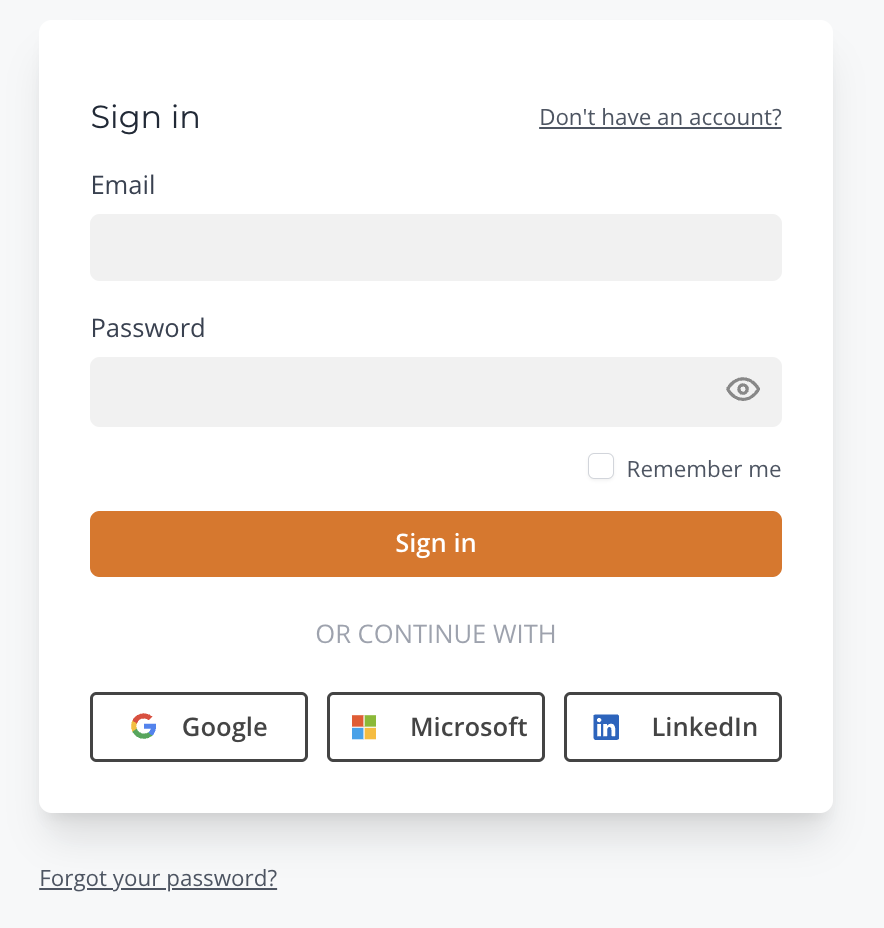
You can sign in to the admin panel using your email and password, or through one of the supported OAuth providers: Google, Microsoft, or LinkedIn.
1. Go to the [sign-in](https://app.wproofreader.com/signin) page.
2. Enter your email and password, then click **Sign in**. Alternatively, select one of the OAuth options below the sign-in form.
If you don't have an account yet, click **Don't have an account?** to create one. By default, new accounts are created with access to WProofreader, the browser extension. If you need a different product, you can subscribe to one from the **Products** page in the admin panel or from the [WProofreader SDK pricing page](https://wproofreader.com/sdk).
### Resetting your password
If you've forgotten your password, you can reset it from the sign-in page.
1. On the [sign-in page](https://app.wproofreader.com/signin), click **Forgot your password?**
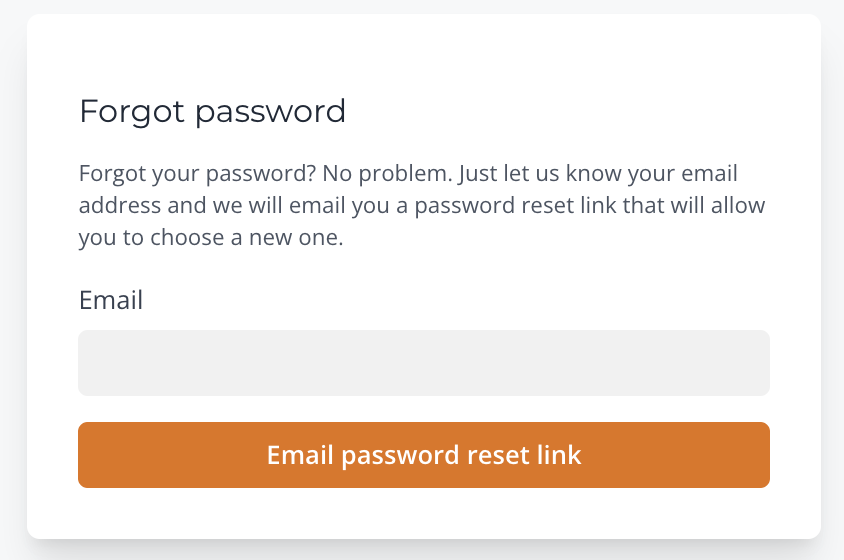
2. Enter the email address associated with your account and click **Email password reset link**.
3. Check your inbox for an email with the subject "Reset Password Notification." Click **Reset Password** in the email. The link expires after 60 minutes.
4. Enter your new password in the **Password** field and repeat it in the **Confirm password** field. Click **Reset Password**.
5. You'll be redirected to the sign-in page. Sign in with your new password.
{% hint style="info" %}
**Password requirements:** at least 8 characters, including at least one uppercase and one lowercase letter. A strength indicator below the password field shows how strong your password is.
{% endhint %}