> For the complete documentation index, see [llms.txt](https://docs.wproofreader.com/llms.txt). Markdown versions of documentation pages are available by appending `.md` to page URLs; this page is available as [Markdown](https://docs.wproofreader.com/admin-panel/account-settings.md).
# Account settings
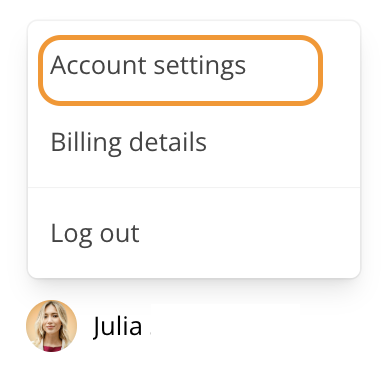
To access your account settings, click your user icon at the bottom left of the sidebar and select [Account settings](https://app.wproofreader.com/user/profile).
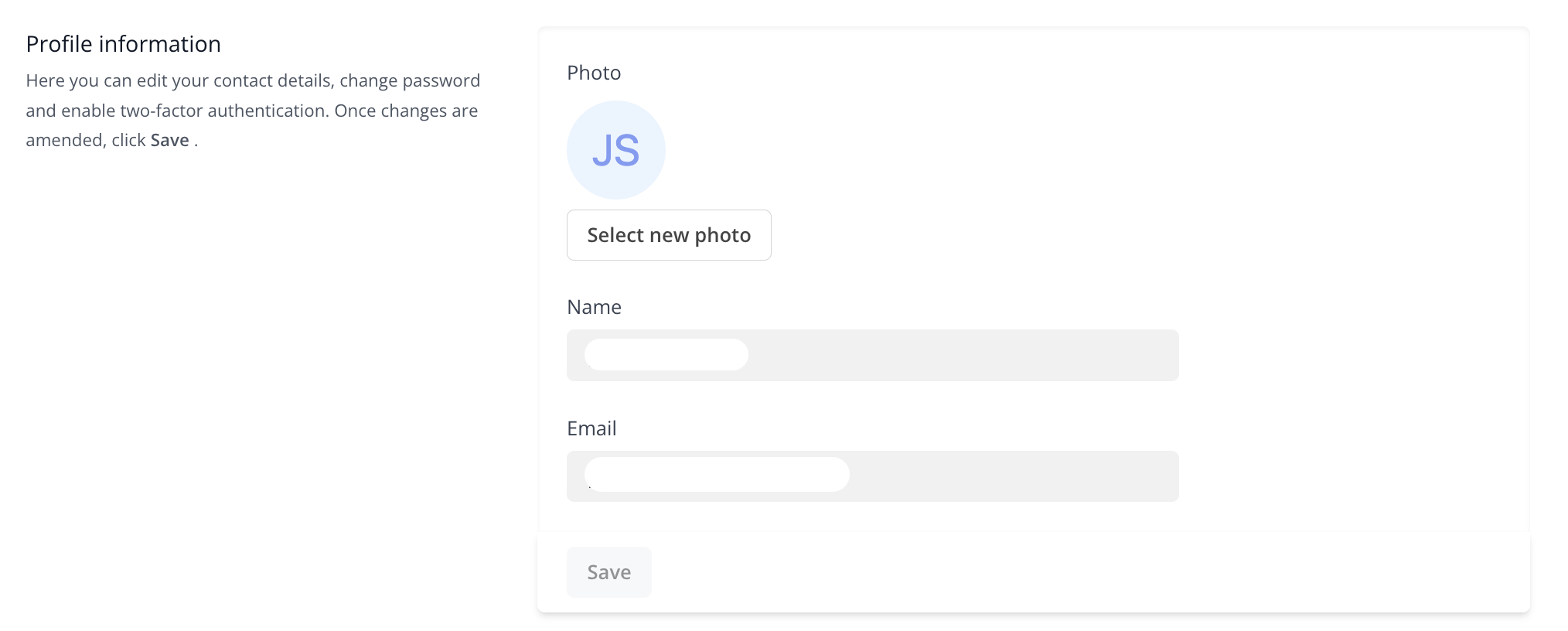
### Profile information
You can update your name, email address, and photo. Make your changes and click **Save**.
If you change your email address, you'll need to verify the new one. A verification email will be sent to the new address. If you don't receive it, click **Click here to resend the verification email**.
Changing your profile email doesn't update your billing email. To update the billing email, go to the [Billing details](https://app.wproofreader.com/billing) page and edit the **Billing email** field in the Billing address section.
### Changing your password
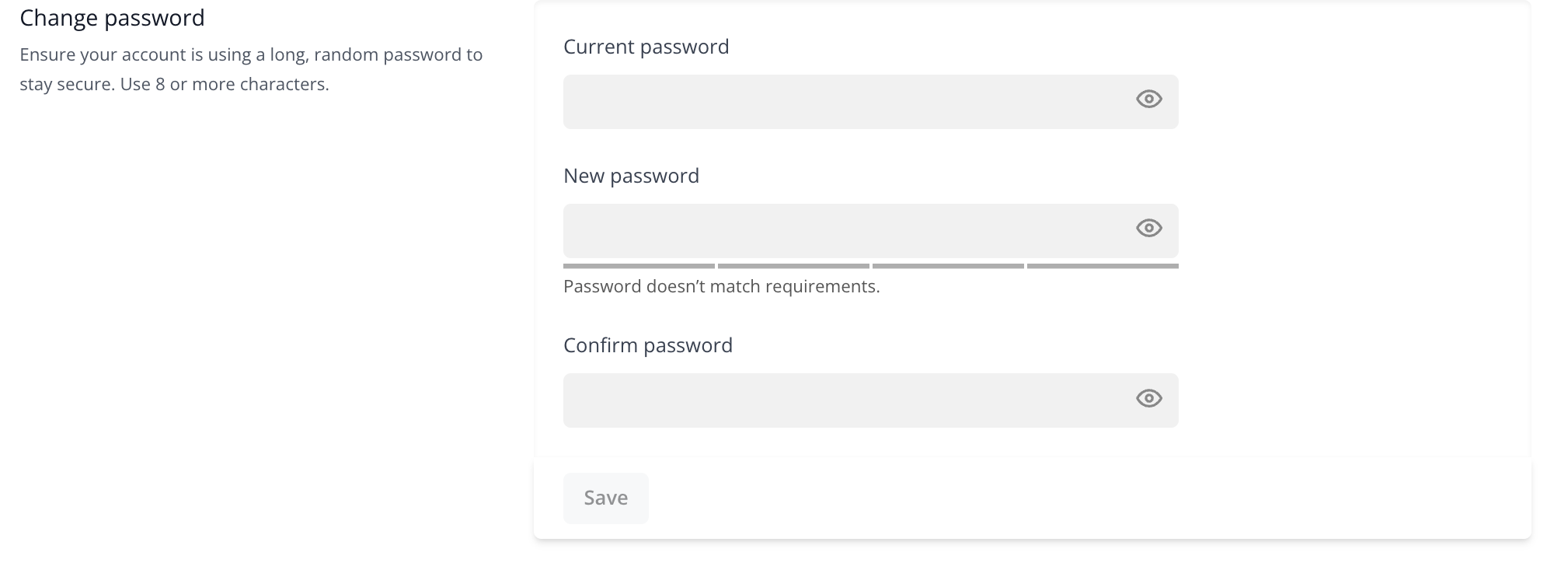
1. Go to the **Change password** section on the Account settings page.
2. Enter your current password in the **Current password** field.
3. Enter your new password in the **New password** field and repeat it in the **Confirm password** field.
4. Click **Save**.
{% hint style="info" %}
The password must be at least 8 characters and include at least one uppercase and one lowercase letter. A strength indicator below the field shows the password strength from very weak to very strong.
{% endhint %}
### Browser sessions
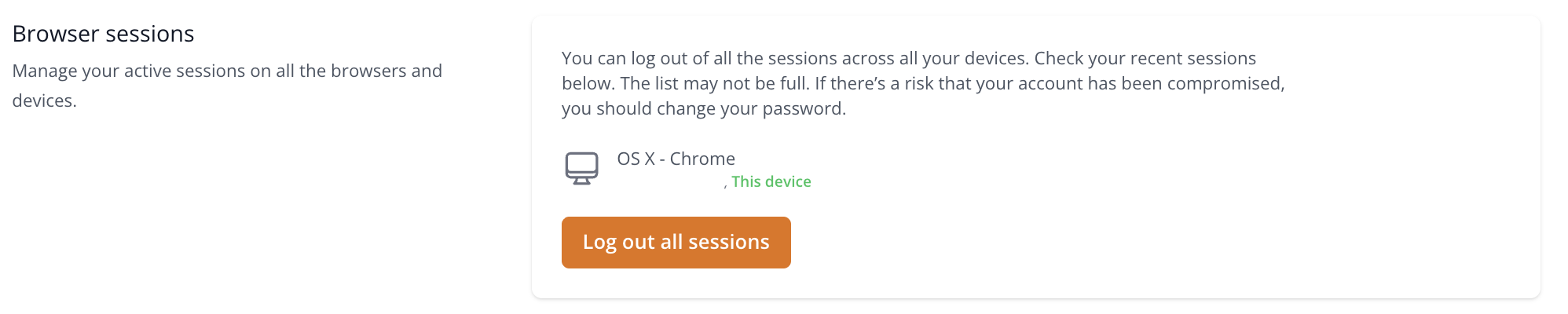
The **Browser sessions** section shows your active sessions across all browsers and devices. You can log out of all sessions at once if needed.