> For the complete documentation index, see [llms.txt](https://docs.wproofreader.com/llms.txt). Markdown versions of documentation pages are available by appending `.md` to page URLs; this page is available as [Markdown](https://docs.wproofreader.com/features/text-autocomplete.md).
# Text autocomplete
### Overview
**Text autocomplete suggestions** was rolled out as a part of the WebSpellChecker[ v5.19.0 release](https://webspellchecker.com/release-notes/v5-19-0/). The feature automatically completes the user’s thought by suggesting the next word or a short phrase based on the context.
The functionality is implemented and added to WProofreader-based products (on-premises and cloud versions) in the **turned OFF state**. In the [WProofreader browser extension](https://wproofreader.com/), the feature is enabled by default.
Autocomplete suggestions while typing are available only for English dialects (en\_AU, en\_CA, en\_GB, en\_NZ, en\_US, en\_ZA) for now.
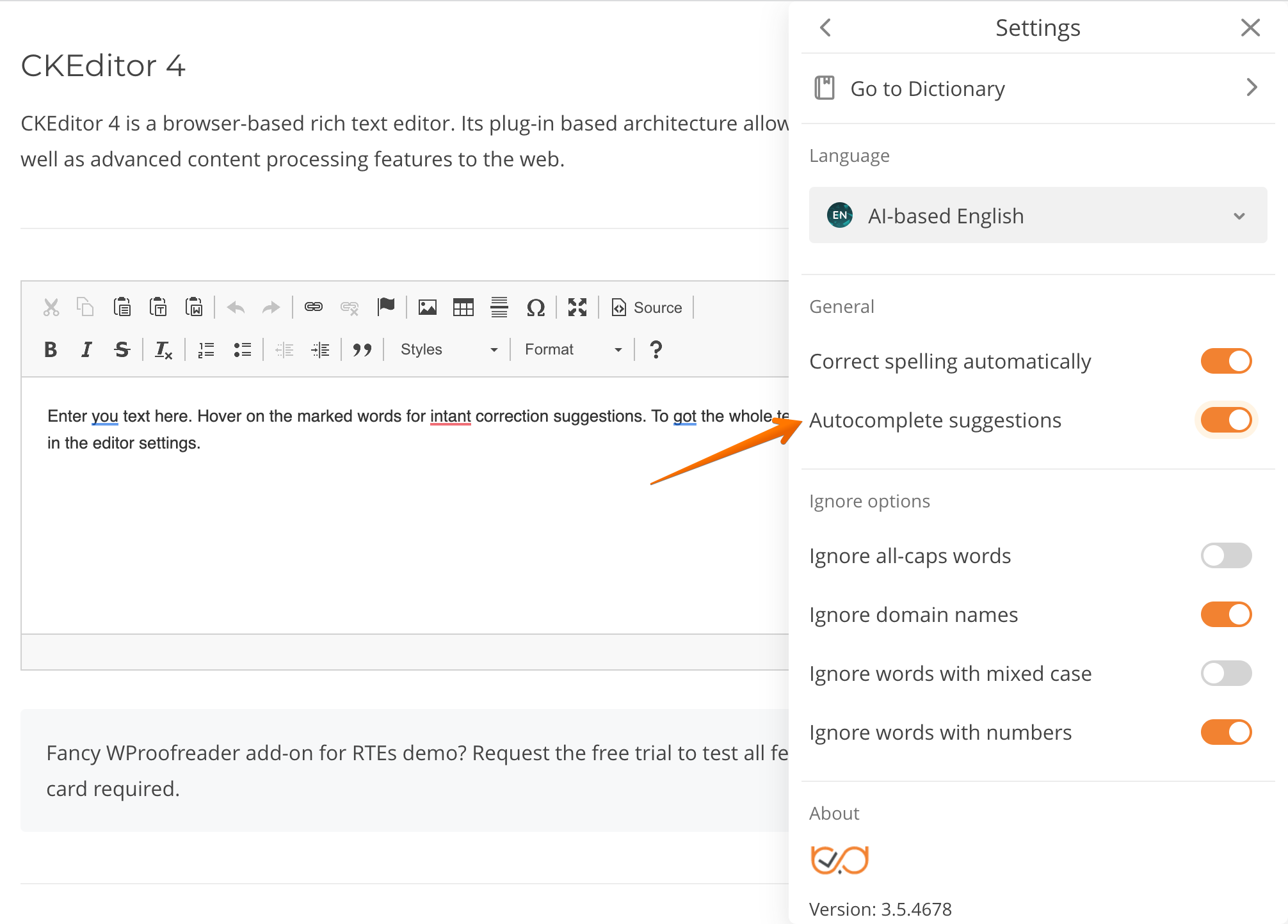
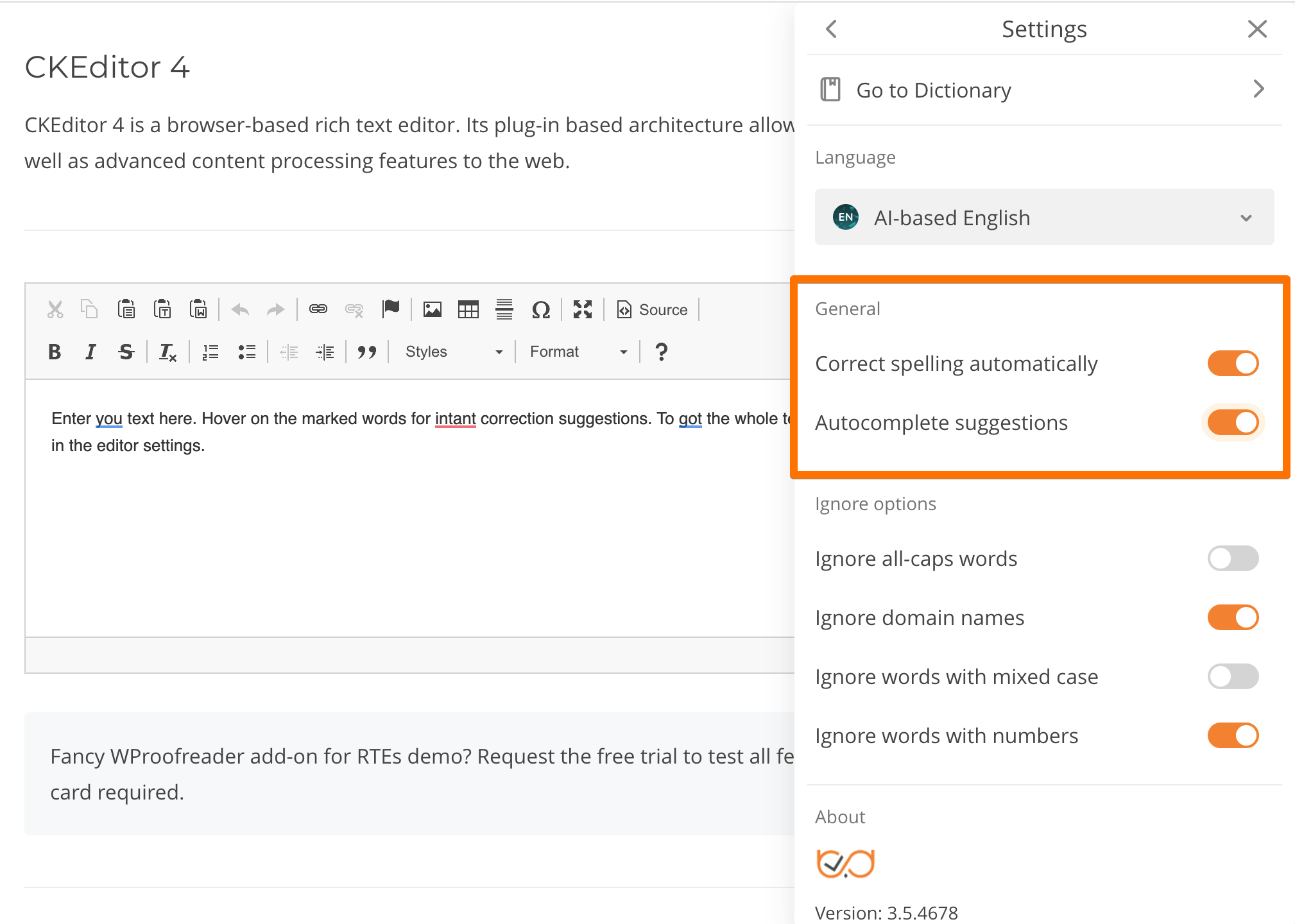
Developers can update the configuration and turn ON the autocomplete by default for all users. Also, there is a toggle setting on the UI allowing end-users to enable or disable text prediction.
### Autocomplete mechanism
Autocomplete is based on the GPT2 (small) model pre-trained on a very large corpus of English data.
The autocomplete suggests the next word or a short phrase based on the context. For example, if the user writes “thank”, the autocomplete suggests “you”. Autocomplete suggestions are **highlighted in gray**. To accept the suggestion, the user clicks the right arrow key **→** or **Tab**. To ignore/refuse the suggestion, the user should continue writing. To “undo” the autocomplete suggestion, the user should use the native revert mechanism of the browser or editor (for instance, click Ctrl+Z).
The functionality is disabled for **input** fields and **tables** due to the lack of space to show autocomplete suggestions. The feature works in **textareas** if the cursor is at the end of the text.
The user is typing a space, and after **0ms**, the request for the autocomplete command is sent. If the text is smaller or equals 200 characters, then the request includes the whole text. If the text is larger than 200 characters, then the autocomplete request includes only the last 200 characters. If the text is too large, it will be limited to 64 tokens on the server/network side.
#### Configuration
Admins can enable autocomplete by adding **autocomplete: true**, option to WEBSPELLCHECKER\_CONFIG. End users will still have an option to disable autocomplete suggestions from the UI of the Settings dialog.
```javascript
```
Admins can hide the autocomplete section from the settings, so users can’t enable or disable this feature by removing the '**general'** value from the **settingsSections** option. Please note that in this case the option to enable/disable **Spelling autocorrect** won’t be available either.
```javascript
```
This option and all other options for WProofreader are available in the [WProofreader API options](https://webspellchecker.com/docs/api/wscbundle/Options.html).
### FAQ
#### Could you please explain in a bit more detail how the autocomplete is designed to work (e.g., any thresholds, limitations, or expected patterns of behavior)?
The autocomplete feature operates based on a probability model where every suggestion is assigned a confidence score. If this score falls below a specific configured threshold, the system intentionally returns an empty result. This mechanism is designed to prioritize precision, ensuring that we do not display low-confidence or potentially incorrect suggestions, which explains why the feature sometimes appears inactive even for seemingly common phrases.
The system relies on client-side logic to handle the speed of user interaction. We utilize debouncing to avoid sending requests for every single keystroke, waiting instead for a brief pause in typing. When a response is received, the frontend performs a validation check to ensure the first letter of the suggestion matches the user's current input. If the user is typing rapidly, they may have already entered a character that contradicts the pending suggestion by the time it arrives from the server; in these cases, the suggestion is discarded to prevent confusion.
#### Why are autocomplete suggestions sometimes different?
Regarding the inconsistency where identical inputs yield different results, this is likely due to backend inference nuances such as batching and padding. Depending on the size of the request batch and the padding applied to align inputs of different lengths, the model’s internal calculations can fluctuate slightly. These minute variations can cause the confidence score to shift just enough to rise above or fall below the threshold, resulting in the sporadic behavior observed during testing.