> For the complete documentation index, see [llms.txt](https://docs.wproofreader.com/llms.txt). Markdown versions of documentation pages are available by appending `.md` to page URLs; this page is available as [Markdown](https://docs.wproofreader.com/admin-panel/billing.md).
# Billing
You can manage payment methods, update your billing address, and view invoices from the [Billing details](https://app.wproofreader.com/billing) page. To access it, click your user icon at the bottom left of the sidebar and select **Billing details**.
### Payment methods
The **Payment details** section lists your saved cards. You can add new cards, set a default, or remove cards you no longer need.
{% hint style="info" %}
Supported card brands: Visa, Mastercard, American Express, Discover, Diners Club, JCB, and China UnionPay.
{% endhint %}
When paying an open invoice manually, additional payment methods are available depending on your region, including Apple Pay, Google Pay, Link, and bank redirects such as Bancontact, BLIK, EPS, and iDEAL.
For alternative payment options such as wire transfers, [contact the sales team](https://wproofreader.com/contact-us).
#### How payments are processed
Your card is charged automatically on the subscription renewal date. If the payment fails, the system retries the charge over the following days. You'll receive an email notification with an option to update your payment details. If the payment isn't resolved, your subscription status changes to Past due and an open invoice appears on your Billing details page.
#### Adding a card
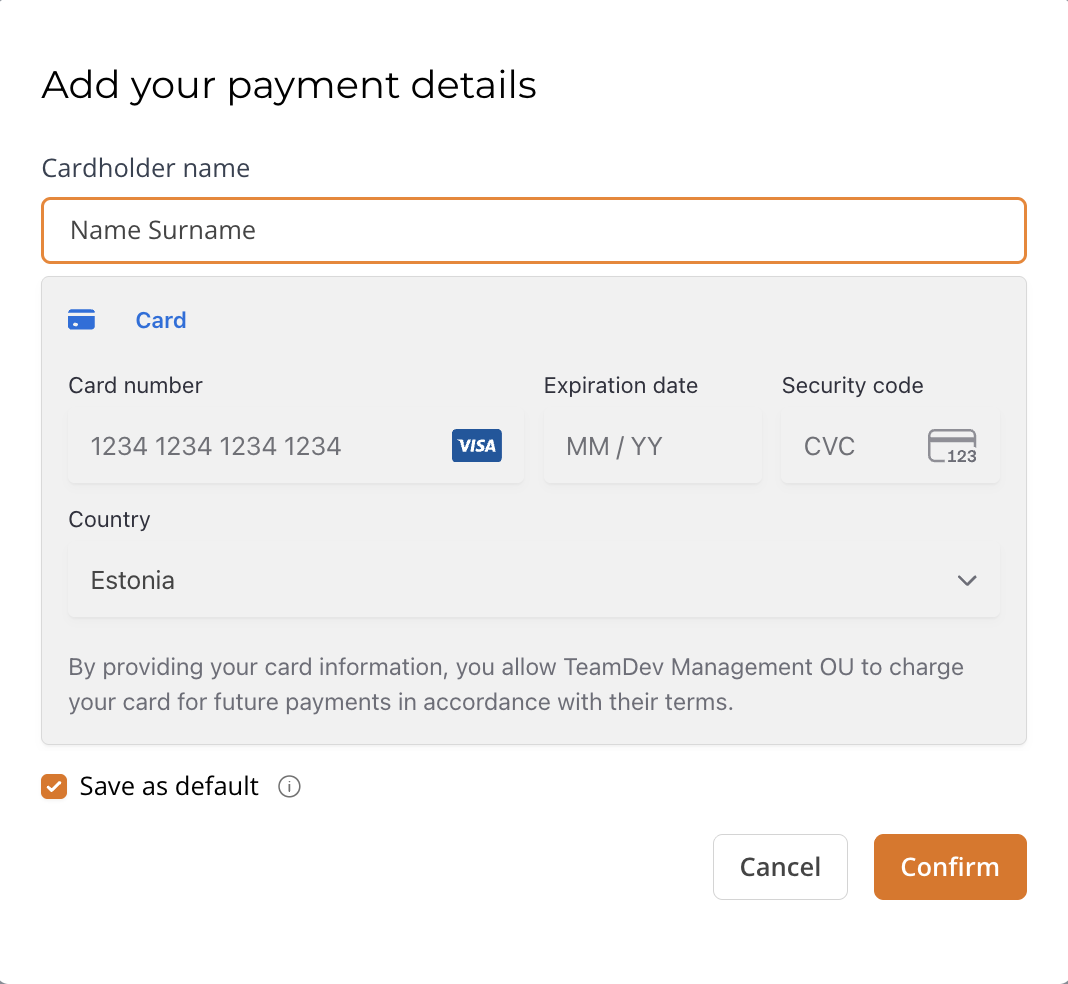
1. Click **Add a new card**.
2. Fill in the cardholder name, card number, expiration date, and security code.
3. Optionally, select **Save as default** if you want this card to be used for all your subscriptions.
4. Click **Confirm**.
#### Setting a default card
If you have more than one card, click the three-dot menu next to the card you want and select **Save as default card**. The default card is used automatically for subscription renewals.
#### Removing a card
Click the three-dot menu next to the card and select **Delete**. You can't delete a card that's currently tied to an active subscription. To remove it, first add a different card and set it as the default.
### Billing address
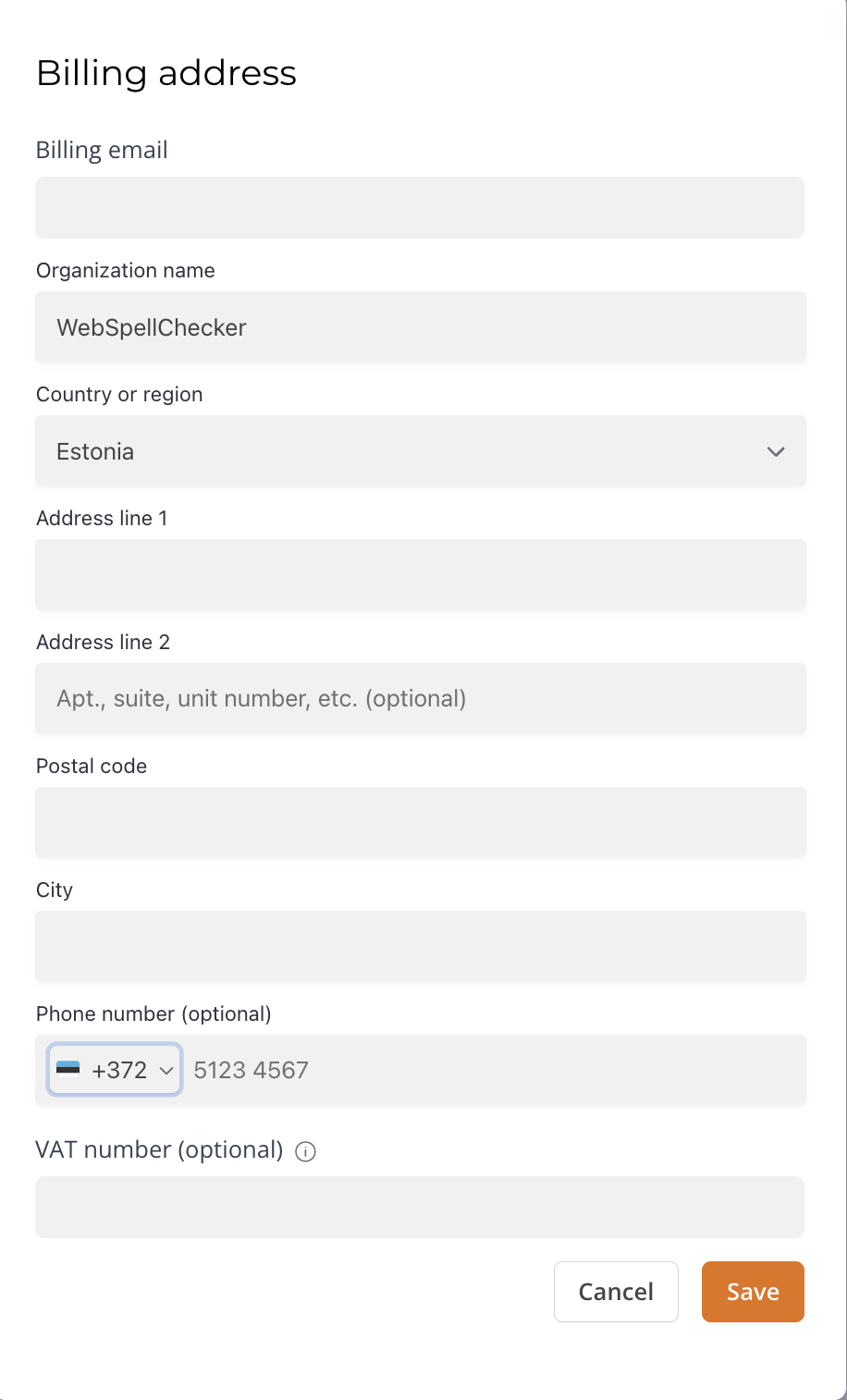
Your billing address appears on invoices. It's your responsibility to keep it up to date.
To update it, click **Update** in the **Billing address** section. Fill in or change the fields and click **Save**.
If your organization is registered in the EU, you can enter your VAT number in the **VAT number** field. If you don't provide a valid VAT number, VAT will be added to your invoices automatically.
Changing your profile email in Account settings doesn't update your billing email. If you need both to match, update the **Billing email** field here separately.
### Invoices
The **Invoices** section lists your invoices with their number, amount, date, status, and available actions.
Possible invoice statuses:
| Status | Meaning |
| ------ | ---------------------------------------------------------- |
| Open | Payment is due. Click **Pay now** to complete the payment. |
| Paid | Payment was processed successfully. |
| Void | The invoice was canceled and no payment is required. |
You can download a PDF of any invoice from this section.
On the renewal date, the system generates a new invoice automatically. If the automatic payment succeeds, the invoice moves to **Paid** status. If it fails, the invoice stays in Open status and you can pay it manually.