> For the complete documentation index, see [llms.txt](https://docs.wproofreader.com/llms.txt). Markdown versions of documentation pages are available by appending `.md` to page URLs; this page is available as [Markdown](https://docs.wproofreader.com/features/spelling-autocorrect.md).
# Spelling autocorrect
### Overview
Spelling autocorrect as you type functionality (beta) was released on August 13, 2020, as a part of the WebSpellChecker [v5.15.0](https://webspellchecker.com/release-notes/v5-15-0/) release. Autocorrect automatically makes or suggests corrections for common spelling mistakes while users are typing.
It is a new feature enabled for:
* WProofreader core (e.g. WProofreader add-on for RTEs, plugin for WordPress, plugin for CKEditor 5, browser extension);
* API.
The feature is available for all languages where spelling is supported (excluding Japanese and Chinese).
For the [25 most popular languages that are enabled by default](/features/supported-languages.md) for the on-premises version, autocorrect is based on the replaced\_data statistics that were extracted from our databaseDB to the \*.cvs files with word pairs that will be used initially for autocorrect. The same files are for the Cloud and Standalone versions. Autocorrect for other languages generates suggestions purely from spell-check dictionaries.
While the on-premises client can configure what languages should have autocorrect enabled using **AppServerX.xml**.
{% hint style="info" %}
There is a [known issue](https://github.com/WebSpellChecker/wproofreader-ckeditor5/issues/46) with how the autocorrect functionality works in the Firefox and CKEditor 5 bundle. It's limited to some cases where a misspelled word is followed by a comma or other punctuation symbol (while it is supposed to work with 'space'). Due to certain specifics of CKEditor 5, we are not able to fix that right away but it is in our plans.
{% endhint %}
### The autocorrect mechanism
The trigger action that starts autocorrection — the user types a word and presses the space key or comma.
The algorithm behind autocorrect relies on a similarity score ([Levenshtein distance](https://en.wikipedia.org/wiki/Levenshtein_distance)). If the condition is not met, we return an empty response → no autoreplace.
Also, there is an additional check for the languages that use the replaced\_data statistics file. The algorithm will check if the word for replacing is present in one of the available dictionaries: language dictionary, user, or company custom dictionary. If a word is not present in the dictionary, we will not use the word from the autocorrect file.
In the case of an autodetected language, autocorrect uses the last detected language as a language for autocorrect check.
The user can undo the correction using the **revert** option. For now, the revert isn't localized and is valid only for the current section.
Some clients may want to have their own lists for autocorrection. This option will be available for on-premises clients only. Cloud customers may report the most common corrections, and we will add them manually.
### How autocorrect works
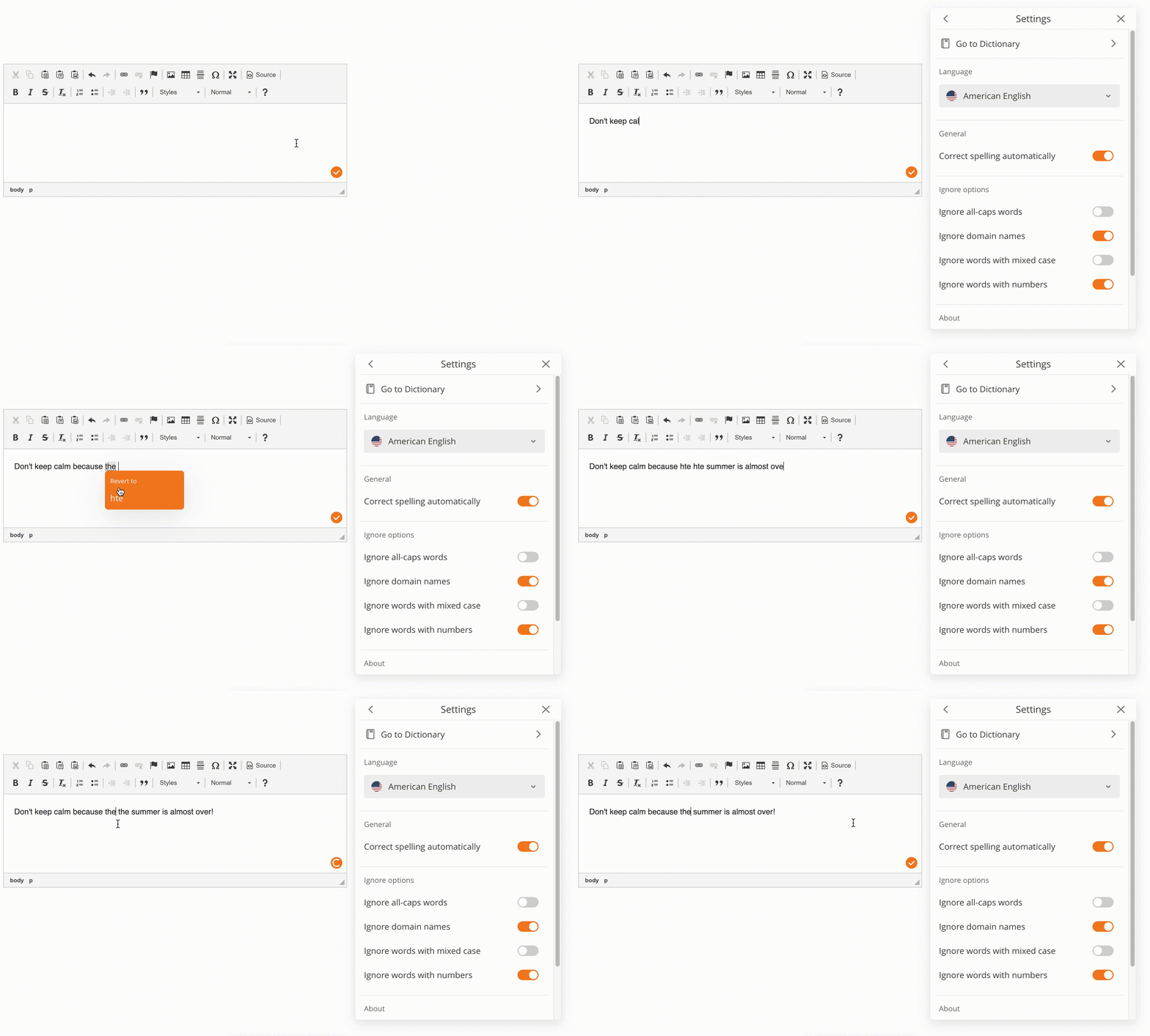
The user is typing text and Autocorrect automatically makes or suggests corrections for common spelling mistakes like *hte-the*, *havent-haven’t*, *isnt-isn’t*.
The autocorrected word will be underlined with a gray dotted line. End-users have an option to revert/undo the correction by hovering on it and selecting the original word.
Also, users can enable/disable Autocorrect in the Settings dialog of the product with the toggle “**Autocorrect**."
Check how it works in the video below or play with [demos here](https://demos.webspellchecker.com/).
### How to configure Autocorrect
Admins can disable autocorrect by default by adding the **autocorrect** option set to **false** to WEBSPELLCHECKER\_CONFIG. In this case, end-users still will have an option to enable autocorrect from the UI of the Settings dialog.
```javascript
```
This option, as well as all other options for WProofreader, are available in the [WProofreader API options](https://webspellchecker.com/docs/api/wscbundle/Options.html).
#### **5. Instructions for managing autocorrect word pairs for on-premises clients**
To manage the list of current word pairs for Autocorrect or add new pairs, please follow the steps below:
1\. [Stop](https://docs.wproofreader.com/features/pages/IA2KNQLXDh85TwDivL4y#mainappservercommands-stopappserverwindowslinux2.stopappserver) the WebSpellChecker AppServer.
2\. Navigate to the **WebSpellChecker\_Installation\_Path\AppServer\LanguageDictionaries\language\_shortcode** directory.
{% hint style="info" %}
Starting with WebSpellChecker version 5.29.2.0, the path to the autocorrect folders with the appropriate files was changed to the following: **WebSpellChecker\_Installation\_Path\AppServer\Resources.**
{% endhint %}
3\. Locate and open the "**language\_shortcode\_autocorrect.csv**" file.
4\. Make the desired changes to the file.
{% hint style="info" %}
There are specific criteria governing the word pairs eligible for Autocorrect. The initial word added should not exist in the dictionaries, enabling our proofreader to identify it as a misspelling. Conversely, the replacement word must be present in one of the dictionaries: the default language dictionary, user or company custom dictionary. Our Autocorrect mechanism strictly suggests valid words as corrections. Also, make sure that the following is true:
* Check that misspelling and correction are words (not phrases and etc.);
* Check that misspellings are lowercase (to exclude names, etc.) (For German we allow first capital letter only);
* Check that misspellings do not have numbers or dots;
* Check that size of the misspelled word >= 3;
* Check that desired suggestions do not have spaces.
{% endhint %}
5\. Save the modified file.
6\. [Restart](https://docs.wproofreader.com/features/pages/IA2KNQLXDh85TwDivL4y#mainappservercommands-startappserverwindowslinux1.startappserver) the WebSpellChecker AppServer to apply the changes.
By following these instructions, you will be able to effectively manage and update the Autocorrect word pairs in the designated file. If you encounter any issues or require further assistance, please don't hesitate to contact our support team at ****.
{% hint style="info" %}
The automated WebSpellChecker upgrade system will utilize the autocorrect wordlists of the most recently installed version, disregarding any manual changes made on your end. Consequently, to preserve your customized Autocorrect word pairs, it will be necessary to transfer them manually after the software upgrade. Therefore, we recommend carefully noting down your customizations before the upgrade and taking the necessary steps to reintegrate them afterward.
{% endhint %}