> For the complete documentation index, see [llms.txt](https://docs.wproofreader.com/llms.txt). Markdown versions of documentation pages are available by appending `.md` to page URLs; this page is available as [Markdown](https://docs.wproofreader.com/integrations/wordpress.md).
# WordPress
WProofreader is available as a dedicated plugin for WordPress. It works in the WordPress admin area and checks spelling, grammar, punctuation, and style in editable fields such as post and page editors.
For installation instructions and FAQs, see the [WProofreader plugin page on WordPress.org](https://wordpress.org/plugins/webspellchecker/).
For a quick walkthrough, watch the [user guide video](https://www.youtube.com/watch?v=mhrZN87jydA).
### Free vs Pro
The free version of the plugin is enabled by default when the plugin is installed. It comes with a daily usage limit and limited functionality.
The Pro version removes daily limits, unlocks grammar checking for supported languages, and adds features like text autocomplete, organization dictionaries, and a style guide builder. To learn more, refer to the [WProofreader for WordPress plans page](https://wproofreader.com/integration/wordpress#plans).
### Configuring the plugin
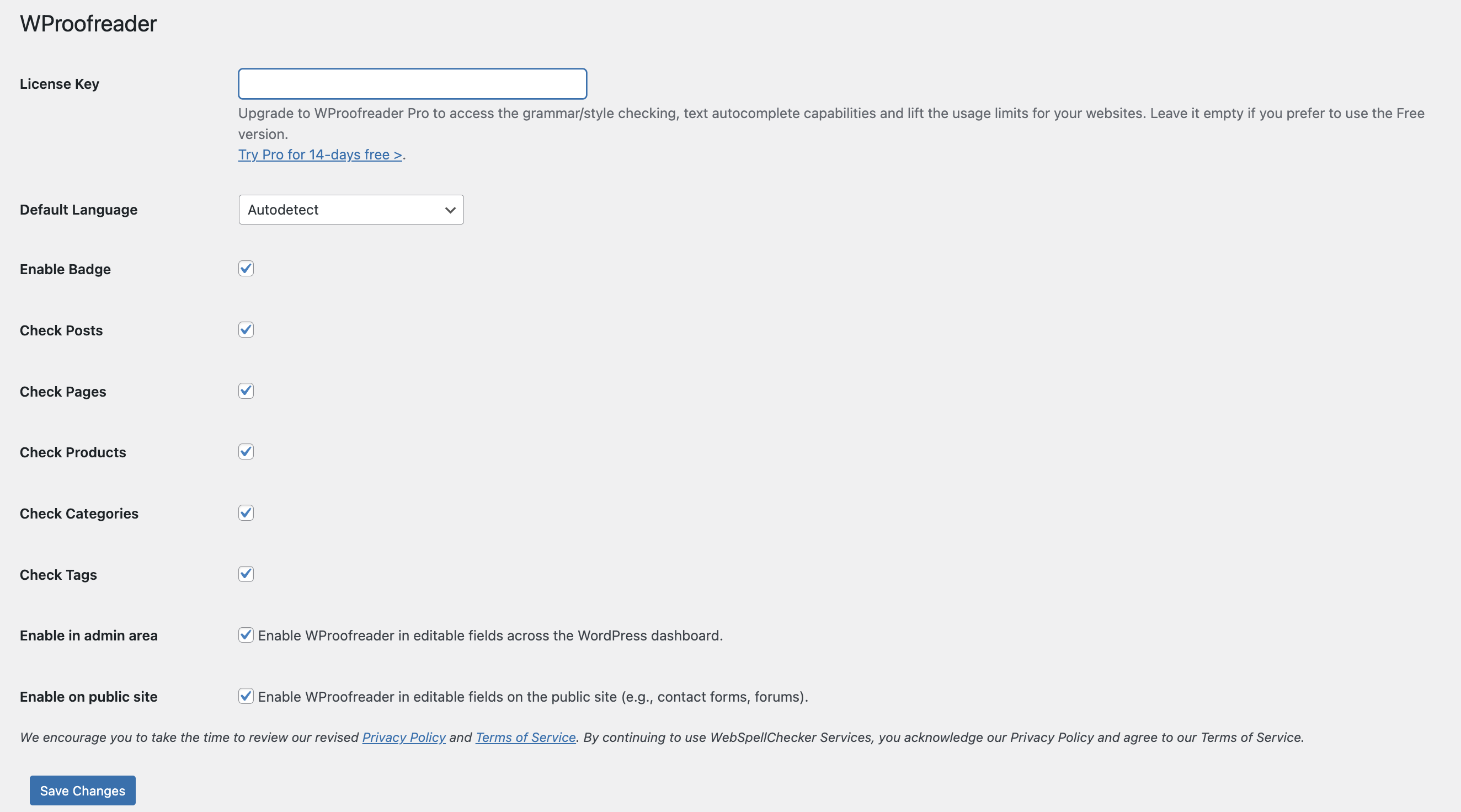
After installing the plugin, go to the WordPress Administration console and select **Settings** > **WProofreader**.
#### Upgrading to Pro
To activate the Pro version, paste your license key into the **License Key** field and click **Save Changes**. You can get a license key by starting a free trial on the [WProofreader plans page](https://wproofreader.com/integration/wordpress#plans) or by contacting the sales team.
#### Selecting the default language
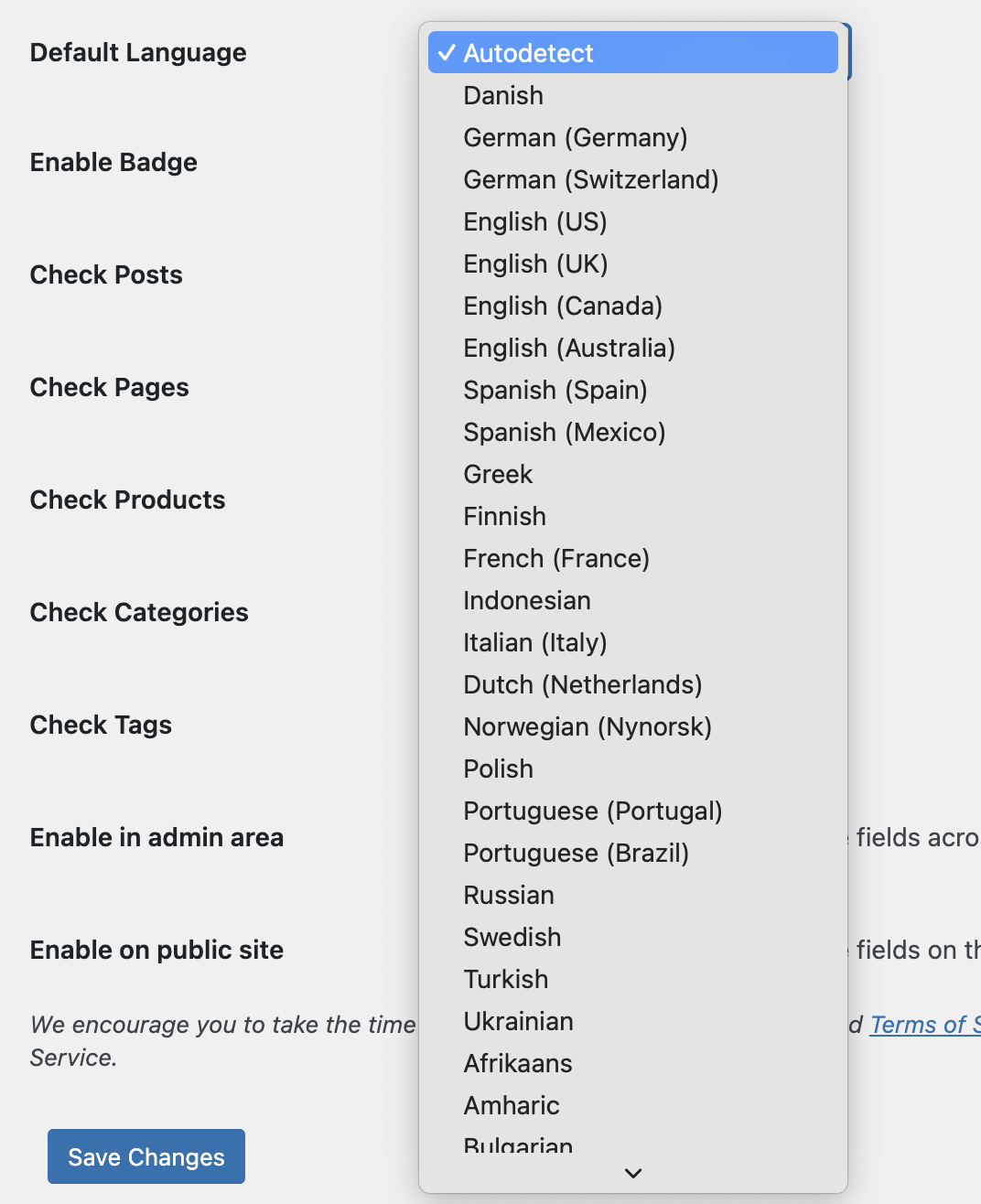
Select the default language for spell check from the **Default Language** dropdown and click **Save Changes**. The dropdown is set to **Autodetect** by default in the Pro version.
#### Enabling or disabling proofreading for content types
You can control which WordPress content types the plugin checks. Select or clear the checkboxes for the content types you want to enable or disable, then click **Save Changes**: Check Posts, Check Pages, Check Products, Check Categories, and Check Tags.
#### Enabling WProofreader in the admin area
Select the **Enable in admin area** checkbox to run WProofreader across all editable fields in the WordPress admin panel. Click **Save Changes** to apply.
#### Enabling WProofreader on the public site
Select the **Enable on public site** checkbox to run WProofreader in editable fields on the public site, such as contact forms and forums. Click **Save Changes** to apply.
### Supported content elements
The plugin proofreads content in editing mode for the following elements: pages, posts, tag descriptions, category descriptions, WooCommerce and WP eCommerce product descriptions, any custom post types, and Meta description fields of the Yoast SEO plugin. With the **Enable in admin area** option turned on, all editable fields across the WordPress admin are also covered.
### FAQ
#### Does the plugin check the entire website at once?
No. The plugin only checks content that is in editing mode. It doesn't scan the full website at once.
#### Is Elementor supported?
No, the plugin doesn't currently support the Elementor editor.
#### Are Disqus comment fields supported with the public site option?
No, Disqus fields aren't supported when using the **Enable on public site** option.