> For the complete documentation index, see [llms.txt](https://docs.wproofreader.com/llms.txt). Markdown versions of documentation pages are available by appending `.md` to page URLs; this page is available as [Markdown](https://docs.wproofreader.com/admin-panel/subscription-and-usage.md).
# Subscription and usage
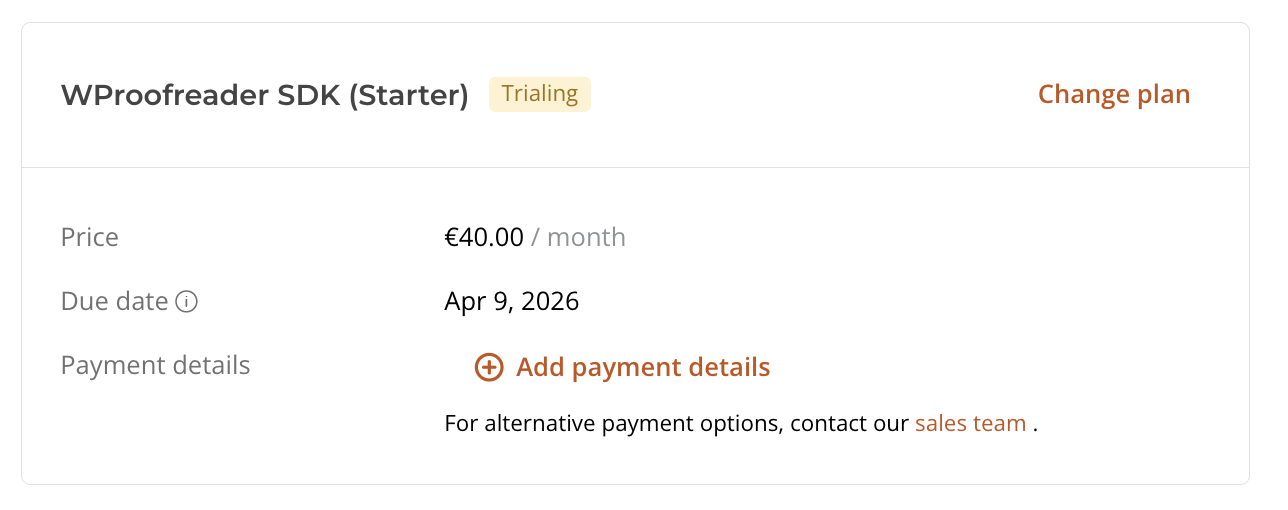
The [Subscription](https://app.wproofreader.com/subscription) page shows the key details of your plan, including the plan name, status, renewal date, and price.
### Viewing your subscription
The top of the page displays your current plan, its status (for example, Trialing, Active, or Past due), and the next renewal date.
### Changing your plan
To switch to a different plan, click **Change plan** next to the plan name and follow the prompts to select a new plan. Only team owners and admins can change the plan.
Plan changes take effect at the start of your next billing cycle. If you need the change applied immediately, contact the sales team.
If your usage regularly exceeds your plan's word quota, contact the sales team to discuss overage billing options.
### Usage statistics
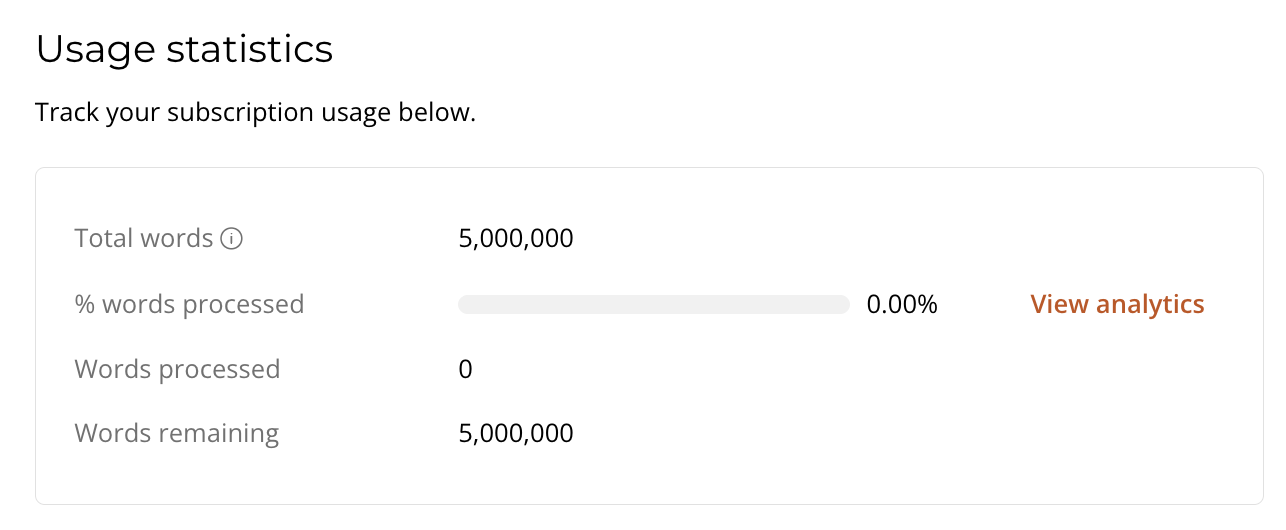
The **Usage statistics** section shows how many words your subscription includes, how many have been processed, the percentage used, and how many remain.
For more detailed analytics, click **View analytics** to go to the [Analytics](https://app.wproofreader.com/analytics) page.
For information about word limits and what counts toward your quota, see [Cloud service usage limits](/plans-and-billing/cloud-service-usage-limits.md).
### Canceling your subscription
To cancel, scroll to the bottom of the Subscription page and click **Cancel subscription**. Only the team owner can cancel the subscription.
When you cancel, your subscription remains active until the end of the current billing cycle. You can continue using the service until that date. Once the billing cycle ends, access is deactivated and the subscription can't be reactivated.
If you need the cancellation applied immediately rather than at the end of the billing cycle, contact the support team.
{% hint style="warning" %}
Canceling a subscription doesn't delete your account. Your account remains active and you can still sign in to the admin panel. If you want to delete your account, you need to cancel all active subscriptions first.
{% endhint %}