> For the complete documentation index, see [llms.txt](https://docs.wproofreader.com/llms.txt). Markdown versions of documentation pages are available by appending `.md` to page URLs; this page is available as [Markdown](https://docs.wproofreader.com/admin-panel/account-security.md).
# Account security
### Two-factor authentication
Two-factor authentication (2FA) adds an extra layer of security to your account. The admin panel supports authenticator apps as the 2FA method.
#### Enabling 2FA
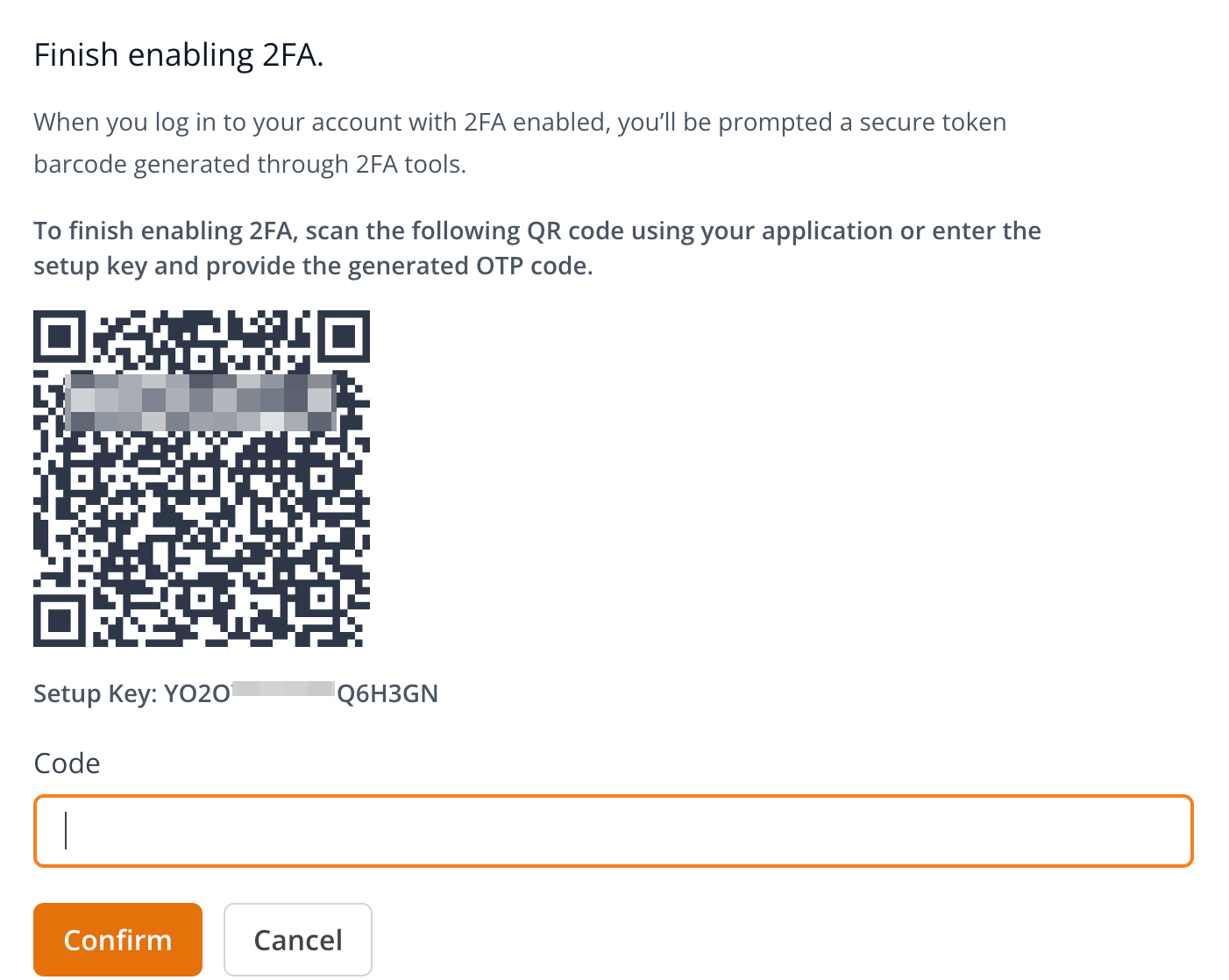
1. On the Account settings page, find the **Two-factor authentication** section and click **Enable**.
2. Scan the QR code with your authenticator app. If you can't scan it, enter the setup key manually.
3. Enter the one-time password (OTP) generated by your authenticator app in the **Code** field and click **Confirm**.
4. Save the recovery codes in a password manager. These codes let you recover access to your account if you lose your 2FA device.
You can view or regenerate your recovery codes at any time from this section. There's currently no option to download the codes as a file, so copy them manually.
#### Disabling 2FA
To disable 2FA, click **Disable** in the Two-factor authentication section. You'll need to enter your password to confirm.
### Connected accounts
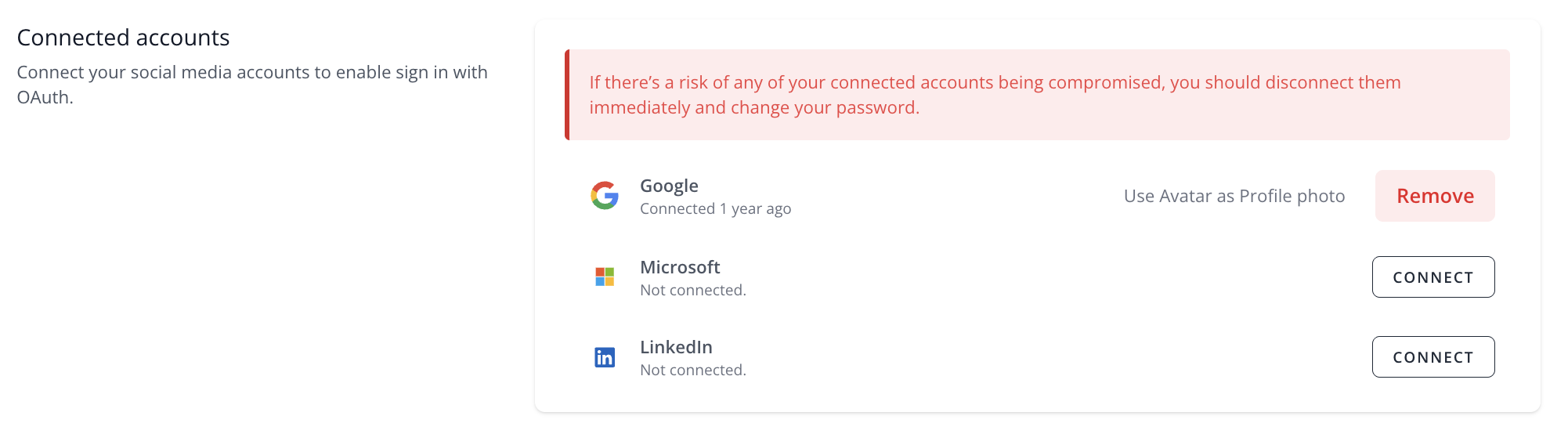
You can connect your Google, Microsoft, or LinkedIn account to enable OAuth sign-in. On the Account settings page, find the **Connected accounts** section, choose a provider, and click **Connect**. Follow the prompts to link your account.
To disconnect an account, click the disconnect option next to the provider. If you suspect any of your connected accounts have been compromised, disconnect them immediately and change your password.