> For the complete documentation index, see [llms.txt](https://docs.wproofreader.com/llms.txt). Markdown versions of documentation pages are available by appending `.md` to page URLs; this page is available as [Markdown](https://docs.wproofreader.com/v6.18.1/features/custom-dictionary/organization-dictionary-cloud-admin-panel.md).
# Organization dictionary: Cloud admin panel
This guide covers how to manage organization dictionaries through the admin panel at [app.wproofreader.com](https://app.wproofreader.com). For an overview of organization dictionaries, key concepts, integration configuration, and limitations, refer to the [Organization dictionary →](/v6.18.1/features/custom-dictionary/organization-dictionary.md).
{% hint style="info" %}
For the [self-hosted admin panel](/v6.18.1/admin-panel/self-hosted.md), use your installation's address.
{% endhint %}
The owner and administrators can create and edit dictionaries. Developers can view them.
### Accessing the admin panel
1. Sign in to your admin panel. For Cloud, use [app.wproofreader.com](https://app.wproofreader.com).
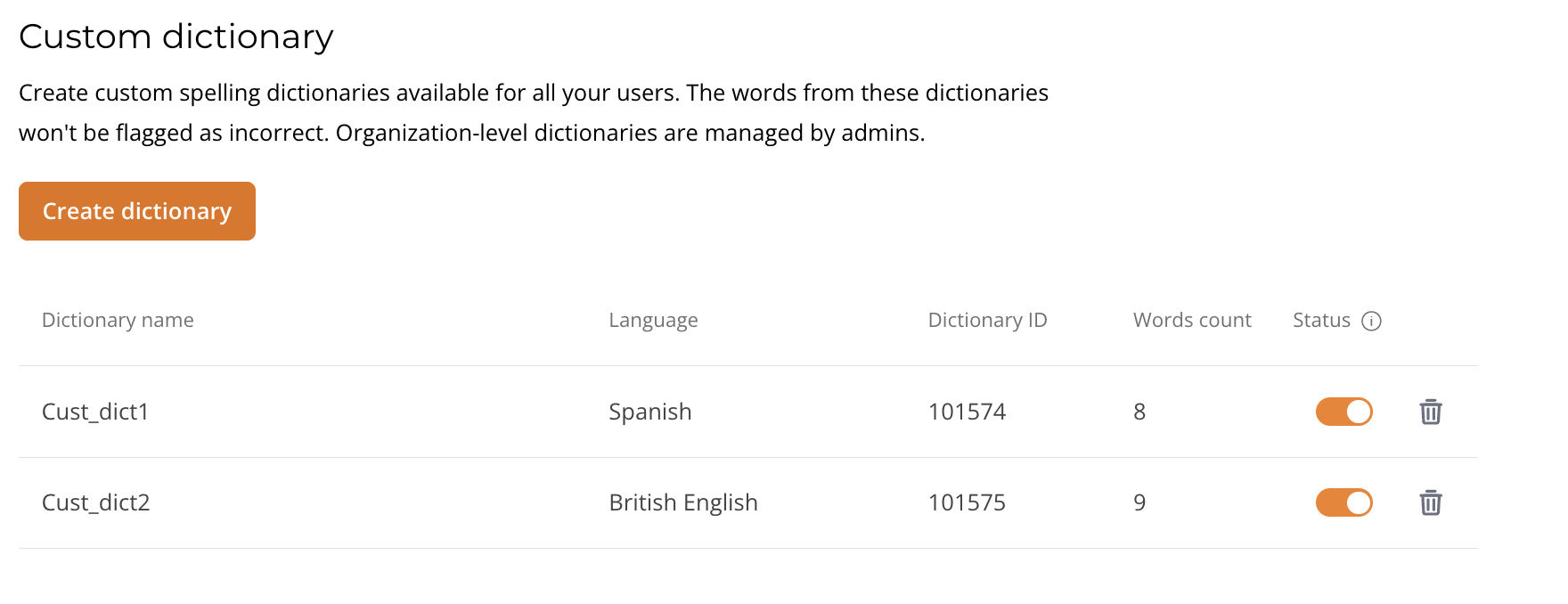
2. In the left navigation panel, select **Custom dictionary**.
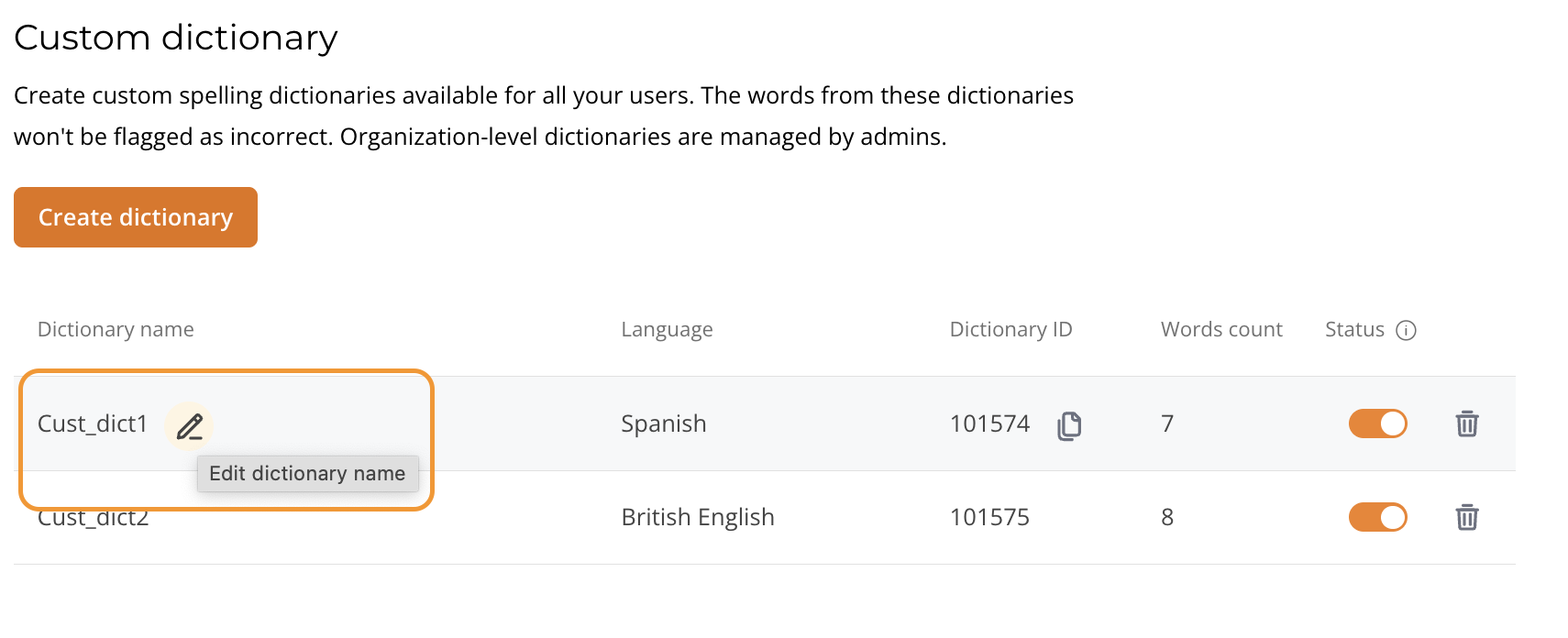
The list shows **Dictionary name**, **Language**, **Dictionary ID**, **Words count** and **Status**. An empty list shows "No dictionaries added."
### Creating a dictionary
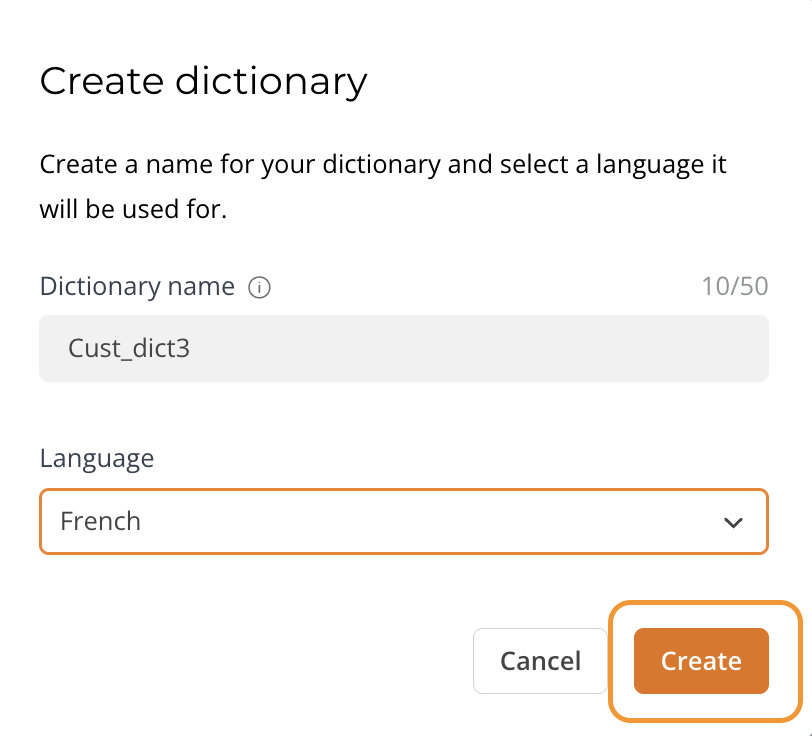
1. Click the **Create dictionary** button. It is not available when your plan or license limit is reached.
2. In the dialog that appears, fill in the following fields:
* **Dictionary name**. Max 50 characters. Must be unique within your account.
* **Language**. Select a language from the dropdown.
On a self-hosted server, the list offers enabled spelling languages. It filters them by WProofreader Server's installed-language list when available. If installed-language data is unavailable or unusable, this filter does not apply.
If no language is available, the dialog shows "No installed languages are enabled for this service."
3. Click **Create**.
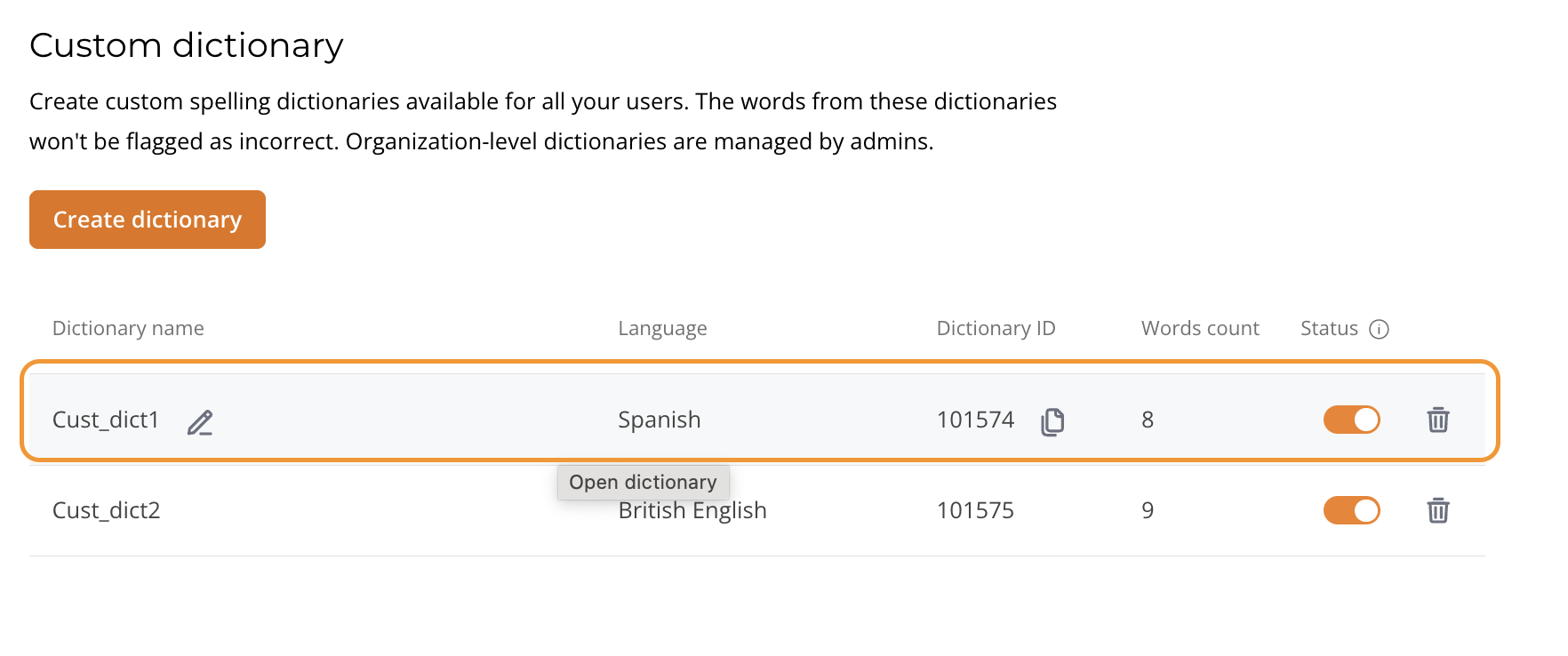
The dictionary appears with an automatically assigned **Dictionary ID**. Click the copy icon beside it to copy the ID for your application configuration.
The admin panel shows "Dictionary created successfully. Ready to use in 3 minutes after changes are synchronized."
### Managing the wordlist
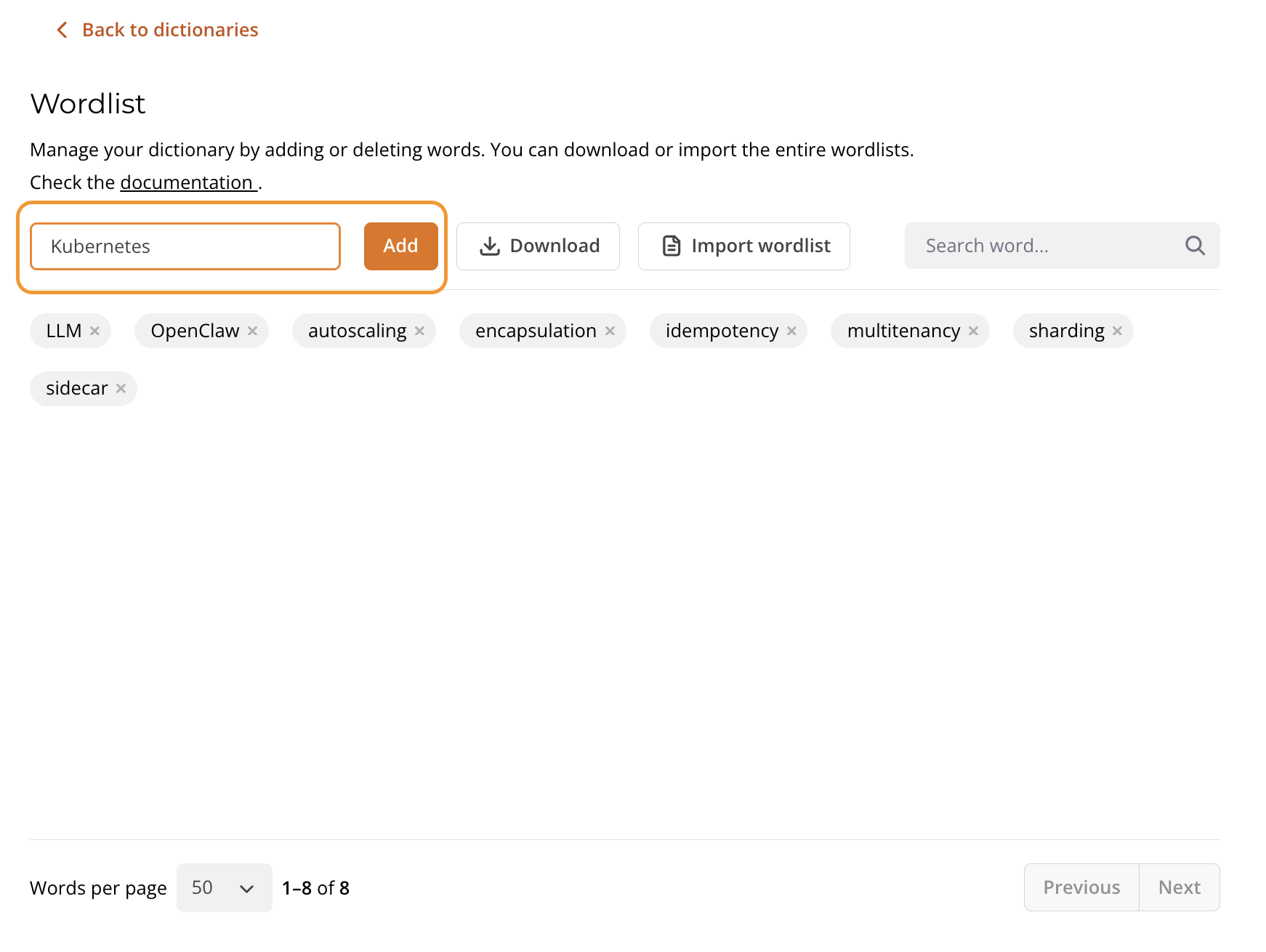
Click on a dictionary row to open the wordlist view.
* **Adding words.** Type a word in the **Add word...** field and click **Add**. Words cannot contain whitespace or disallowed symbols. The field allows apostrophes, hyphens and periods. A confirmation notification appears.
{% hint style="warning" %}
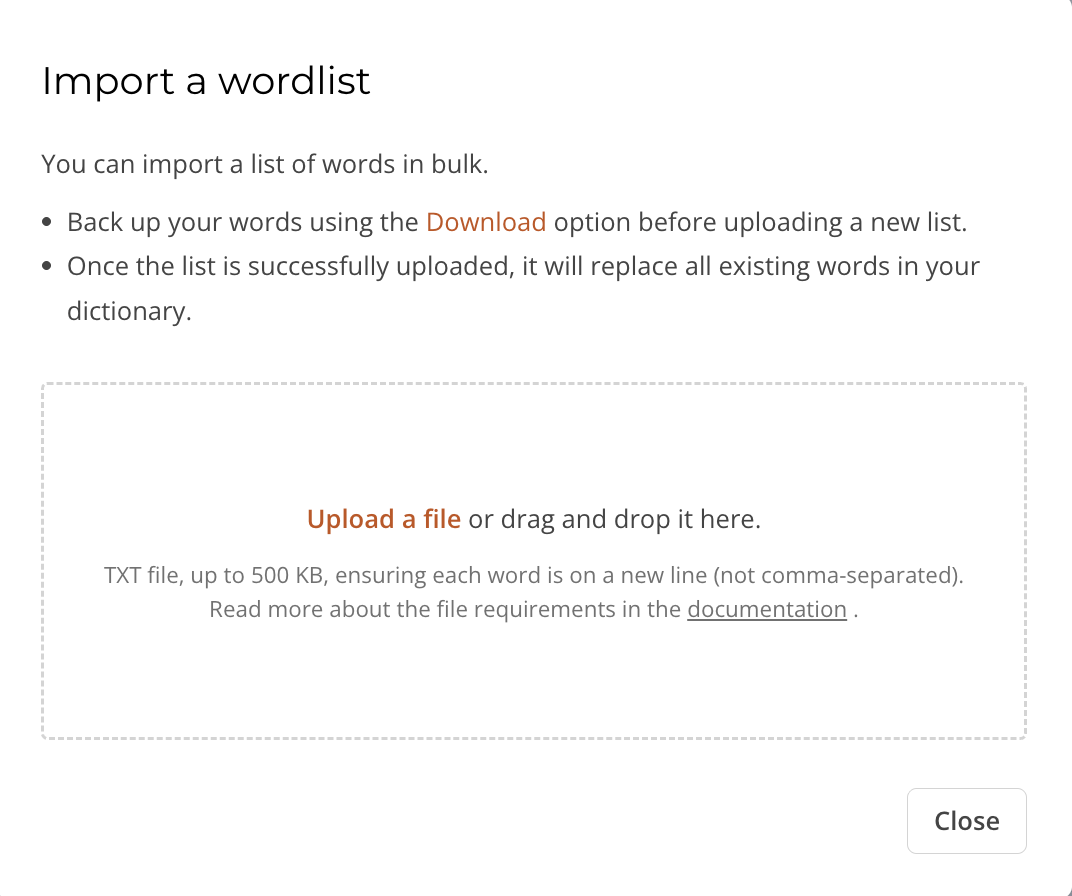
Importing a wordlist replaces all existing words. Before importing, click **Download** to save your current wordlist.
{% endhint %}
* **Importing words in bulk.** Click **Import wordlist** to upload a TXT file. Use one word per line, not comma-separated values. The file must not exceed 500 KB.
* **Downloading the wordlist.** Click **Download** to export the full wordlist as a file.
* **Searching words.** Use the "Search word..." field to find specific words in the dictionary.
* **Deleting words.** Click the **×** icon next to a word to remove it.
The wordlist view includes pagination at the bottom with a configurable number of words per page.
For word rules and validation details, refer to the [Organization dictionary →](/v6.18.1/features/custom-dictionary/organization-dictionary.md).
### Editing a dictionary name
In the dictionary list, click the pencil icon next to the dictionary name. Enter the new name (max 50 characters, must be unique) and save.
### Enabling or disabling a dictionary
Use the **Status** control in the dictionary list row. Disabled dictionaries are excluded from spellcheck but aren't deleted. They can be re-enabled at any time.
### Deleting a dictionary
Click the trash icon (**Delete dictionary**) in the dictionary list row. In **Delete dictionary**, click **Delete**. If your web application configuration references this dictionary by ID using `customDictionaryIds`, update the configuration accordingly.
### FAQ
#### Why don't my dictionary changes take effect immediately?
Changes to dictionaries require a short time to synchronize, up to 3 minutes. The admin panel does not show a separate notification when synchronization is complete.
#### What happens when I import a wordlist?
Importing a TXT file replaces all existing words in the dictionary. Always download your current wordlist as a backup before importing.
#### What file format does the import accept?
The import accepts TXT files only. Each word must be on a separate line (not comma-separated). The file must not exceed 500 KB.