> For the complete documentation index, see [llms.txt](https://docs.wproofreader.com/llms.txt). Markdown versions of documentation pages are available by appending `.md` to page URLs; this page is available as [Markdown](https://docs.wproofreader.com/v6.18.1/admin-panel/signing-in.md).
# Signing in
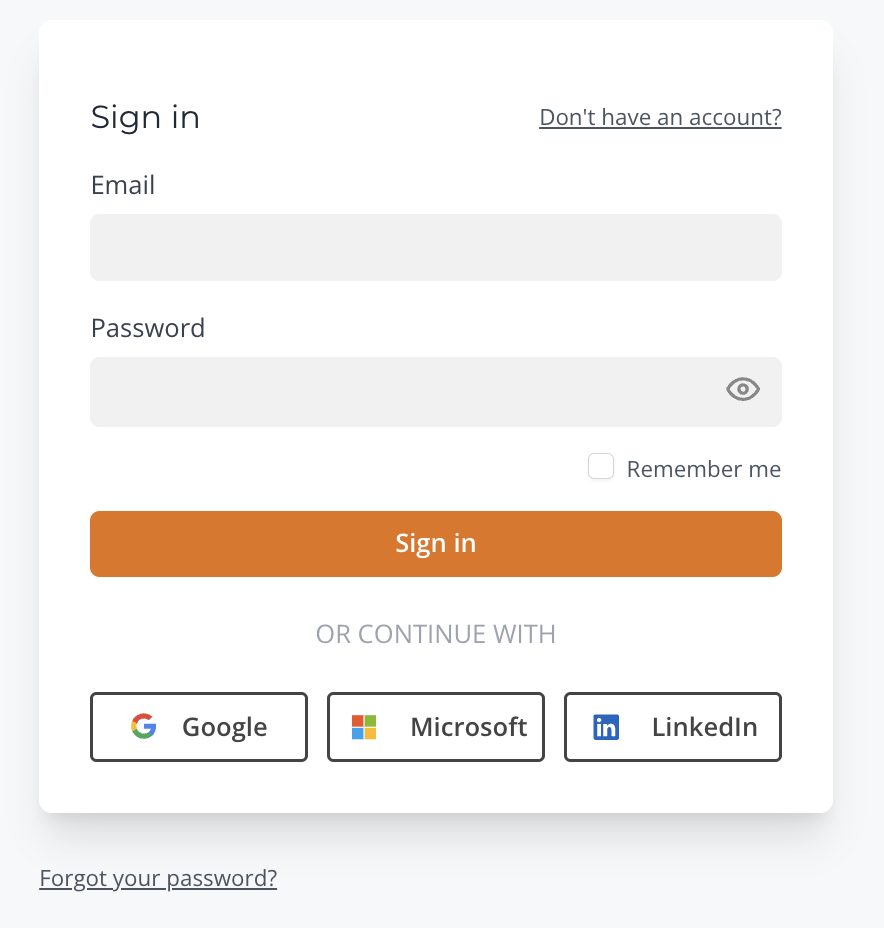
You can sign in to the admin panel using your email and password, or through one of the supported OAuth providers: Google, Microsoft, or LinkedIn.
1. Open your admin panel's sign-in page. For Cloud, use [app.wproofreader.com/signin](https://app.wproofreader.com/signin).
2. Enter your email address.
3. Enter your password.
4. Click **Sign in**.
For provider sign-in, select an OAuth option below the form.
{% hint style="info" %}
For the [self-hosted admin panel](/v6.18.1/admin-panel/self-hosted.md), use your installation's address. New members join by invitation. For password reset without email, see [When email reset is unavailable](/v6.18.1/admin-panel/self-hosted/sign-in.md#when-email-reset-is-unavailable).
{% endhint %}
In the Cloud admin panel, click **Don't have an account?** if you need an account. After registration, select a product on **Products**. You can also choose a plan on the [WProofreader SDK pricing page](https://wproofreader.com/sdk).
### Resetting your password
If your server sends email, you can reset your password from the sign-in page. Otherwise, see [Password reset without email](/v6.18.1/admin-panel/self-hosted/sign-in.md#when-email-reset-is-unavailable).
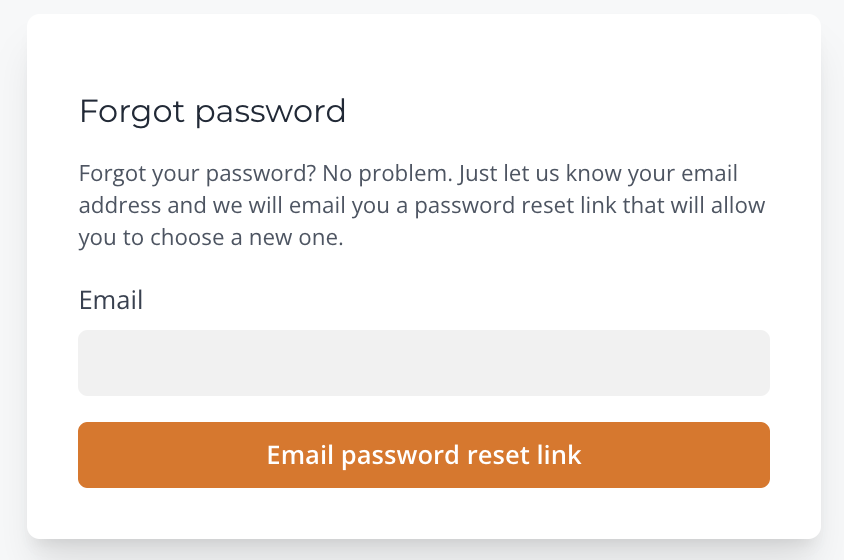
1. On your admin panel's sign-in page, click **Forgot your password?**.
2. Enter the email address associated with your account and click **Email password reset link**.
3. Check your inbox for an email with the subject "Reset password notification". Click **Reset password** in the email. The link expires after 60 minutes.
4. Enter your email address in **Email**.
5. Enter your new password in **Password**.
6. Enter it again in **Confirm Password**.
7. Click **Reset password**.
8. You'll be redirected to the sign-in page. Sign in with your new password.
{% hint style="info" %}
**Password requirements:** at least 8 characters, including at least one uppercase and one lowercase letter. A strength indicator below the password field shows how strong your password is.
{% endhint %}