> For the complete documentation index, see [llms.txt](https://docs.wproofreader.com/llms.txt). Markdown versions of documentation pages are available by appending `.md` to page URLs; this page is available as [Markdown](https://docs.wproofreader.com/v6.18.1/admin-panel/account-settings.md).
# Account settings
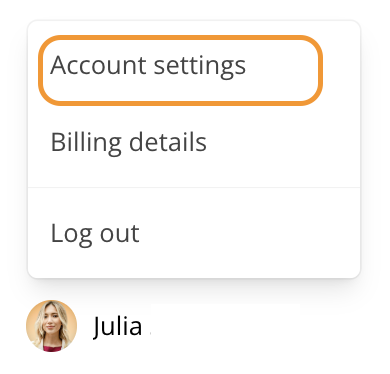
Open **Account settings** in your admin panel. In the Cloud admin panel, use the [Account settings page](https://app.wproofreader.com/user/profile).
{% hint style="info" %}
For the [self-hosted admin panel](/v6.18.1/admin-panel/self-hosted.md), use your installation's address. Without outgoing email, a new email address takes effect immediately.
{% endhint %}
For self-hosted account deletion, see [Deleting an account](/v6.18.1/admin-panel/self-hosted.md#deleting-an-account).
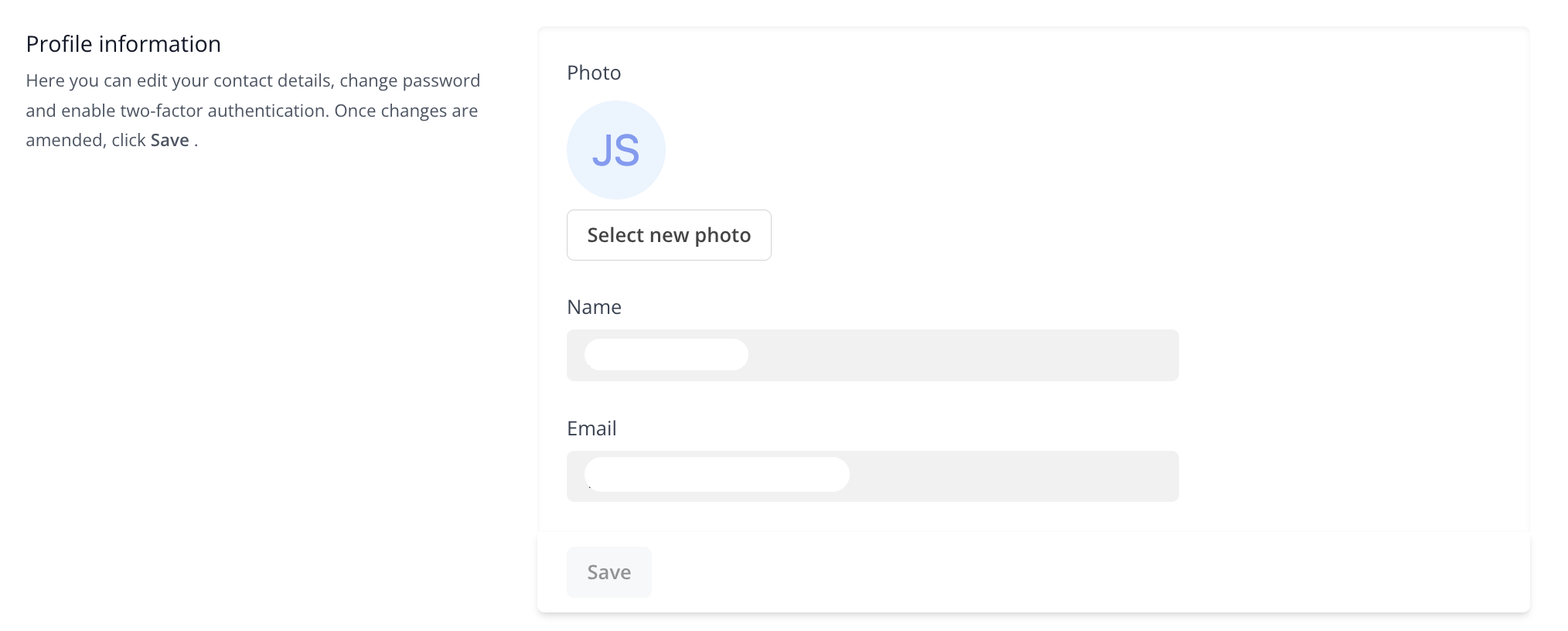
### Profile information
You can update your name, email address, and photo.
1. Click **Edit profile**.
2. In **Edit profile information**, change the fields.
3. Click **Save**.
If the server sends email, confirm your new address with the link in the email. Until then, **Pending email change** shows the request. To get a new email, click **Resend email**. To keep your current address, click **Cancel request**.
In the Cloud admin panel, changing your profile email does not change your billing email. To change it:
1. Open [Billing details](https://app.wproofreader.com/billing).
2. Click **Update**.
3. In **Billing address**, edit **Billing email**.
4. Click **Save**.
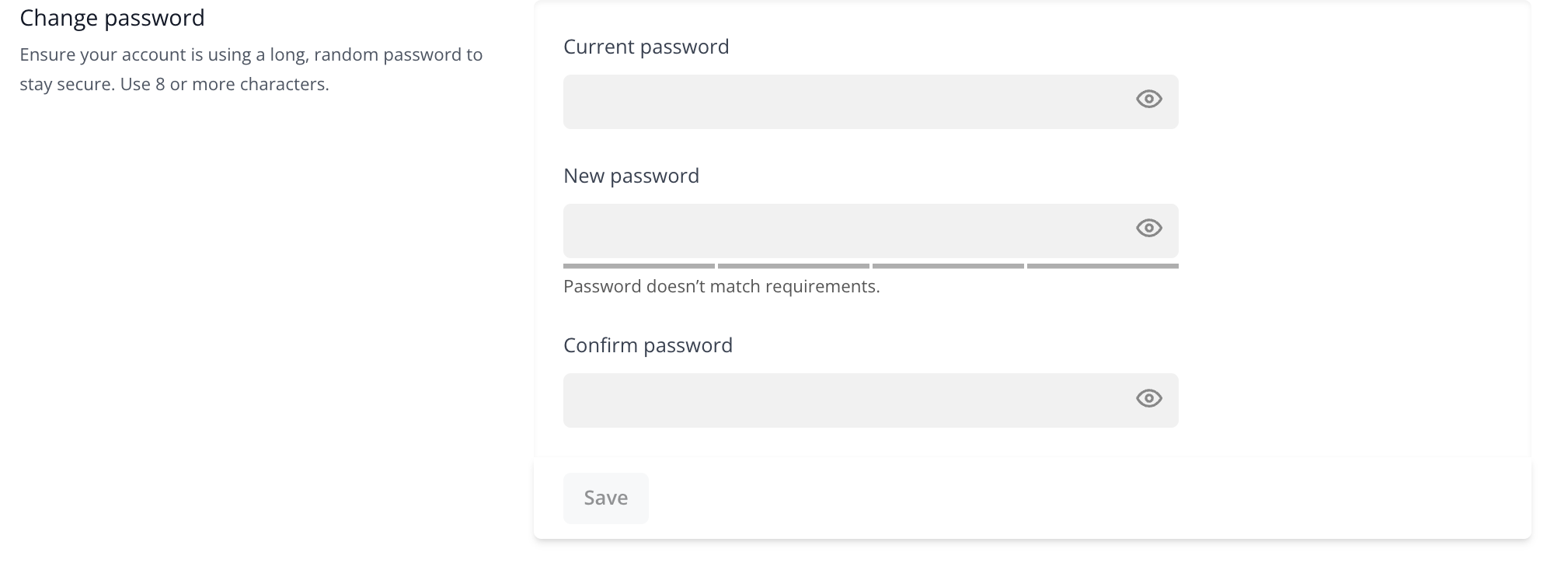
### Changing your password
1. In **Profile information**, click **Update** next to **Password**.
2. In **Update password**, enter your current password in **Current password**.
3. Enter your new password in **New password**.
4. Enter it again in **Confirm password**.
5. Click **Save**.
If your account has no password, click **Create** next to **Password**. In **Create password**, complete steps 3 to 5. There is no **Current password** field.
{% hint style="info" %}
The password must be at least 8 characters and include at least one uppercase and one lowercase letter. A strength indicator below the field shows the password strength from very weak to very strong.
{% endhint %}
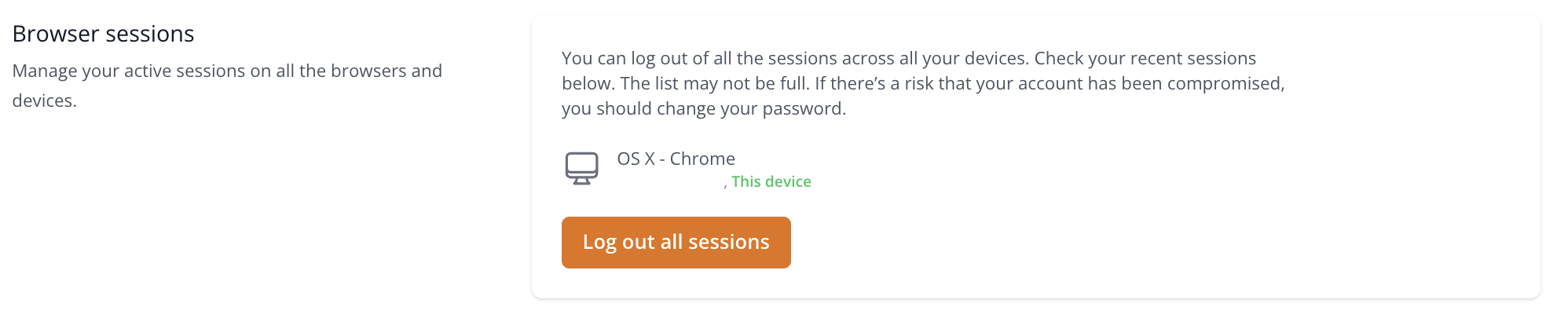
### Browser sessions
The **Browser sessions** section shows recent sessions. The list can be incomplete and requires database session storage. To sign out of your other sessions:
1. Click **Log out other sessions**.
2. Enter your password.
3. Click **Sign out**.
The button shows only when you have more than one session.