> For the complete documentation index, see [llms.txt](https://docs.wproofreader.com/llms.txt). Markdown versions of documentation pages are available by appending `.md` to page URLs; this page is available as [Markdown](https://docs.wproofreader.com/v6.18.1/admin-panel/account-security.md).
# Account security
{% hint style="info" %}
For the [self-hosted admin panel](/v6.18.1/admin-panel/self-hosted.md), use your installation's address. Your server administrator must configure [provider sign-in](/v6.18.1/admin-panel/self-hosted/server-configuration.md#oauth-provider-sign-in) before it is available.
{% endhint %}
### Two-factor authentication
Two-factor authentication (2FA) adds an extra layer of security to your account. The admin panel supports authenticator apps as the 2FA method.
#### Enabling 2FA
1. On the Account settings page, find the **Two-factor authentication** section and click **Enable**.
2. If **Confirm password** opens, enter your password and click **Confirm**.
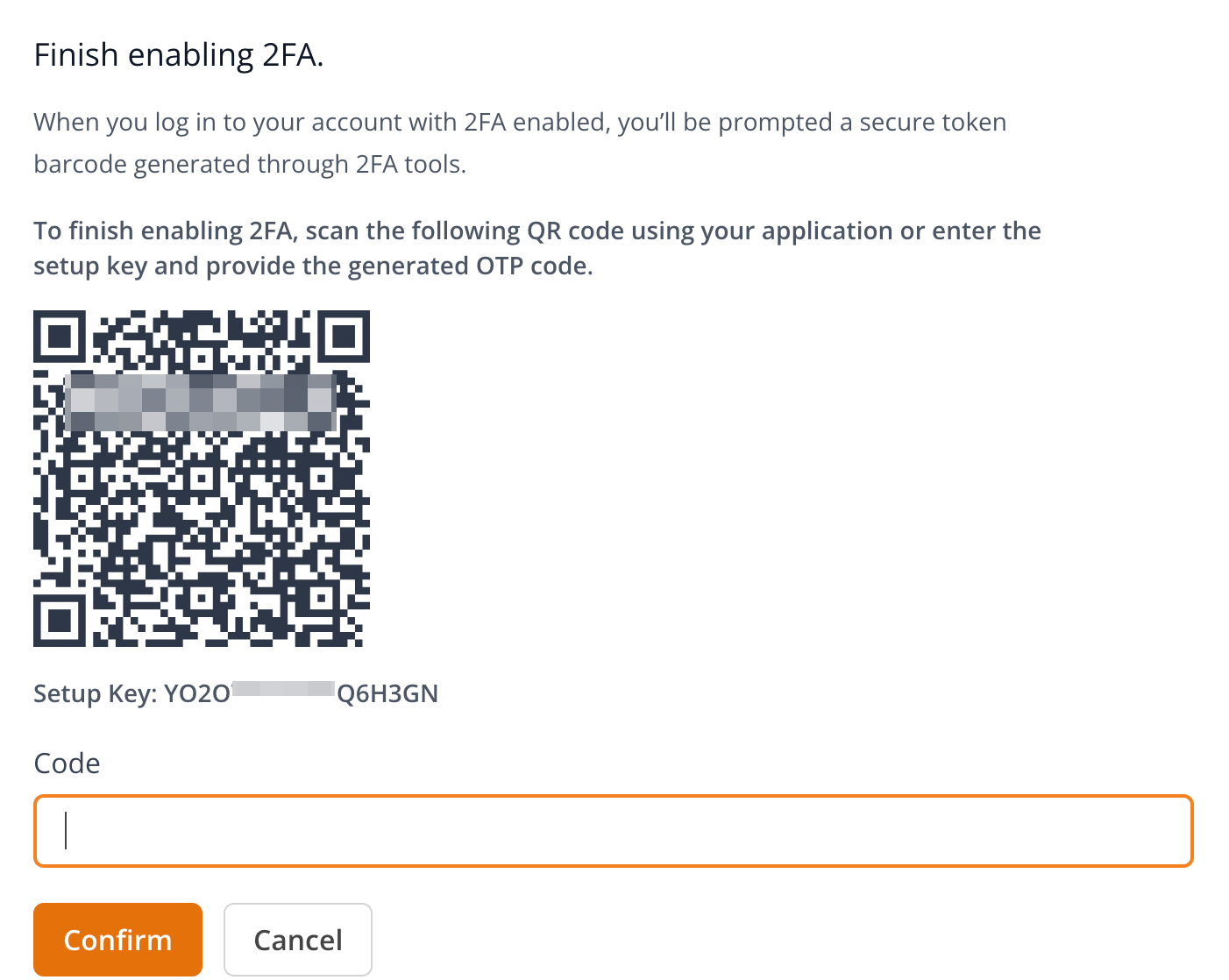
3. Scan the QR code with your authenticator app. If you can't scan it, enter the setup key manually.
4. Enter the one-time password (OTP) from your authenticator app under "Enter the code generated by your authenticator application."
5. Click **Confirm**.
6. Click **Show recovery codes** and save them in a password manager. These codes let you recover access to your account if you lose your 2FA device.
Two-factor authentication is available only for accounts with a password.
You can view or regenerate your recovery codes at any time from this section. To copy all codes, click the copy icon (**Copy recovery codes**).
#### Disabling 2FA
To disable 2FA, click **Disable** in the **Two-factor authentication** section. If **Confirm password** opens, enter your password and click **Confirm**.
### Connected accounts
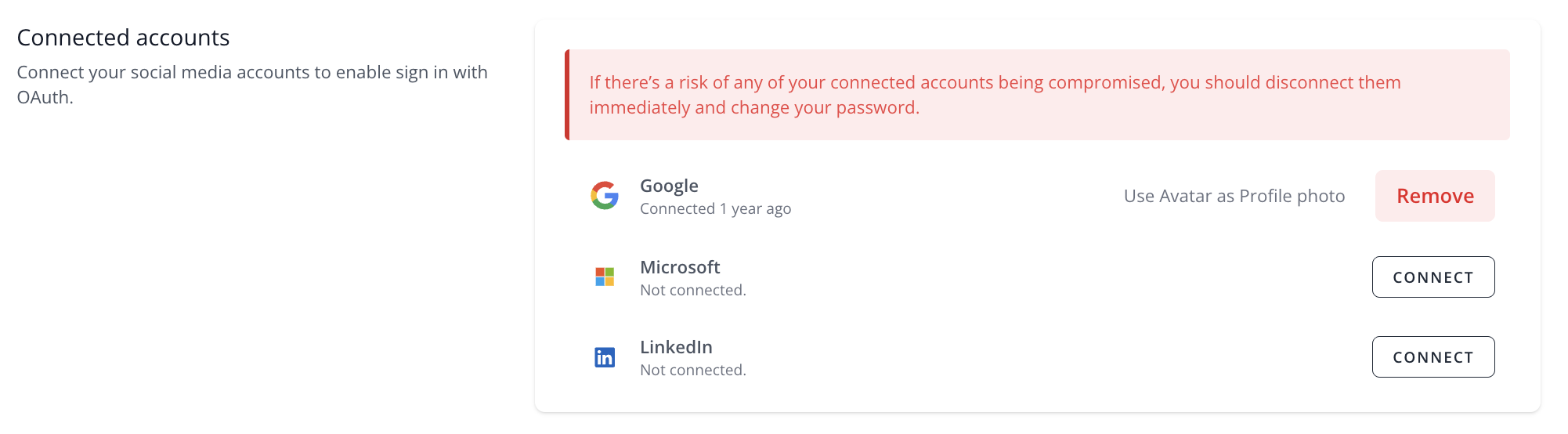
You can connect your Google, Microsoft, or LinkedIn account to enable OAuth sign-in. On the Account settings page, find the **Connected accounts** section, choose a provider, and click **Connect**. Follow the prompts to link your account.
If your account has no password, [create one](/v6.18.1/admin-panel/account-settings.md#changing-your-password) before disconnecting a provider.
To disconnect an account:
1. Click **Remove** next to the provider.
2. Enter your password.
3. Click **Remove account**.
If you suspect any of your connected accounts have been compromised, disconnect them immediately and change your password.