> For the complete documentation index, see [llms.txt](https://docs.wproofreader.com/llms.txt). Markdown versions of documentation pages are available by appending `.md` to page URLs; this page is available as [Markdown](https://docs.wproofreader.com/v6.12.0/integrations/moodle.md).
# Moodle
## WProofreader plugin for Moodle
WProofreader is a real-time spelling, grammar, and style checker for editor content in Moodle. It works inside the Atto editor (Moodle 4.5 LTS), TinyMCE 6, and plain HTML textareas, with no per-editor configuration required.
### Features
* Real-time spell and grammar checking as users type
* Multilanguage support, with the language list refreshed from the WebSpellChecker service
* Free version out of the box, limited to 10,000 words a day. Purchase through Moodle Marketplace to extend the usage and unlock additional features
* Granular per-context toggles (courses, categories, user profiles, quizzes, site administration, public pages)
### First-time setup checklist
After installing the plugin and clicking through Moodle's upgrade screen:
1. **Visit *****Site administration > Plugins > Local plugins > WProofreader*****.** Confirm the settings page loads without warnings.
2. **Leave the license key empty.** The plugin runs against a bundled trial customer ID by default, with spelling and style enabled and a 10,000 words-per-day cap across the whole site. This is enough to verify the plugin works before purchasing.
3. **Pick a default language** or leave it at **Auto**. Auto is the right choice if your courses run in more than one language.
4. **Open any course page with a forum or assignment editor.** Type a deliberately misspelled word into a text area. You should see the red underline appear within a second.
5. **If the badge is in the wrong place**, switch *General > Badge placement* between *Page corner* and *Per editor* until it fits the layout you want.
If anything in steps 4 to 5 fails, jump to "Troubleshooting" below.
### Settings overview
A brief tour of every option exposed under *Site administration > Plugins > Local plugins > WProofreader*.
#### General
* **License key**: paid license obtained through Moodle Marketplace. Leave empty to run on the bundled trial.
* **Default language**: initial proofreading language. *Auto* lets the service detect the language per analysis; pick a specific language to pin the proofreader.
* **Show badge button**: toggles the WProofreader badge UI. Proofreading still works when the badge is hidden.
* **Badge placement**: *Page corner* renders a single floating badge that controls all editors on the page; *Per editor* attaches a badge to each editor instance.
#### Proofreading features
* **Spelling**: red underlines for misspellings.
* **Grammar**: green underlines for grammar issues. Paid-only in practice; the trial customer ID returns no grammar results from the service.
* **Style**: blue underlines for stylistic suggestions.
* **Autocorrect**: automatically replaces obvious misspellings as the user types.
* **Text autocomplete**: inline word-completion suggestions while typing.
* **AI writing assistant**: rewrite, expand, or shorten selected text via the WebSpellChecker AI service. Paid only.
#### Spelling ignore options
* **Ignore all caps words**: skip tokens like `ALLCAPS`.
* **Ignore domain names**: skip URLs and domain-like strings.
* **Ignore words with mixed case**: skip tokens like `iPhone`, `kWh`.
* **Ignore words with numbers**: skip tokens like `iPhone15`, `v2`.
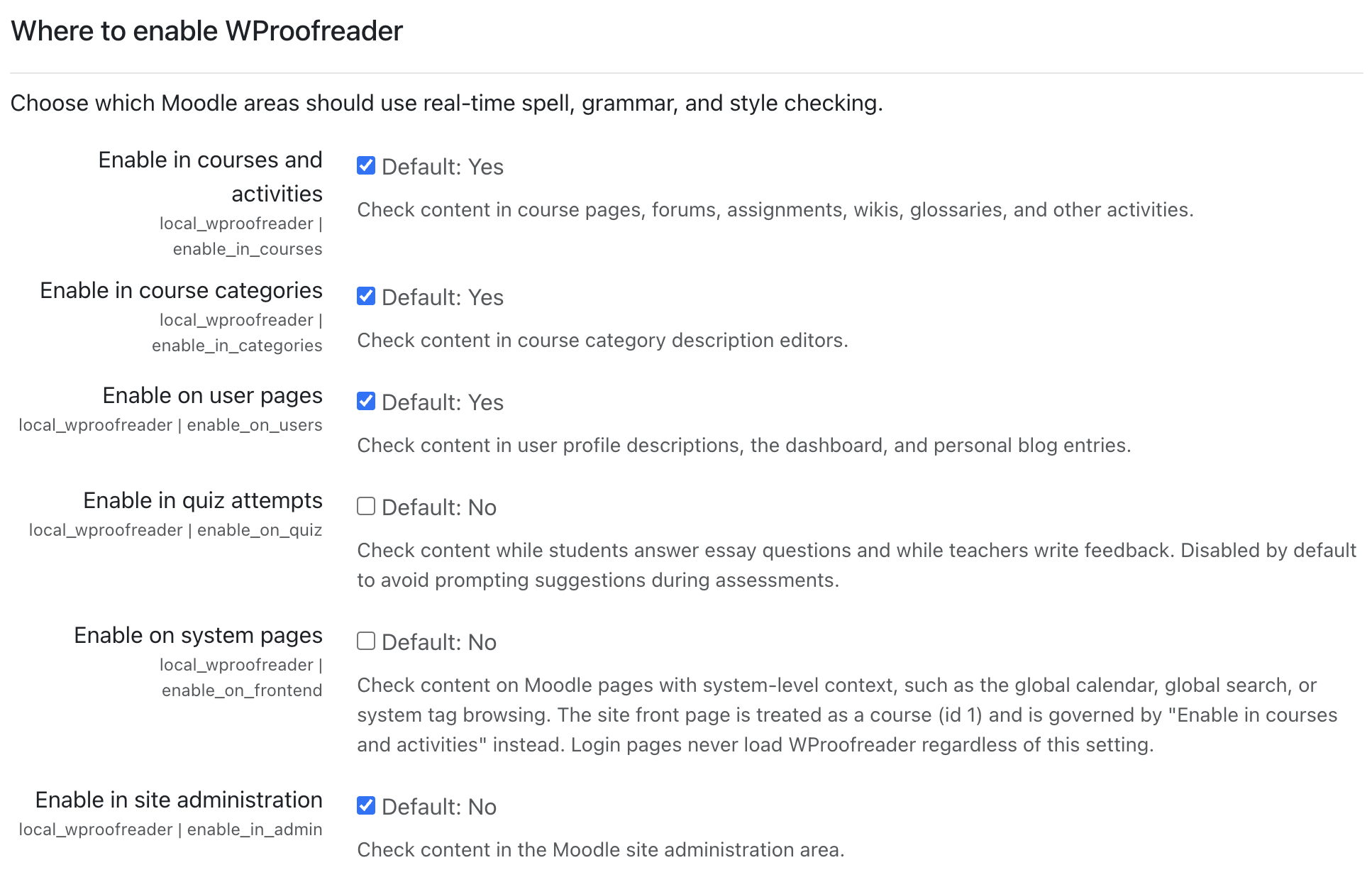
#### Where to enable WProofreader
* **Enable in courses and activities**: course pages, forums, assignments, page resources.
* **Enable in course categories**: category description editors.
* **Enable on user pages**: dashboard, profile, personal blog.
* **Enable in quiz attempts**: `mod_quiz`, `mod_questionnaire`, `mod_feedback`. Off by default.
* **Enable on system pages**: global calendar, global search, system tag browsing. Off by default.
* **Enable in site administration**: pages with an `admin-` pagetype. Off by default.
The settings page also shows a read-only **Editors** panel that lists which editor integrations (Atto, TinyMCE, plain textarea) the WProofreader bundle has detected on the current site. It is informational only; no toggles.
### How to
#### Enable for quiz attempts
By default WProofreader is off in `mod_quiz`, `mod_questionnaire`, and `mod_feedback` because spell checking during a quiz is usually unwanted. To turn it on (for example, for an open-book essay quiz):
1. Set *Where to enable WProofreader > Enable in quiz attempts* to enabled.
2. Decide whether to also disable *Style* and *Autocorrect* for quiz attempts. The plugin doesn't currently let you scope these per context, so the toggle is site-wide.
3. Verify on a real quiz attempt page that the editor inside the quiz now shows the badge.
If your quizzes are proctored or graded on spelling accuracy, leave this off.
#### Restrict to staff only
Two options:
* **The capability route.** WProofreader checks `local/wproofreader:use` at the system context. Remove the capability from the `student` archetype (and any custom roles you don't want covered) under *Site administration > Users > Permissions > Define roles*. Students will then see no badge and no underlines on any page.
* **The context route.** Leave *Enable in courses and activities* on, but turn off *Enable on user pages*. Staff dashboards and profile editors will still get proofreading; students will see it only inside courses where they are writing forum posts or assignments.
The capability route is more decisive; the context route is less disruptive.
#### Switch to per-editor badges
Some themes place editors close to each other, or display many editors on one page (e.g. a complex form). In those cases the single page-corner badge can feel disconnected from the editor you are typing in.
* Set *General > Badge placement* to **Per editor**. Each editor gets its own small badge anchored to the editor box itself.
There is a trade-off: a complex form with a dozen editors will now show a dozen badges. Stick with the page-corner default if that would be visually noisy.
#### Trial-drive before purchasing a license
The shipped behavior is already a trial. To get a feel for the paid features without buying a license:
* Leave the license key empty.
* Confirm spelling and style work as expected.
* Note that grammar checking, the AI writing assistant, custom dictionaries, and the higher word cap will not be available. Those are the paid additions.
When you are ready to buy, follow the Moodle Marketplace purchase flow, then paste the issued license key into *General > License key*. The change takes effect on the next page load. No re-install or cache purge required.
### Switching from free to paid
1. Purchase a WProofreader license through Moodle Marketplace.
2. Paste the issued key into *Site administration > Plugins > Local plugins > WProofreader > General > License key*.
3. Click **Save changes** at the bottom of the page.
4. Reload any page with an editor. The badge dialog should now show the **Dictionaries** and **About** tabs, and the AI writing assistant entry should appear in the badge menu if you have that toggle enabled.
Going back to the free version is symmetric: clear the license key field, save, reload.
### Where to get help
* **Bugs and feature requests**: file an issue at the [GitHub issue tracker](https://github.com/WebSpellChecker/moodle-local_wproofreader/issues).
* **License and purchasing questions**: contact WebSpellChecker via the [contact form](https://webspellchecker.com/contact-us/).
* **Moodle integration questions** outside the scope of this plugin (e.g. "how do I customize Moodle themes"): the Moodle community forums at [moodle.org](https://moodle.org).