> For the complete documentation index, see [llms.txt](https://docs.wproofreader.com/llms.txt). Markdown versions of documentation pages are available by appending `.md` to page URLs; this page is available as [Markdown](https://docs.wproofreader.com/v6.12.0/integrations/initialization/configuration-options/ui-elements/settings.md).
# Settings
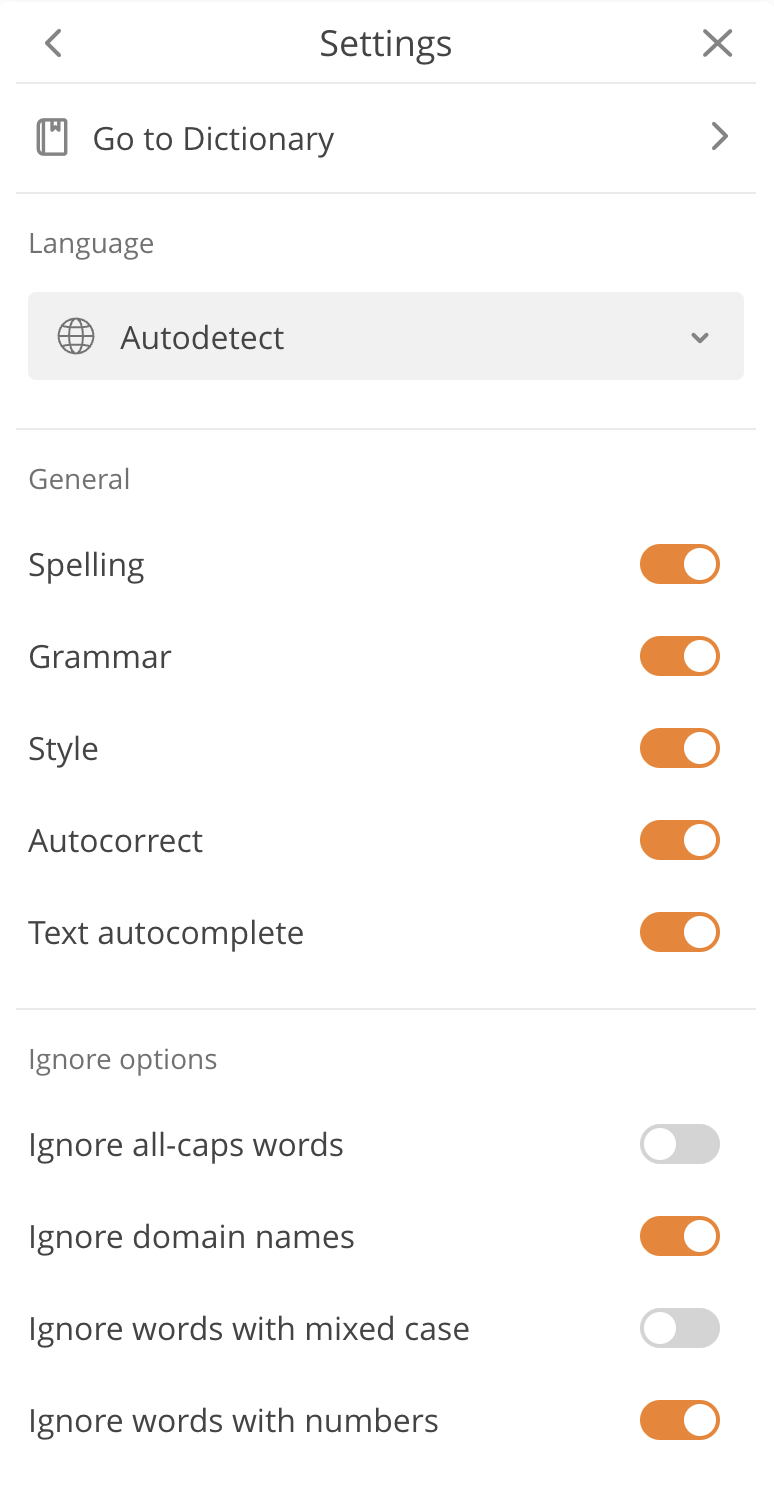
The Settings dialog lets users manage their proofreading preferences. It contains these sections: **General**, **Options** (ignore rules), **Languages**, **Dictionaries**, and **About**.
| Section | What users can do | Admin options |
| ------------ | ----------------------------------------------------------------------------------------------------------------- | -------------------------------------------------------------------------- |
| General | Enable or disable spelling autocorrect, autocomplete suggestions, style guide, spelling, and grammar suggestions. | Hide the section to lock users into predefined settings. |
| Options | Configure ignore rules for all-caps words, domain names, mixed case words, and words with numbers. | Predefine ignore rules for all users. |
| Languages | Select the default language for checking. | Set a predefined language and hide the section. |
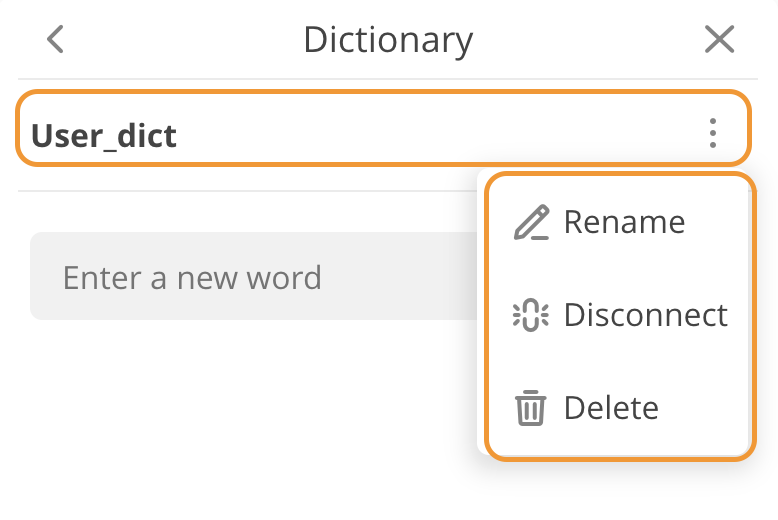
| Dictionaries | Add and remove words, create and manage user dictionaries. | Hide dictionary management, set a predefined dictionary. |
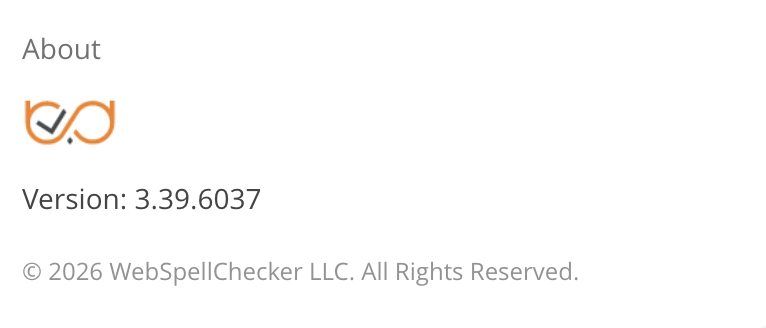
| About | View WProofreader version and copyright info. | Remove with `removeBranding: true` (self-hosted and advanced Cloud plans). |
#### Hiding sections
To hide specific sections, list only the ones you want to keep using the `settingsSections` parameter. Default: `['dictionaries', 'languages', 'general', 'options']`. The About section can't be removed through this option (use `removeBranding` instead).
```js
settingsSections: ['languages', 'dictionaries', 'options'],
```
#### Hiding dictionary management
To prevent users from creating, renaming, or deleting dictionaries while still allowing them to add and remove words:
```js
disableDictionariesPreferences: true,
```
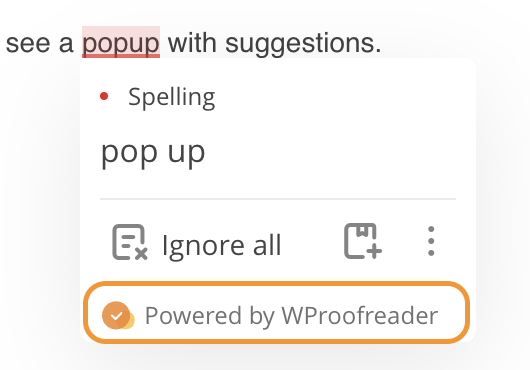
#### Removing branding
For paid plans, branding is removed automatically. The `removeBranding` option is enabled by default for self-hosted and paid cloud subscriptions.
If you need to explicitly control it:
```js
removeBranding: true,
```