> For the complete documentation index, see [llms.txt](https://docs.wproofreader.com/llms.txt). Markdown versions of documentation pages are available by appending `.md` to page URLs; this page is available as [Markdown](https://docs.wproofreader.com/v6.12.0/faq/technical/wproofreader/how-would-keyboard-users-be-able-to-access-the-spell-check-suggestions.md).
# How would keyboard users be able to access the spell check suggestions?
Below is an overview of what is currently supported in WProofreader for keyboard and screen reader users, and how you can configure it to improve accessibility.
#### Inline suggestions and keyboard access
Due to the nature of the inline implementation, inline suggestions aren’t accessible using keyboard-only navigation. They require a mouse hover over the highlighted word or phrase to display the suggestion popup.\
\
Once the popup is open, its content can be read by a screen reader. However, opening inline suggestions themselves can’t be triggered via keyboard.
#### Accessible alternative: Proofread in dialog
As an accessible alternative, WProofreader provides Proofread in dialog, which fully supports keyboard navigation and screen readers.\
\
The dialog can be opened in two ways:
* From the WProofreader badge
* Embedded as a fixed [sidebar](https://demos.webspellchecker.com/wproofreader-sidebar.html), if your application UI allows it
Both approaches provide access to the same suggestions as inline mode, but in a keyboard-friendly format.
#### Keyboard navigation basics
* Move between elements: **Tab**
* Activate buttons or actions: **Enter** or **Space**
* Navigate between items or suggestions: **Left / Right arrows**
* Navigate within lists (e.g. alternatives, actions): **Up / Down arrows**
 #### How to open Proofread in dialog using the keyboard
1. When focus is inside the editor, press **Tab** to move focus to the WProofreader badge in the bottom-left corner.
2. Press **Enter** to open the badge menu.
3. Use **Left / Right arrows** to navigate between badge actions.
4. Press **Enter** or **Space** on Proofread in dialog to open the dialog.
**Optional: Compact badge mode**
You can configure the badge so that its primary action opens the dialog directly, without navigating the badge menu.\
Add this option to the WProofreader configuration: `compactBadge: true`
#### How to open Proofread in dialog using the keyboard
1. When focus is inside the editor, press **Tab** to move focus to the WProofreader badge in the bottom-left corner.
2. Press **Enter** to open the badge menu.
3. Use **Left / Right arrows** to navigate between badge actions.
4. Press **Enter** or **Space** on Proofread in dialog to open the dialog.
**Optional: Compact badge mode**
You can configure the badge so that its primary action opens the dialog directly, without navigating the badge menu.\
Add this option to the WProofreader configuration: `compactBadge: true`
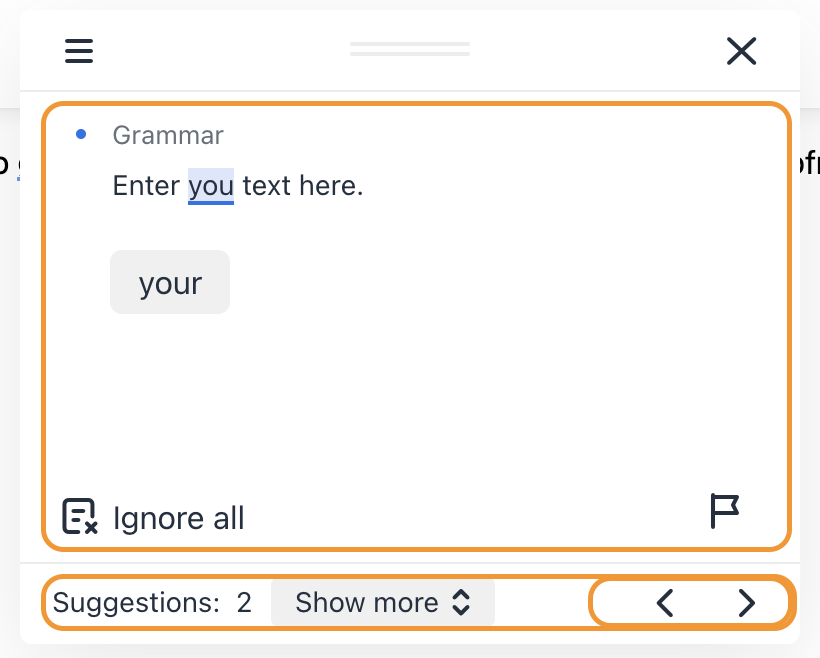
* By default, the dialog opens in compact mode, showing one suggestion at a time.
* Users can move between suggestions using **Left / Right arrows**.
* Within a suggestion card, use **Up / Down arrows** to navigate alternatives and actions (Ignore, Add word, Report, etc.).
**Optional: Show all suggestions in a list**
You can configure the dialog to open in extended mode, displaying all suggestions in a vertical list. Add this option to the configuration: `allSuggestionsMode: true`\
\
The dialog fully supports screen readers in both compact and extended modes.\
\
This approach is currently the recommended way to support keyboard and screen reader users.