> For the complete documentation index, see [llms.txt](https://docs.wproofreader.com/llms.txt). Markdown versions of documentation pages are available by appending `.md` to page URLs; this page is available as [Markdown](https://docs.wproofreader.com/v6.12.0/deployment/configuration/web-server/reverse-proxy-setup-to-avoid-exposing-2880-port/reverse-proxy-on-windows-iis.md).
# Reverse proxy on Windows IIS
Windows IIS can be configured to act as a **reverse proxy server**. There are a few pretty outdated guidelines available on the official Microsoft documentation where you can find additional information.
* [Reverse Proxy with URL Rewrite v2 and Application Request Routing](https://docs.microsoft.com/en-us/iis/extensions/url-rewrite-module/reverse-proxy-with-url-rewrite-v2-and-application-request-routing)
* [Setup IIS with URL Rewrite as a reverse proxy for real world apps](https://docs.microsoft.com/en-us/archive/blogs/friis/setup-iis-with-url-rewrite-as-a-reverse-proxy-for-real-world-apps)
### Install IIS extensions
To set up a reverse proxy routing capabilities for IIS, first of all, you need to download and install two additional extensions:
* [URL Rewrite](https://www.iis.net/downloads/microsoft/url-rewrite)
* [Application Request Routing (ARR)](https://www.iis.net/downloads/microsoft/application-request-routing)
After successful installation of extensions, two additional options, **URL Rewrite** and **Application Request Routing**, will appear on the IIS dashboard.
### Enable proxy settings - ARR
The IIS proxy setting is disabled by default. You need to enable it.
1\. Open IIS Manager.
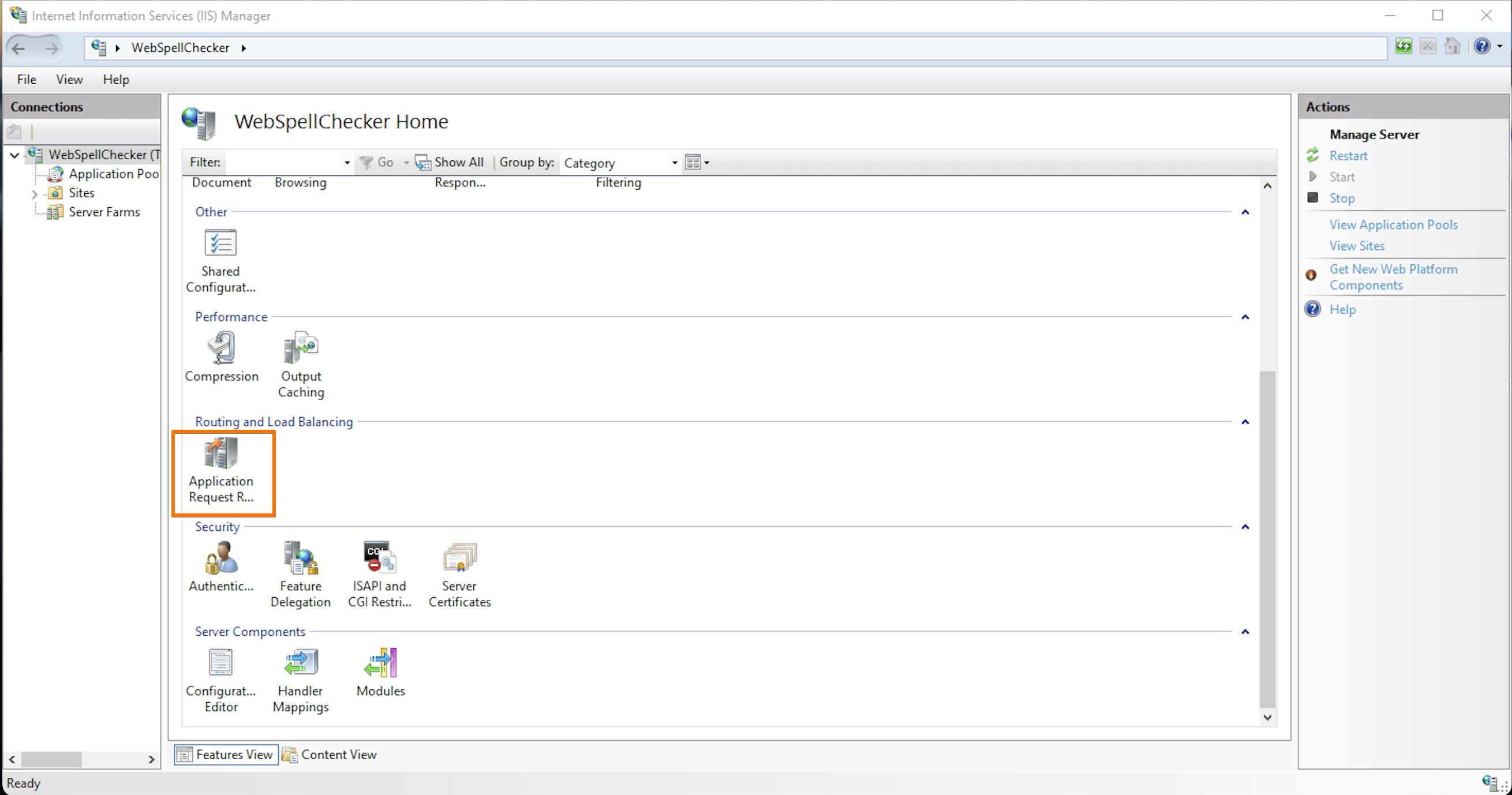
2\. In the **Feature View** section, double click on **Application Request Routing.**
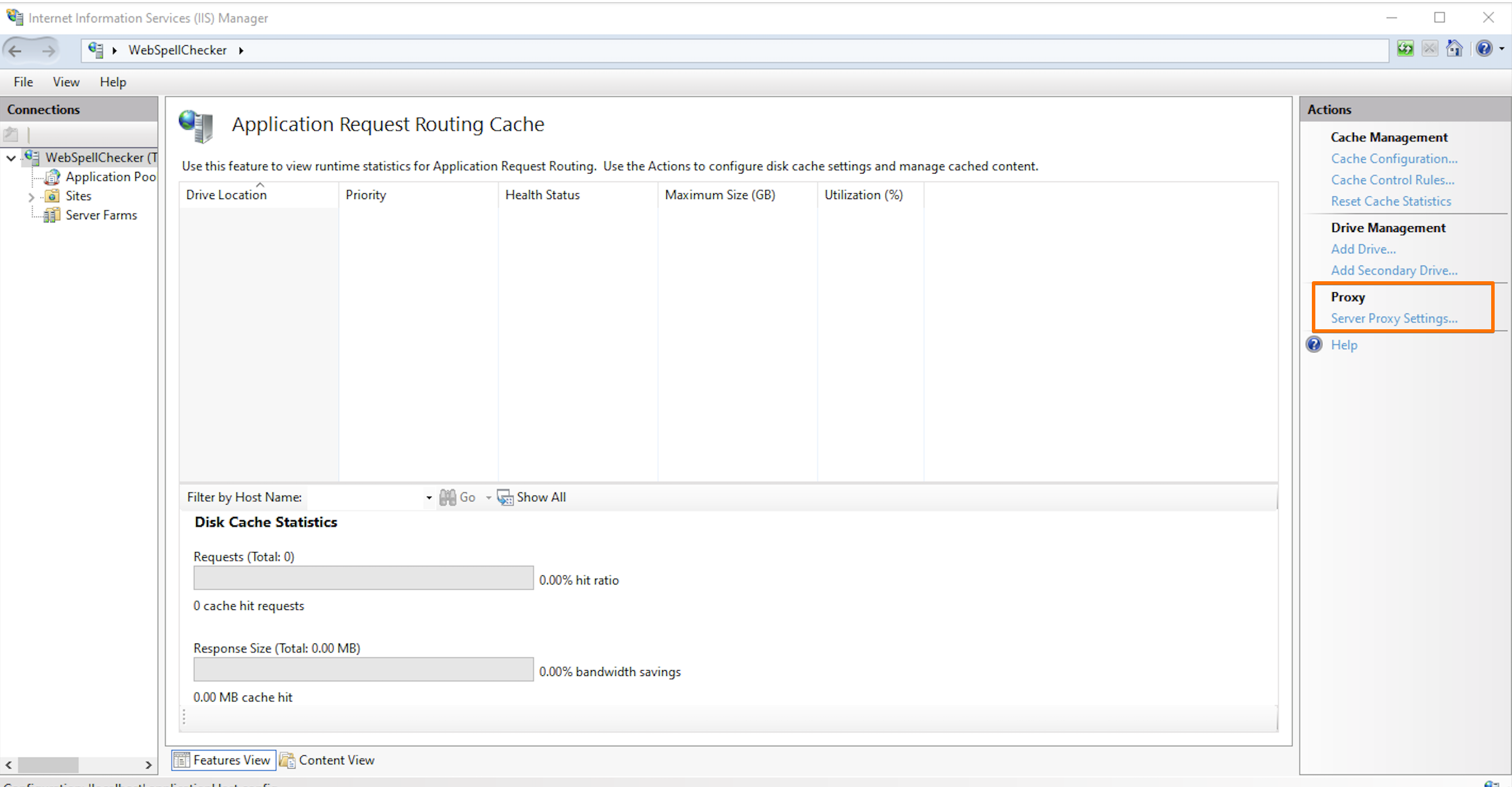
3\. On the right sidebar under the **Proxy** section, select **Server Proxy Settings**... action.
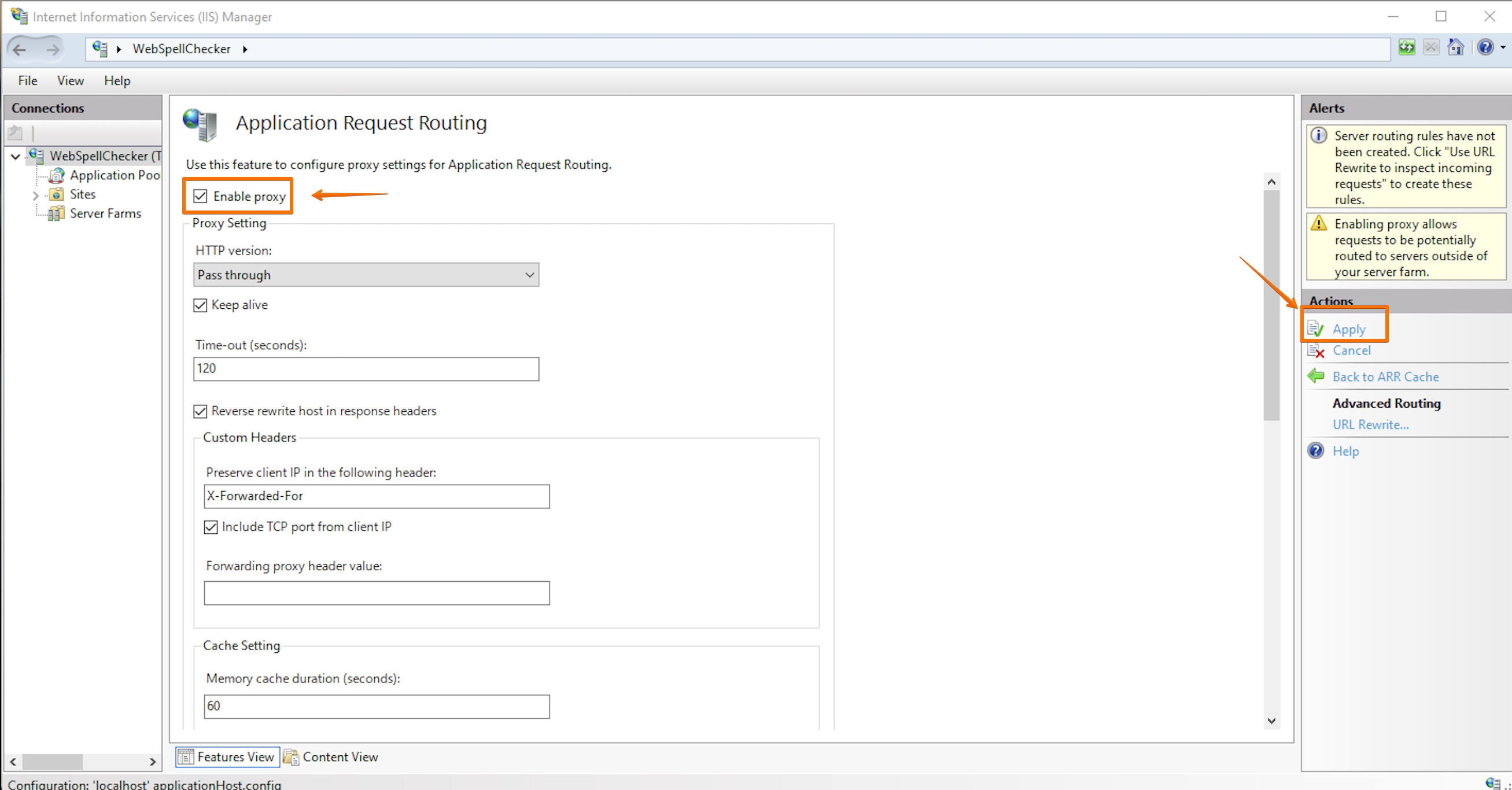
4\. Check **Enable proxy** check box. And then on the right sidebar with actions, click **Apply** to save changes.
### URL Rewrite
To create a new inbound rule, follow these steps:
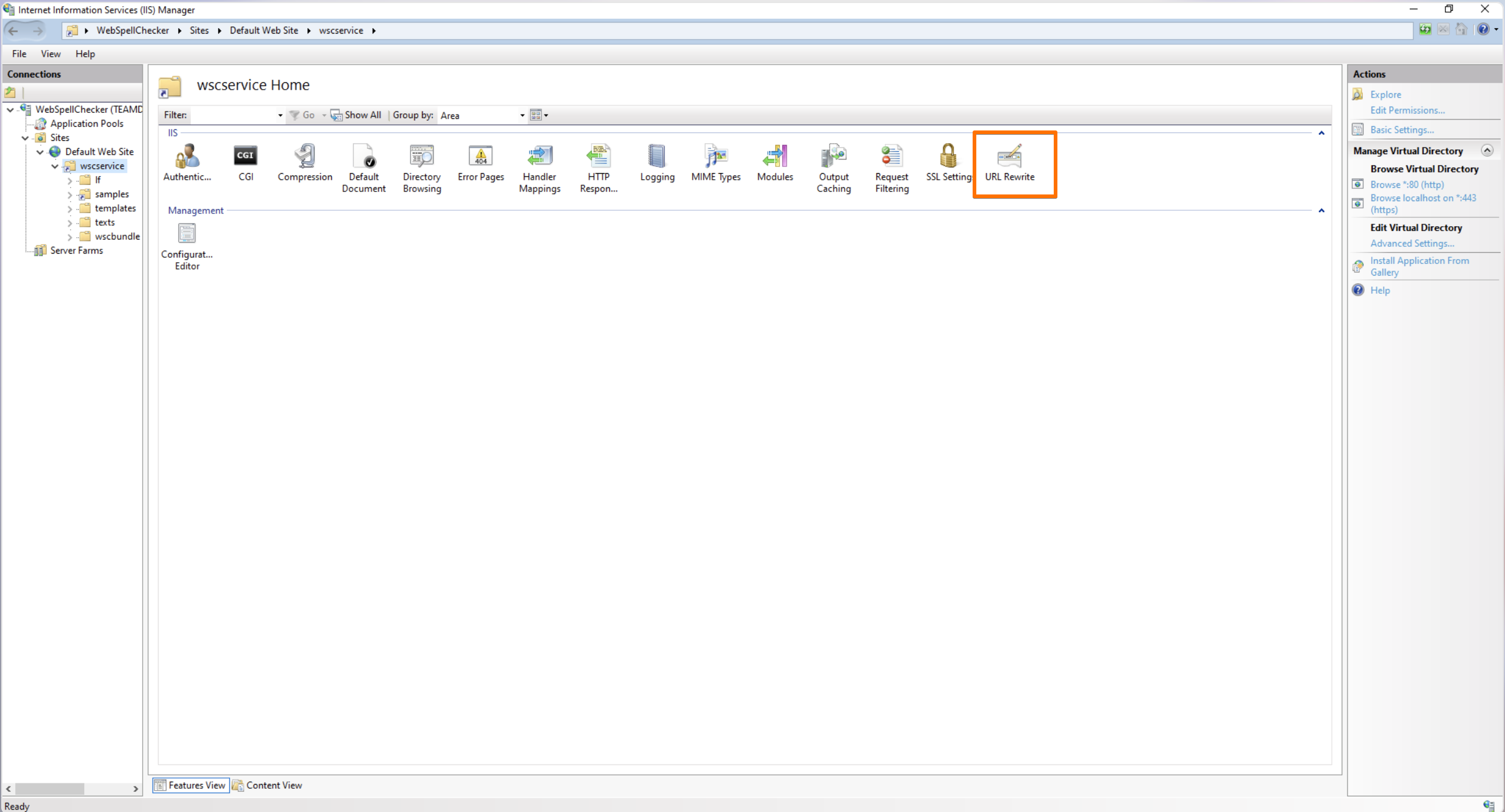
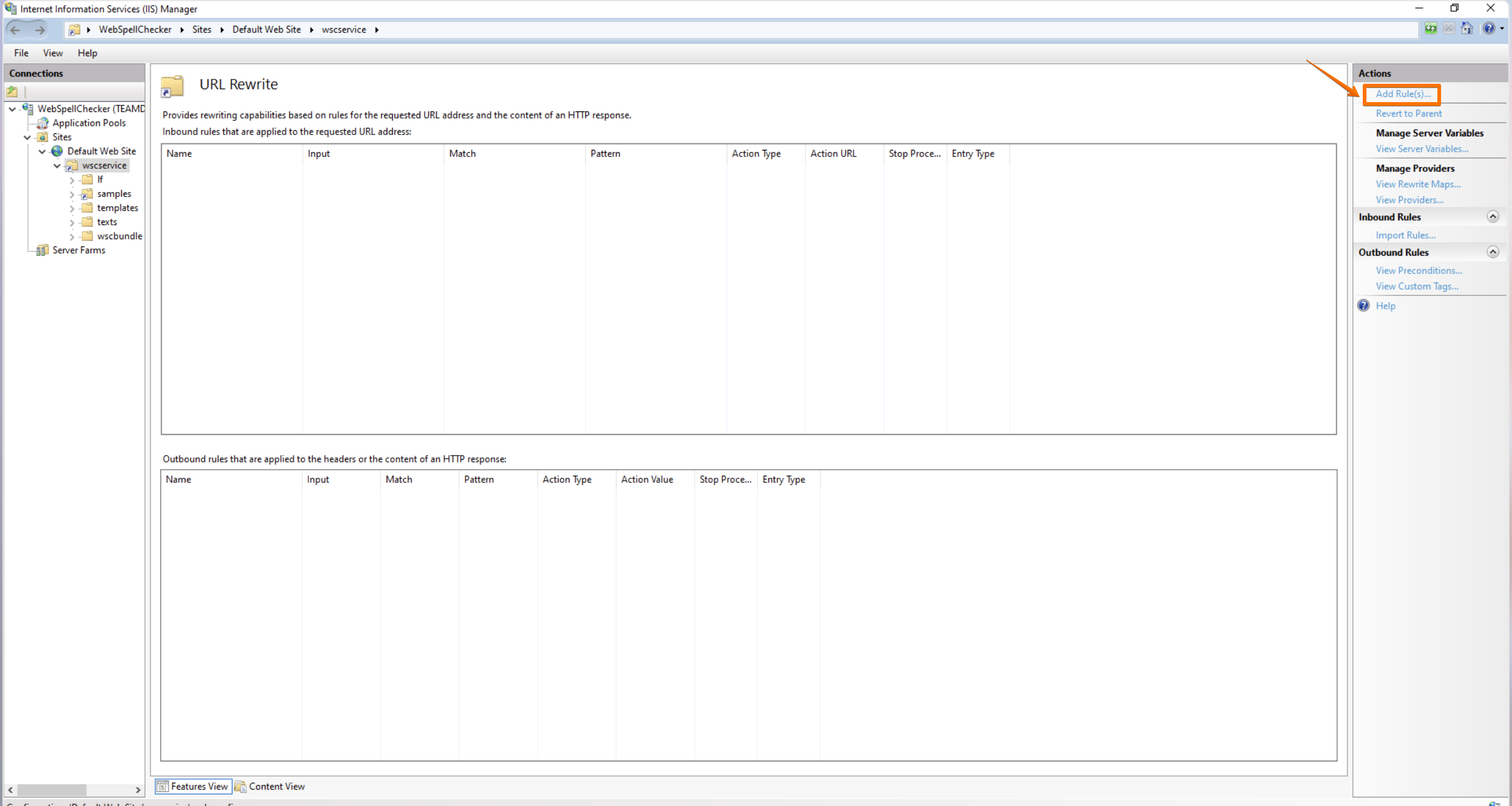
1\. Go to the IIS Manager, find **Default Web Site** and select **wscservice** virtual directory (for older versions it may differ, e.g. **spellcheck**) assuming that WebSpellChecker is deployed there.
2\. In the Feature View, click **URL Rewrite**.
3\. Click on **Add Rule(s)...** on the right sidebar with actions.
4\. In the **Add rule(s)** dialog, select **Blank rule** template for inbound rules and click **OK**.
5\. Create **Inbound rule** for the parent website with the following settings:
* Pattern: **api(.\*)**
* Check the **Ignore case** box.
* Rewrite URL: **** where **** is the path to the application server which listens to the 2880 port and **{R:1}.**
If you previously configured the SSL connection for AppServer, e.g. accessed the service entry point via [http**s**://localhost:2880/](https://localhost:2880/), it is highly recommended to disable this configuration and rely on the SSL management on IIS. To disable SSL connection for AppServer, go to **AppServerX.xml** file, locate **EnableSSL** tag and change its value to **false**. to apply changes, restart AppServer.
6\. Check **Append query string** check box.
7\. Check **Stop processing of subsequent rules** check box.
8\. Once all is done, click **Apply Rule**.
### Verification