> For the complete documentation index, see [llms.txt](https://docs.wproofreader.com/llms.txt). Markdown versions of documentation pages are available by appending `.md` to page URLs; this page is available as [Markdown](https://docs.wproofreader.com/integrations/moodle.md).
# Moodle
## WProofreader plugin for Moodle
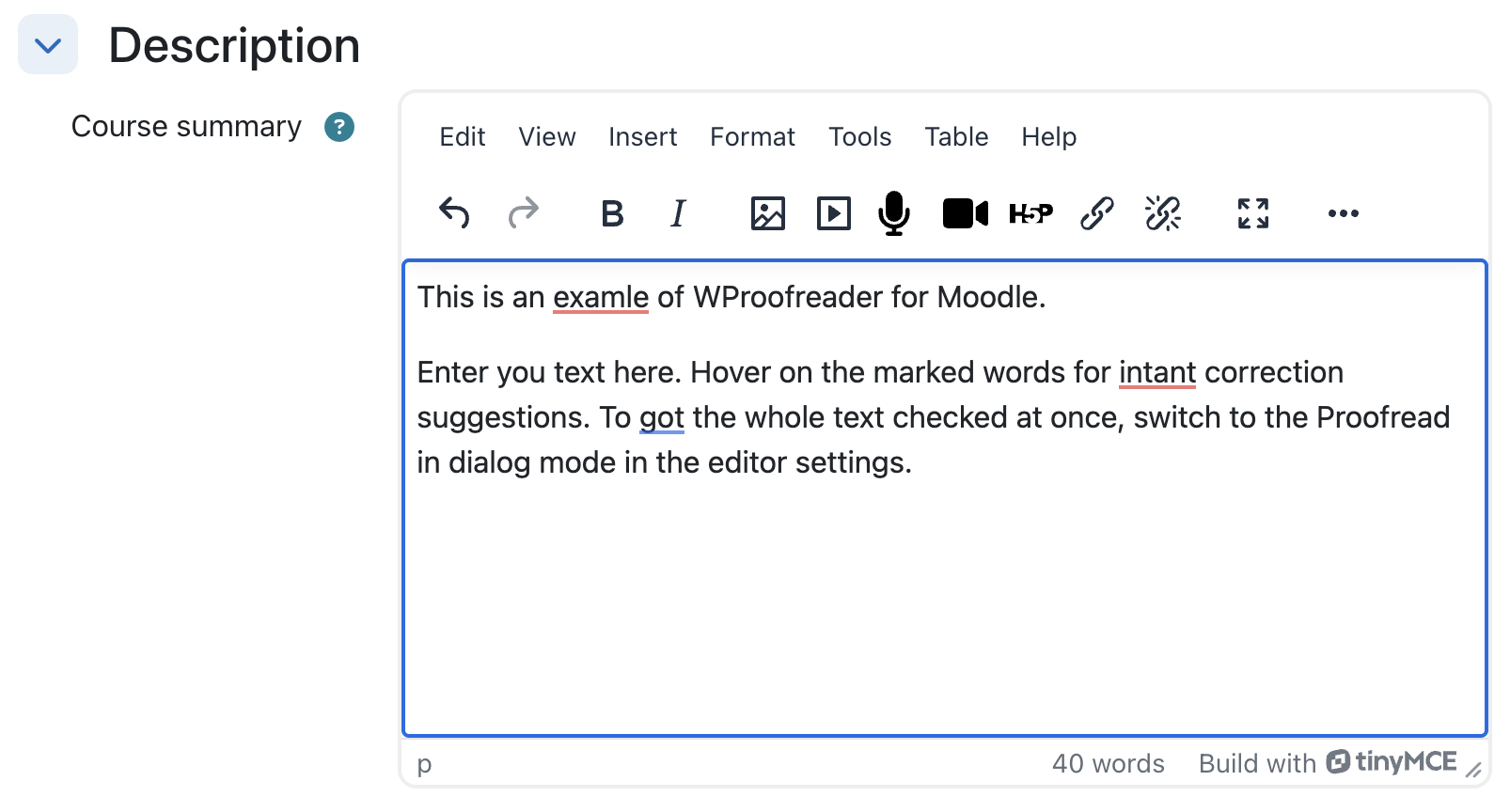
WProofreader is a real-time spelling, grammar, and style checker for editor content in Moodle. It works inside the Atto editor (Moodle 4.5 LTS), TinyMCE 6, and plain HTML textareas, with no per-editor configuration required.
### Features
* Real-time spell and grammar checking as users type
* Multilanguage support, with the language list refreshed from the WebSpellChecker service
* Free version out of the box, limited to 10,000 words a day. Purchase through Moodle Marketplace to extend the usage and unlock additional features
* Granular per-context toggles (courses, categories, user profiles, quizzes, site administration, public pages)
### First-time setup checklist
After installing the plugin and clicking through Moodle's upgrade screen:
1. **Visit *****Site administration > Plugins > Local plugins > WProofreader*****.** Confirm the settings page loads without warnings.
2. **Leave the license key empty.** The plugin runs against a bundled trial customer ID by default, with spelling and style enabled and a 10,000 words-per-day cap across the whole site. This is enough to verify the plugin works before purchasing.
3. **Pick a default language** or leave it at **Auto**. Auto is the right choice if your courses run in more than one language.
4. **Open any course page with a forum or assignment editor.** Type a deliberately misspelled word into a text area. You should see the red underline appear within a second.
5. **If the badge is in the wrong place**, switch *General > Badge placement* between *Page corner* and *Per editor* until it fits the layout you want.
If anything in steps 4 to 5 fails, jump to "Troubleshooting" below.
### Settings overview
A brief tour of every option exposed under *Site administration > Plugins > Local plugins > WProofreader*.
#### General
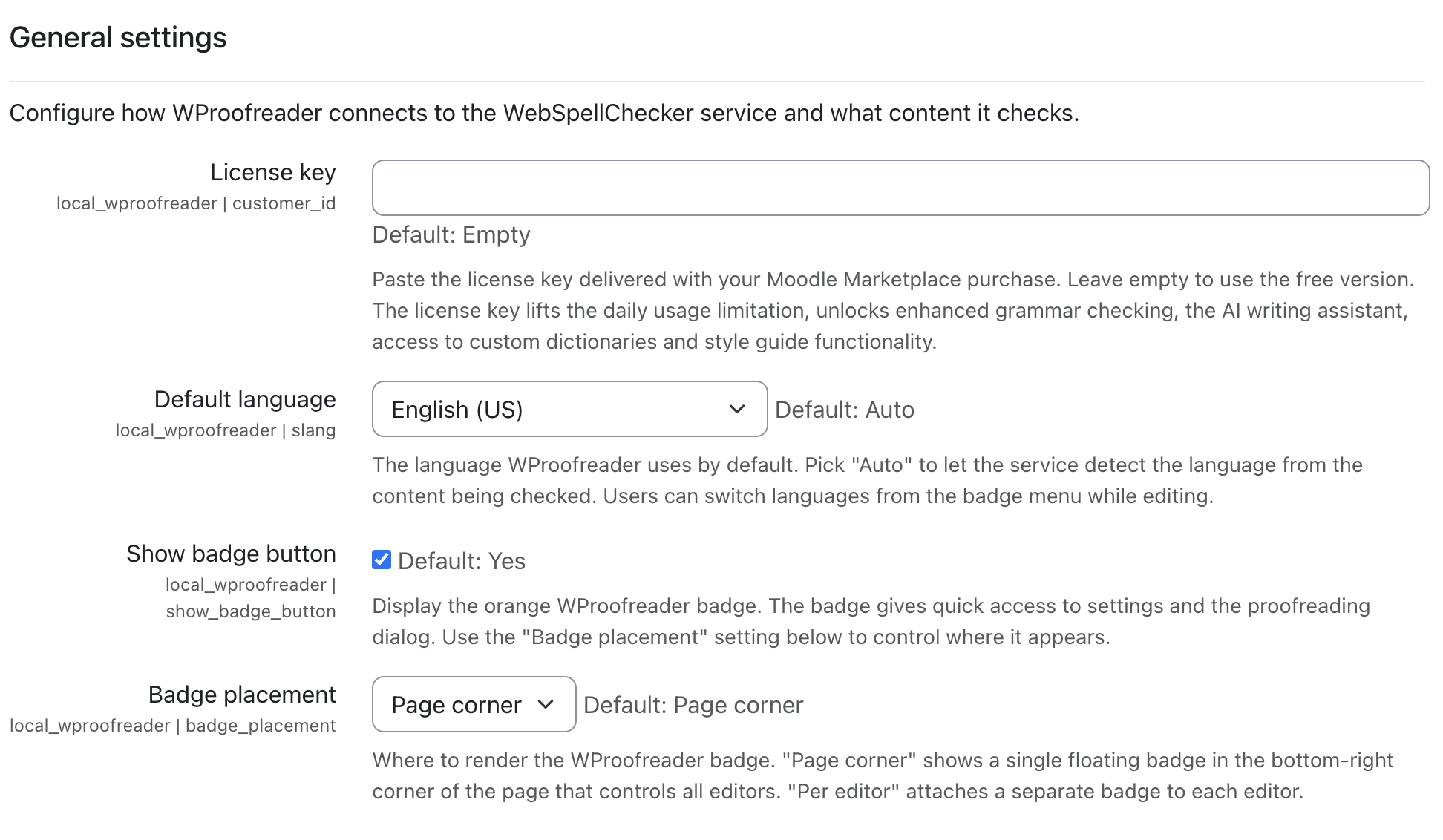
* **License key**: paid license obtained through Moodle Marketplace. Leave empty to run on the bundled trial.
* **Default language**: initial proofreading language. *Auto* lets the service detect the language per analysis; pick a specific language to pin the proofreader.
* **Show badge button**: toggles the WProofreader badge UI. Proofreading still works when the badge is hidden.
* **Badge placement**: *Page corner* renders a single floating badge that controls all editors on the page; *Per editor* attaches a badge to each editor instance.
#### Features access rules
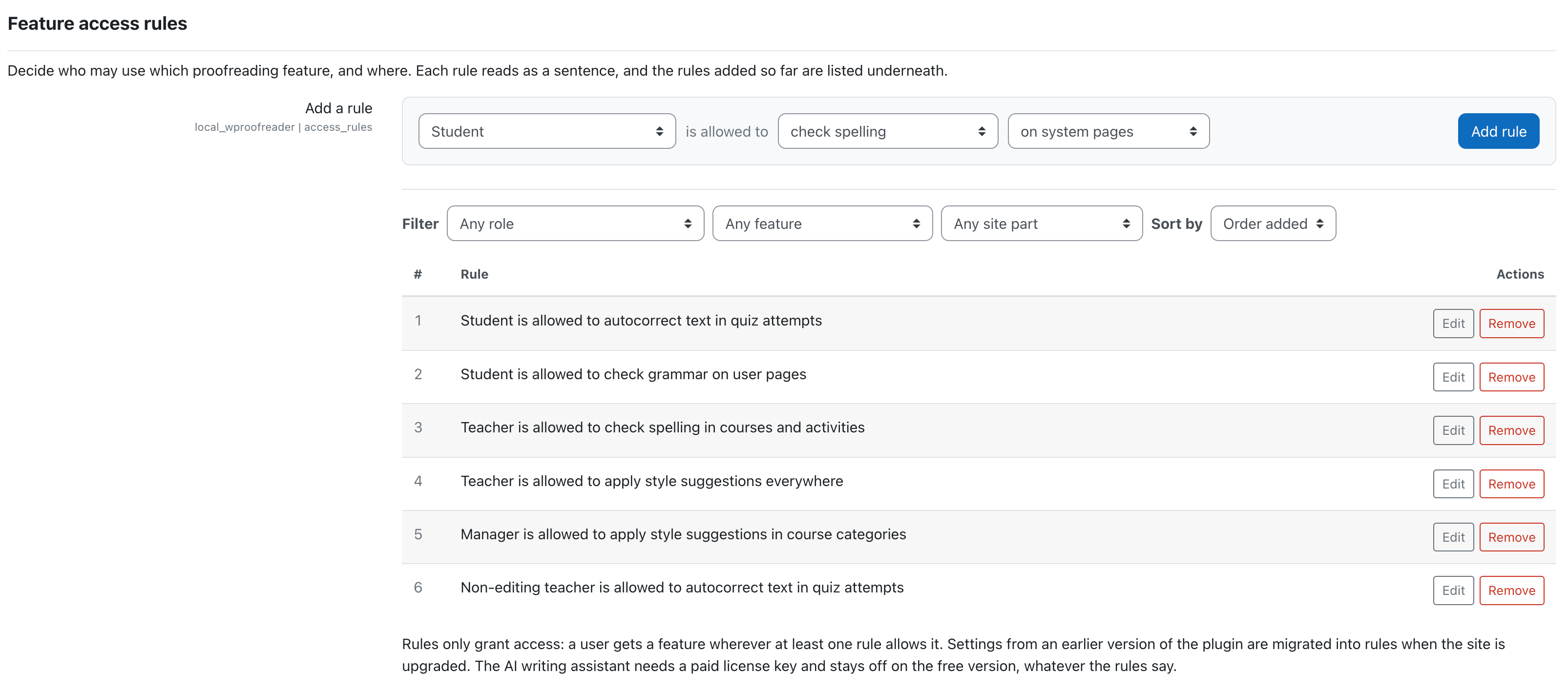
Decide who may use which proofreading feature, and where. Build a rule from three lists, then select ***Add rule***.
**Role.** Any role on the site, or **Everyone**. A rule for Everyone applies to all users, including site administrators, who hold no role of their own.
**Feature.** One of: check spelling, check grammar, apply style suggestions, autocorrect text, autocomplete text, use the AI writing assistant. Or select **do everything** for all six.
**Site part.** One of: in courses and activities, in quiz attempts, in course categories, on user pages, on system pages, in site administration. Or select **everywhere**.
The list of site parts is shortened to the parts that the selected role can open. A student cannot open an administration page, so that part is not offered for the Student role. When the list is shortened, the wildcard shows as **where available** instead of **everywhere**.
Rules only grant access. A user gets a feature where at least one rule allows it. No rule can take access away. If there is no rule, WProofreader does not start anywhere on the site.
A role applies in the part of the site where it is held, and in everything below it. A teacher of one course is not a teacher in a different course. A role that is given at the site level applies everywhere.
Thus a rule for the Teacher role gives proofreading to that user in the courses where that user is a teacher, and in no other course.
**The rules table**
Each rule is listed underneath with a number. Use the table to:
* **Filter** the list by role, feature or site part.
* **Sort** by the order added, by role, by feature or by site part. The numbers do not change.
* **Edit** a rule in place. The rule keeps its number and its position.
* **Remove** a rule.
While a rule is written, the page shows a message if the rule repeats an existing rule ("Repeats rule 1.") or if an existing rule already grants it ("Adds nothing new: rule 1 already grants this."). These are advice, not errors. The rule can still be added.
Changes to the table are kept on the page until **Save changes** is selected.
**Upgrade from an earlier version**
The settings of an earlier version are changed into rules when the site is upgraded. Each feature that was on is paired with each part of the site that was on, and each pair becomes one rule for Everyone. The site keeps the same reach. Examine the rules after the upgrade and make them narrower if necessary.
**The AI writing assistant**
The AI writing assistant needs a paid license key. On the free version it stays off, even if a rule allows it.
#### Spelling ignore options
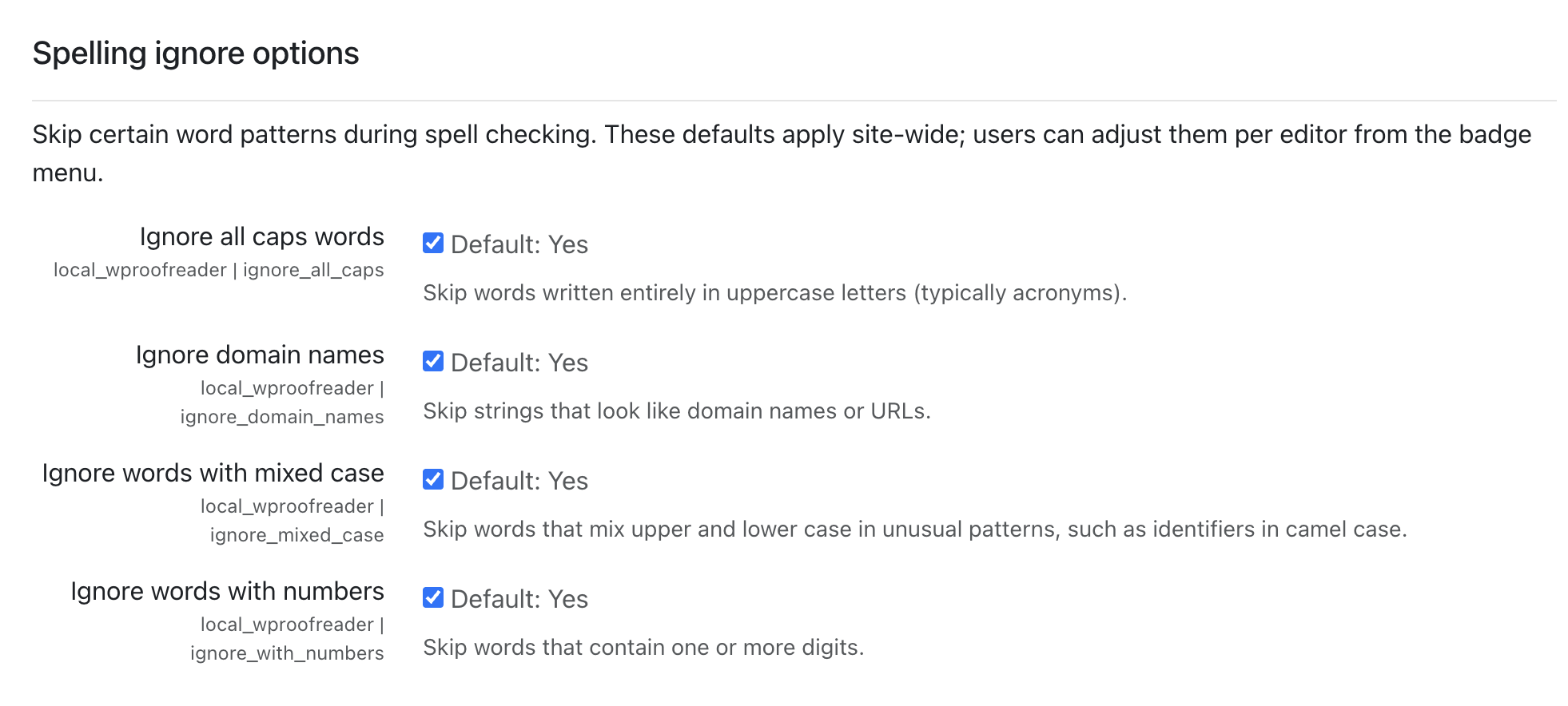
* **Ignore all caps words**: skip tokens like `ALLCAPS`.
* **Ignore domain names**: skip URLs and domain-like strings.
* **Ignore words with mixed case**: skip tokens like `iPhone`, `kWh`.
* **Ignore words with numbers**: skip tokens like `iPhone15`, `v2`.
### How to
#### Trial-drive before purchasing a license
The shipped behavior is already a trial. To get a feel for the paid features without buying a license:
* Leave the license key empty.
* Confirm spelling and style work as expected.
* Note that grammar checking, the AI writing assistant, custom dictionaries, and the higher word cap will not be available. Those are the paid additions.
When you are ready to buy, follow the Moodle Marketplace purchase flow, then paste the issued license key into *General > License key*. The change takes effect on the next page load. No re-install or cache purge required.
### Switching from free to paid
1. Purchase a WProofreader license through Moodle Marketplace.
2. Paste the issued key into *Site administration > Plugins > Local plugins > WProofreader > General > License key*.
3. Click **Save changes** at the bottom of the page.
4. Reload any page with an editor. The badge dialog should now show the **Dictionaries** and **About** tabs, and the AI writing assistant entry should appear in the badge menu if you have that toggle enabled.
Going back to the free version is symmetric: clear the license key field, save, reload.
### Where to get help
* **Bugs and feature requests**: file an issue at the [GitHub issue tracker](https://github.com/WebSpellChecker/moodle-local_wproofreader/issues).
* **License and purchasing questions**: contact WebSpellChecker via the [contact form](https://webspellchecker.com/contact-us/).
* **Moodle integration questions** outside the scope of this plugin (e.g. "how do I customize Moodle themes"): the Moodle community forums at [moodle.org](https://moodle.org).