> For the complete documentation index, see [llms.txt](https://docs.wproofreader.com/llms.txt). Markdown versions of documentation pages are available by appending `.md` to page URLs; this page is available as [Markdown](https://docs.wproofreader.com/integrations/how-tos/use-recommendations-with-other-writing-assistance-tools.md).
# Use recommendations with other writing assistance tools
More and more end users nowadays are relying on the various digital writing assistants when it comes to the polishing and validating the writing. The most popular among them is Grammarly.
Thus, when integrating a spelling/grammar checking functionality, you may face with the dilemma how to act if your end users might also use other tools for proofreading the texts. Having both integrated spelling/grammar checking and external tool will lead to conflicts and cause certain inconvenience or confusion for end users (duplicated underlines, pop-ups and other elements).
There are list of possible options how you can act in case of other external tools for proofreading are enabled by end users.
### Option A. A setting to enable/disable integrated spelling/grammar checking
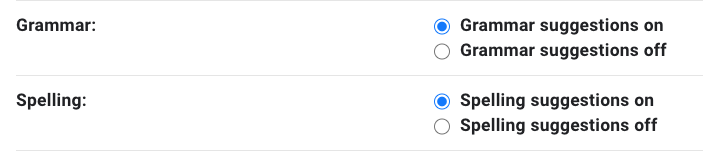
Since you have a full control of your web app and manage the authorization of users, you can add a setting for a user to be able to disable the spelling/grammar checking functionality integrated in your app. In this case, if a user prefers using an external tool, they can disable the functionality offered by your product. And depending on the user choice, you can then either load WProofreader on the page or not.
Below is a screenshot from Gmail settings. They allow a user to disable the default grammar and spelling suggestions.
### Option B. Monitor if an external tool is enabled and do not start WProofreader
There is another option possible. You can implement a script that would monitor if any external proofreading solution (e.g. Grammarly) is added to the browser of a user. And if so, do not start WProofreader on the page. This approach is complex and tricky. There are dozens of external tools that can be used, thus, you would need to monitor all possible that will be used by your end users and have it implemented for various browsers.
### Option C. Disable badge and keep only problems underlines
If you believe that having duplicated underlines for found problems is not a problem and the only thing that irritates is a badge (a bubble at the right corner of the editable section), you can disable it for all users. WProofreader comes with the plenty of options that allows configuring behaviour and user interface based on your needs. One of such an option is to disable the badge element and keep only underlines. All the actions like disable/enable will be available in the suggestion pop-up which appears on hover on an underlined problem. Check the instructions in the [WProofreader customization options](https://docs.wproofreader.com/integrations/how-tos/pages/0OnbFOd5JpEZ4SHSMjjy#wproofreadercustomizationoptions-2.3.wproofreaderbadge) guide.