> For the complete documentation index, see [llms.txt](https://docs.wproofreader.com/llms.txt). Markdown versions of documentation pages are available by appending `.md` to page URLs; this page is available as [Markdown](https://docs.wproofreader.com/features/custom-dictionary/user-dictionary-user-manual.md).
# User dictionary user manual
A user dictionary is your personal wordlist of custom words that WProofreader or SCAYT should treat as correct, such as names, acronyms, technical terms, or industry-specific words. Once a word is added to your dictionary, it won't be flagged as a misspelling. With the algorithmic spelling engine, dictionary words will also appear in the suggestions list when you misspell a similar word.
User dictionaries are language-agnostic. All words go into one dictionary regardless of which spell-check language you're using.
### How storage works
When you add words without creating a named dictionary, they're stored in your browser's local storage. This means:
* Words are only available in the browser where you added them.
* Words will be lost if you clear your browser storage.
To access your words from any browser, device, or machine, create a named dictionary. Once you do, all your words (including any already in local storage) are moved to the server and stored permanently.
### WProofreader
#### Creating a dictionary
1. Hover over the WProofreader badge in the bottom right corner of the text field.
2. Click the **Settings** icon.
3. Navigate to the **Dictionary** tab.
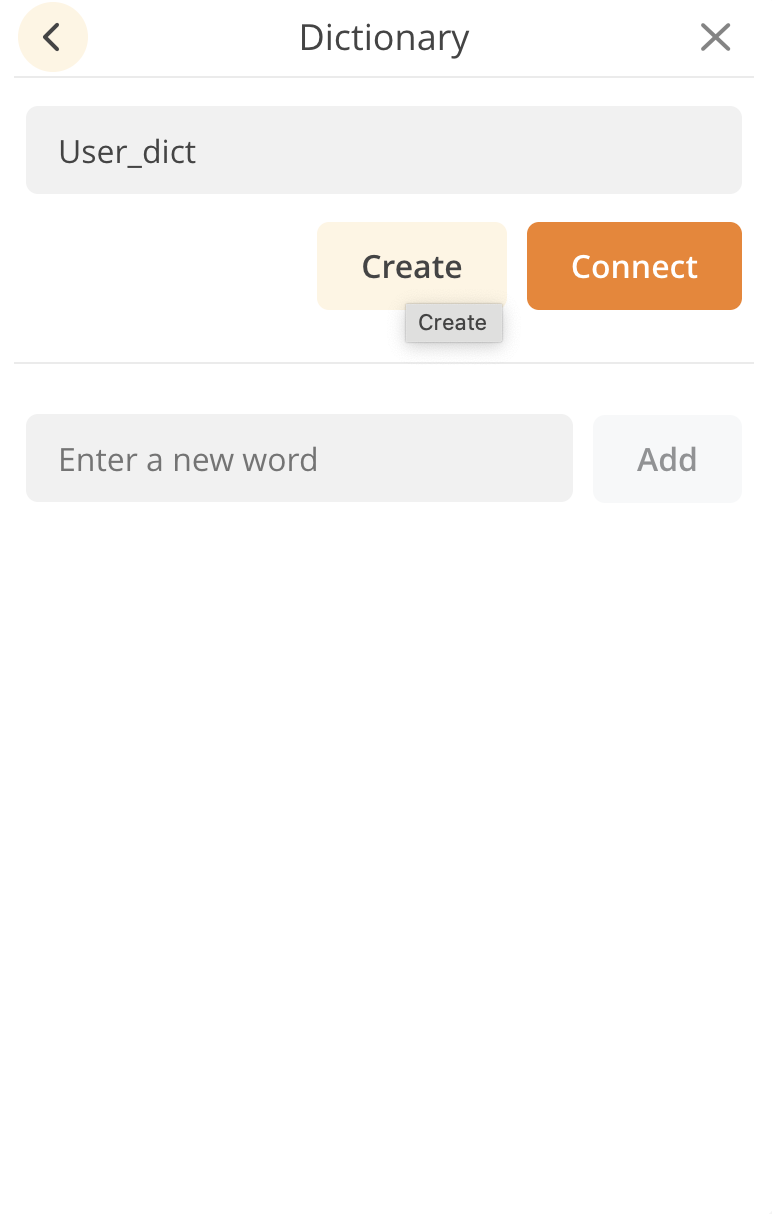
4. In the "*Enter a dictionary name*" field, type a name for your dictionary and click **Create**.
5. A confirmation message appears. Your dictionary is now active and words will be stored on the server.
#### Connecting to an existing dictionary
If you've previously created a dictionary and need to reconnect to it (for example, from a different browser):
1. Open the **Dictionary** tab in WProofreader settings.
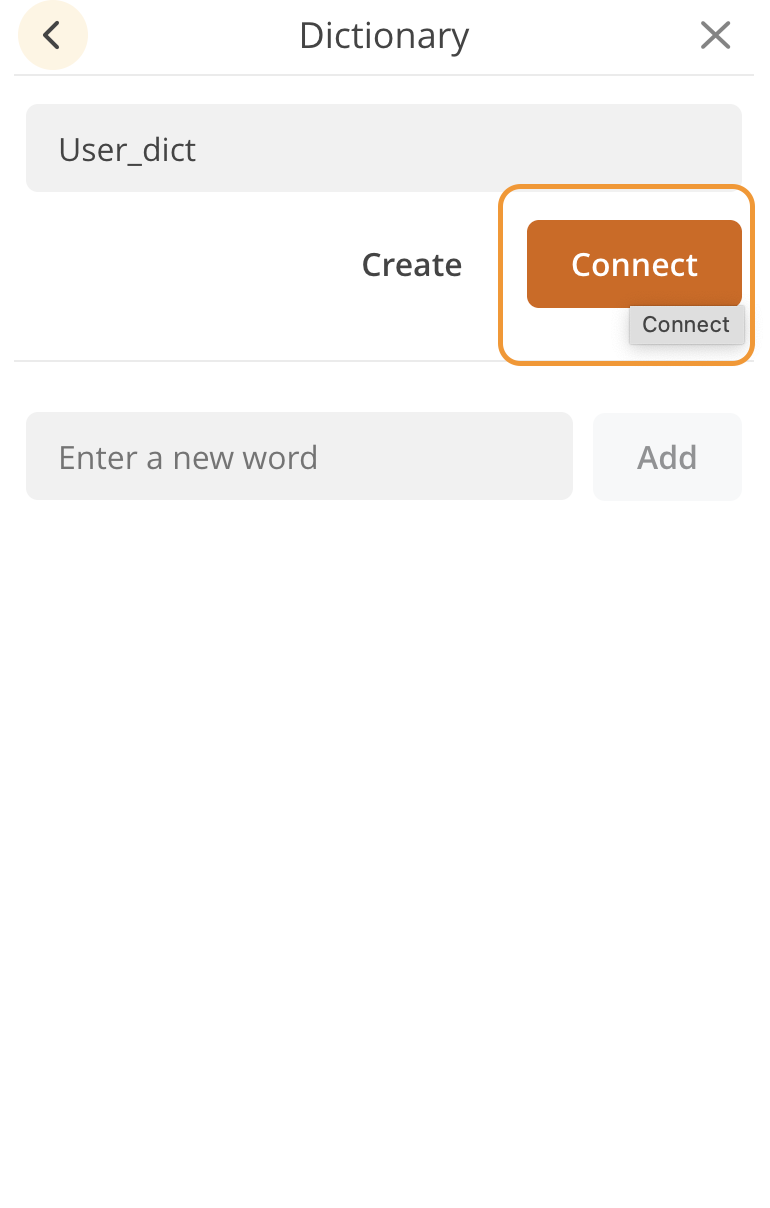
2. Type the name of your existing dictionary and click **Connect**.
Your previously saved words will be available again.
#### Adding words
There are three ways to add words to your dictionary:
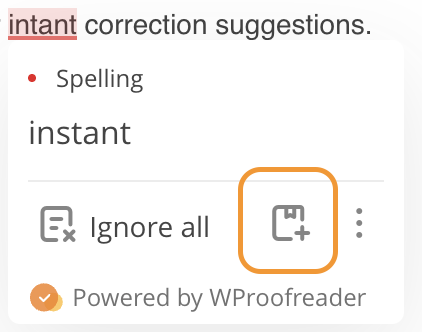
**From the suggestions popup.** Hover over a flagged word in the text and click **Add word** in the suggestions card.
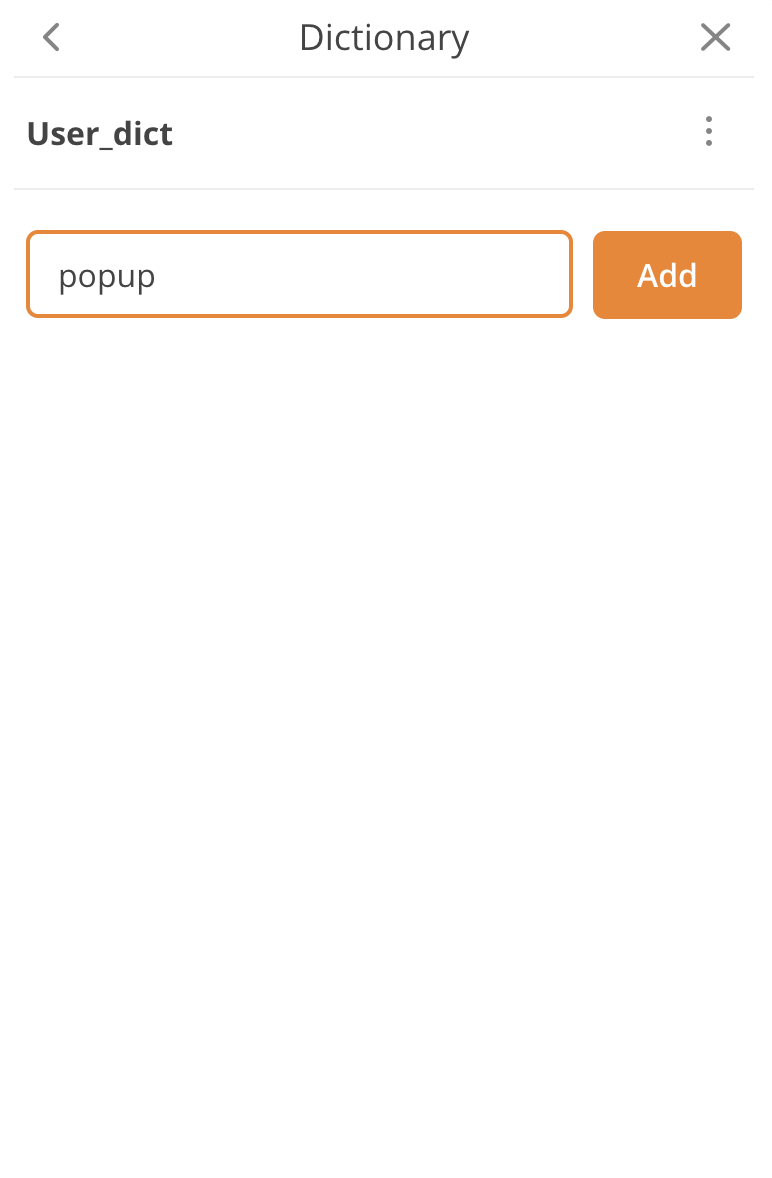
**From the dictionary tab.** Open WProofreader settings, go to the **Dictionary** tab, type a word in the "Enter a new word" field, and click **Add** or press Enter.
**From proofread in dialog mode.** Open the proofread in dialog mode and click **Add word** next to a flagged spelling issue.
#### Viewing your words
Open the **Dictionary** tab in WProofreader settings. All words in your currently connected dictionary are listed below the "Enter a new word" field.
#### Deleting a word
In the **Dictionary** tab, find the word you want to remove and click the **×** icon next to it. The word will be removed from your dictionary and may be flagged as a misspelling again.
Words can't be edited directly. To change a word, delete it first, then add the corrected version.
#### Renaming a dictionary
1. Open the **Dictionary** tab in WProofreader settings.
2. Click the menu icon (three dots) next to the dictionary name.
3. Select **Rename**.
4. Enter the new name and confirm.
#### Disconnecting a dictionary
Disconnecting a dictionary removes the connection between your current session and the dictionary. The dictionary and its words aren't deleted. You can reconnect to it later by entering its name.
1. Open the **Dictionary** tab in WProofreader settings.
2. Click the menu icon (three dots) next to the dictionary name.
3. Select **Disconnect**.
#### Deleting a dictionary
Deleting a dictionary permanently removes it and all its words. This action can't be undone.
1. Open the **Dictionary** tab in WProofreader settings.
2. Click the menu icon (three dots) next to the dictionary name.
3. Select **Delete**.
### SCAYT plugin for CKEditor 4
#### Creating a dictionary
1. On the CKEditor toolbar, click the **ABC** icon.
2. In the dropdown menu, select **Dictionaries**.
3. The SCAYT dialog opens on the **Dictionaries** tab.
4. Click the **Dictionary Preferences** button.
5. Type a name for your new dictionary and click **Create**.
6. A confirmation message appears. Click **OK** to save.
#### Connecting to an existing dictionary
If you've previously created a dictionary and need to reconnect to it:
1. Open the **Dictionaries** tab in SCAYT.
2. Click **Dictionary Preferences**.
3. If another dictionary is currently connected, click **Disconnect** first.
4. Type the name of your existing dictionary and click **Connect**.
5. Click **OK** to save.
#### Adding words
**From the suggestions popup.** Right-click on a flagged word and select **Add word** from the SCAYT context menu.
**From the dictionaries tab.** Open the SCAYT **Dictionaries** tab, type a word in the "Add word" field, and click **Add word**, then click **OK**.
#### Viewing your words
Open the **Dictionaries** tab in SCAYT. Words in your currently connected dictionary are listed in the lower part of the screen.
#### Deleting a word
In the **Dictionaries** tab, find the word you want to remove and click the **×** icon next to it.
Words can't be edited directly. To change a word, delete it first, then add the corrected version.
#### Disconnecting a dictionary
1. Open the **Dictionaries** tab in SCAYT.
2. Click **Dictionary Preferences**.
3. Click **Disconnect**.
The dictionary and its words aren't deleted. You can reconnect later by entering the dictionary name.
#### Deleting a dictionary
Deleting a dictionary permanently removes it and all its words. This action can't be undone.
1. Connect to the dictionary you want to delete (if it isn't already connected).
2. Click the **Delete** button.
### Tips
* **Choose a unique dictionary name.** Your dictionary name is how you access it. Use something memorable but hard for others to guess, since there's no password protection.
* **Create a named dictionary early.** Don't rely on browser local storage. Creating a named dictionary ensures your words are saved on the server and accessible from any browser or device.
* **Only one dictionary at a time.** You can create multiple dictionaries, but only one can be active at a time. To switch, disconnect the current dictionary and connect another.
* **Duplicates are prevented.** If you try to add a word that's already in your dictionary, it won't be added again.
* **Dictionary naming rules.** Dictionary names must use Latin characters and/or digits only. They must be unique.