> For the complete documentation index, see [llms.txt](https://docs.wproofreader.com/llms.txt). Markdown versions of documentation pages are available by appending `.md` to page URLs; this page is available as [Markdown](https://docs.wproofreader.com/features/custom-dictionary/organization-dictionary-cloud-admin-panel.md).
# Organization dictionary: Cloud admin panel
This guide covers how to manage organization dictionaries through the admin panel at [app.wproofreader.com](https://app.wproofreader.com). For an overview of organization dictionaries, key concepts, integration configuration, and limitations, refer to the [Organization dictionary →](/features/custom-dictionary/organization-dictionary.md).
### Accessing the admin panel
1. Sign in at [app.wproofreader.com](https://app.wproofreader.com).
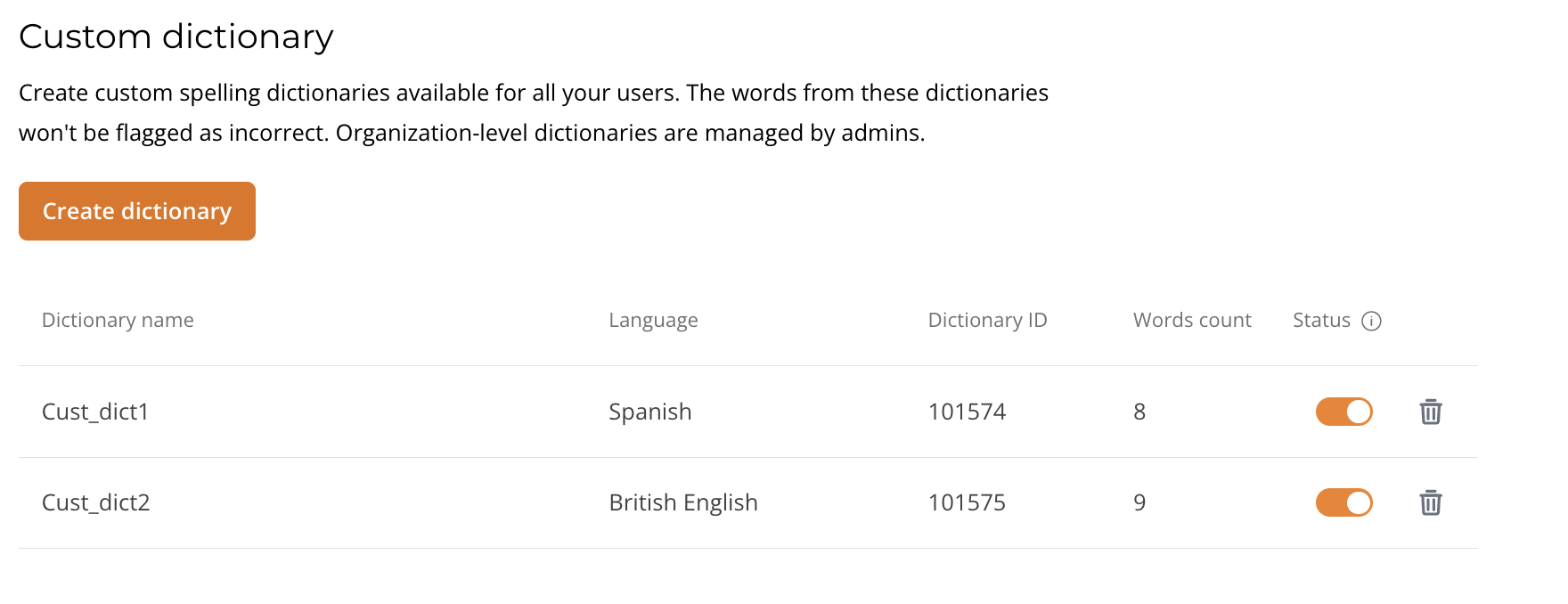
2. In the left navigation panel, select [**Custom dictionary**](https://app.wproofreader.com/custom-dictionary).
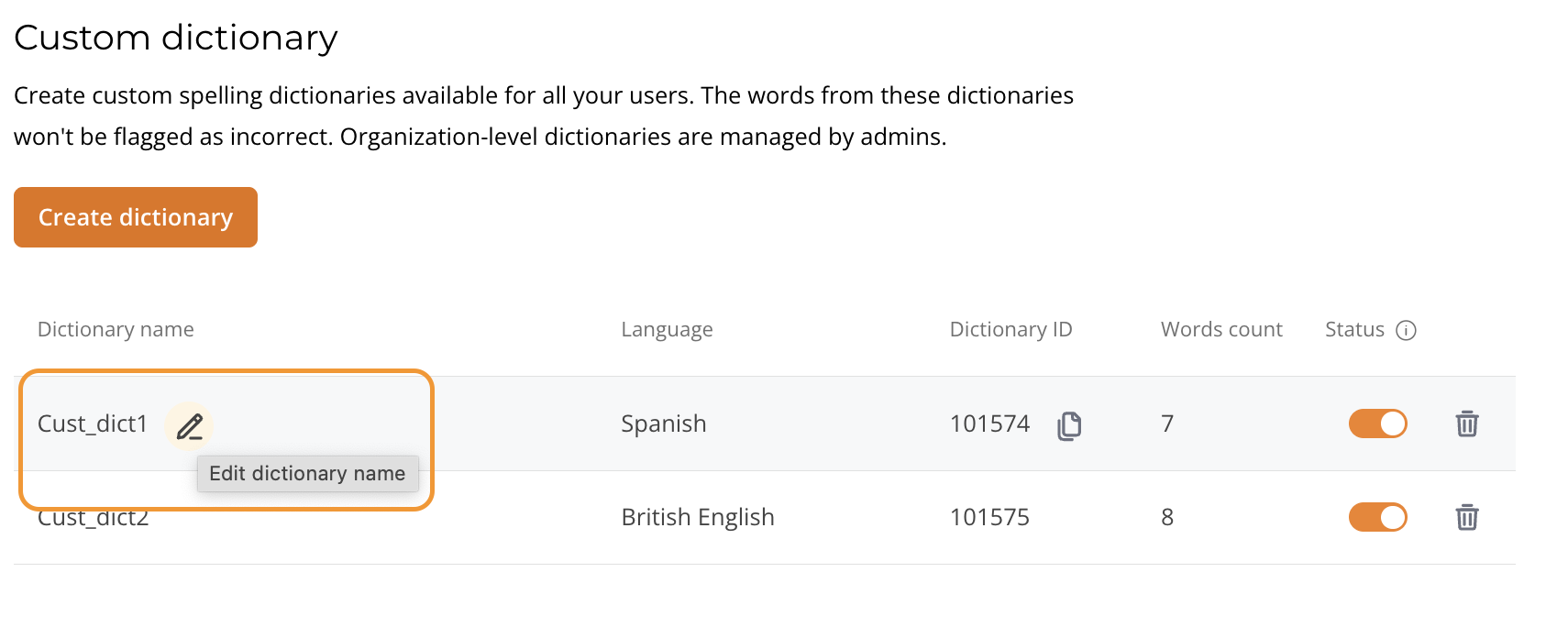
3. If you already have dictionaries, you'll see them listed with the following columns: Dictionary name, Language, Dictionary ID, Words count, and Status. Otherwise, the list will be empty.
### Creating a dictionary
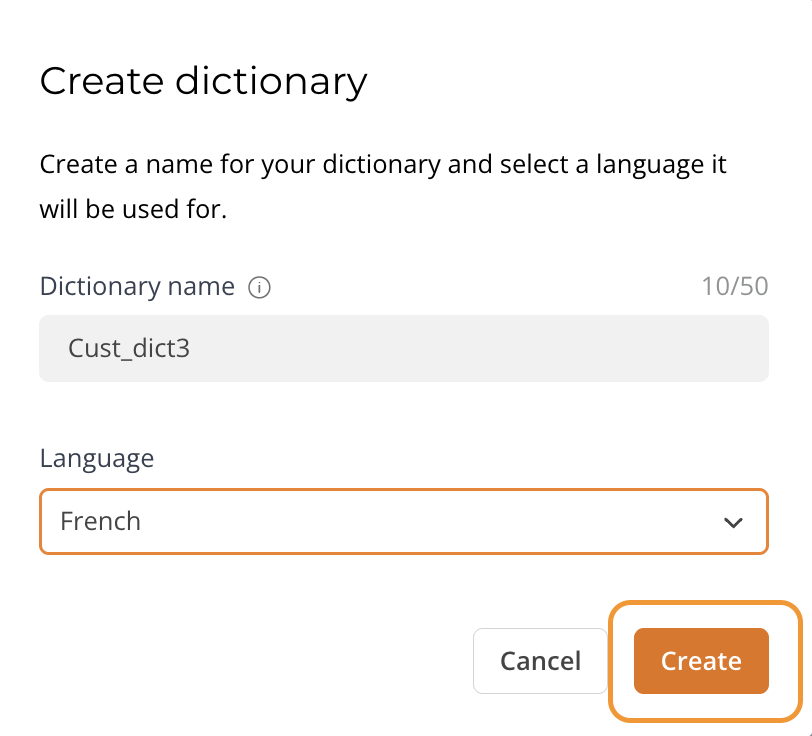
1. Click the **Create dictionary** button.
2. In the dialog that appears, fill in the following fields:
* **Dictionary name.** Max 50 characters. Must be unique within your account.
* **Language.** Select from the dropdown.
3. Click **Create**.
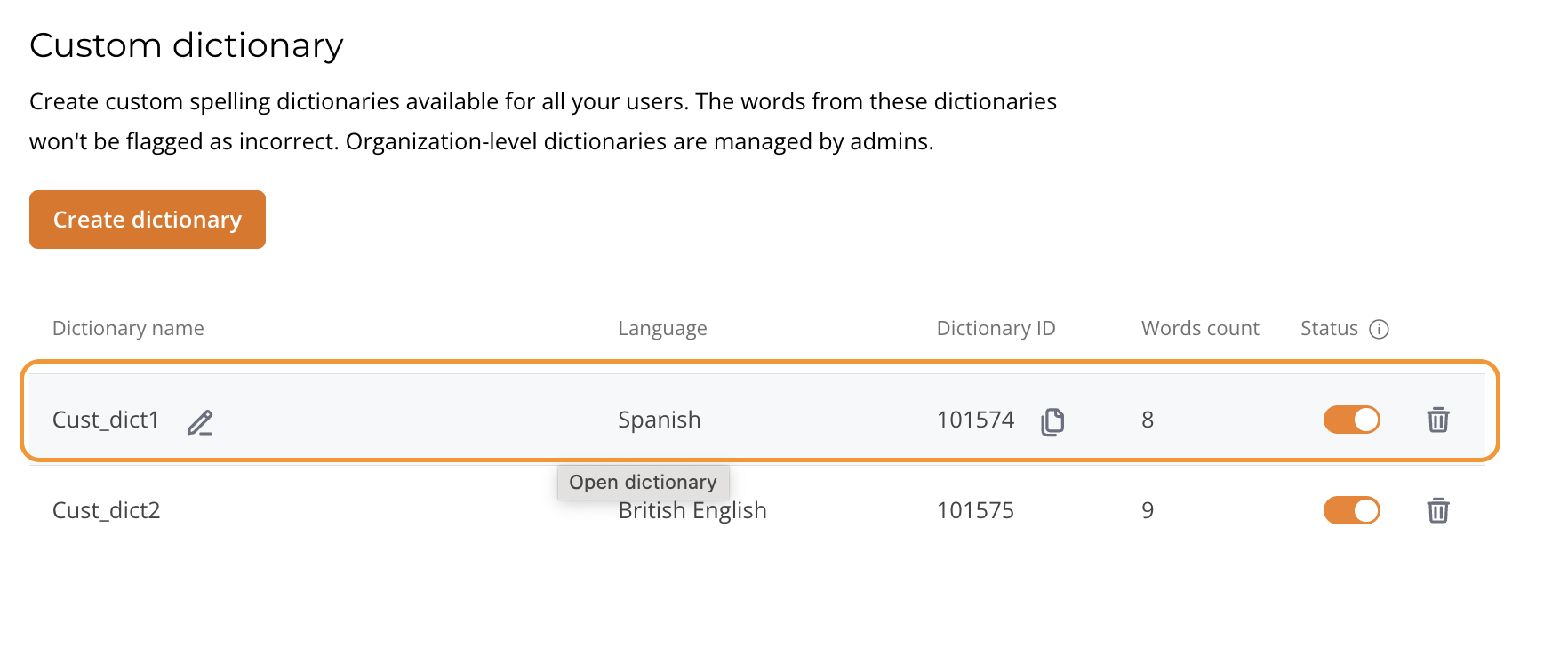
4. The dictionary appears in the list with a Dictionary ID assigned automatically. Use the copy icon next to the ID to save it for your web application configuration.
5. A sync notification will appear in the top right corner confirming the dictionary is being synchronized.
### Managing the wordlist
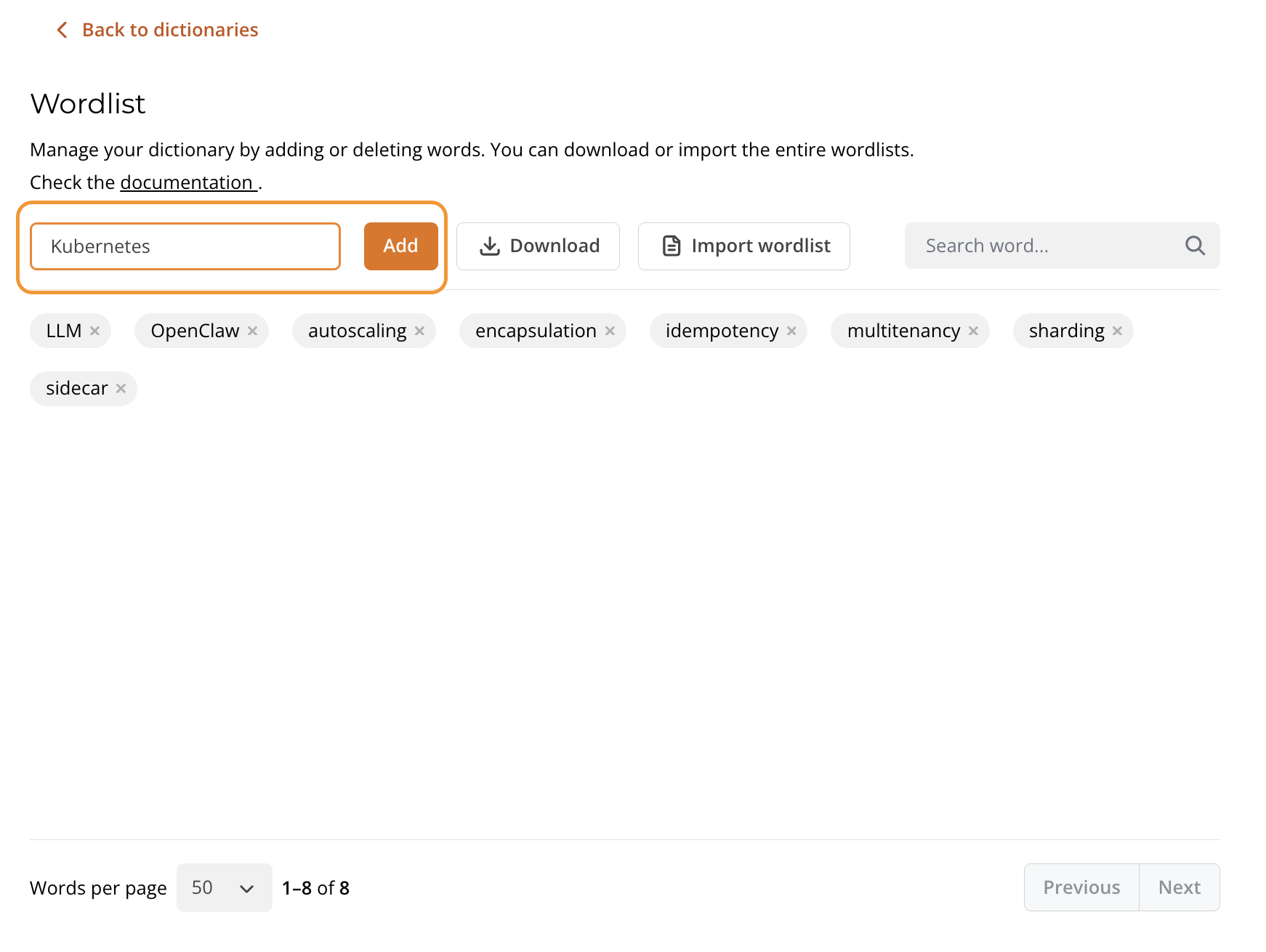
Click on a dictionary row to open the wordlist view.
* **Adding words.** Type a word in the "Add word..." field and click **Add**. Words can't contain spaces, punctuation, or special characters. A confirmation notification appears.
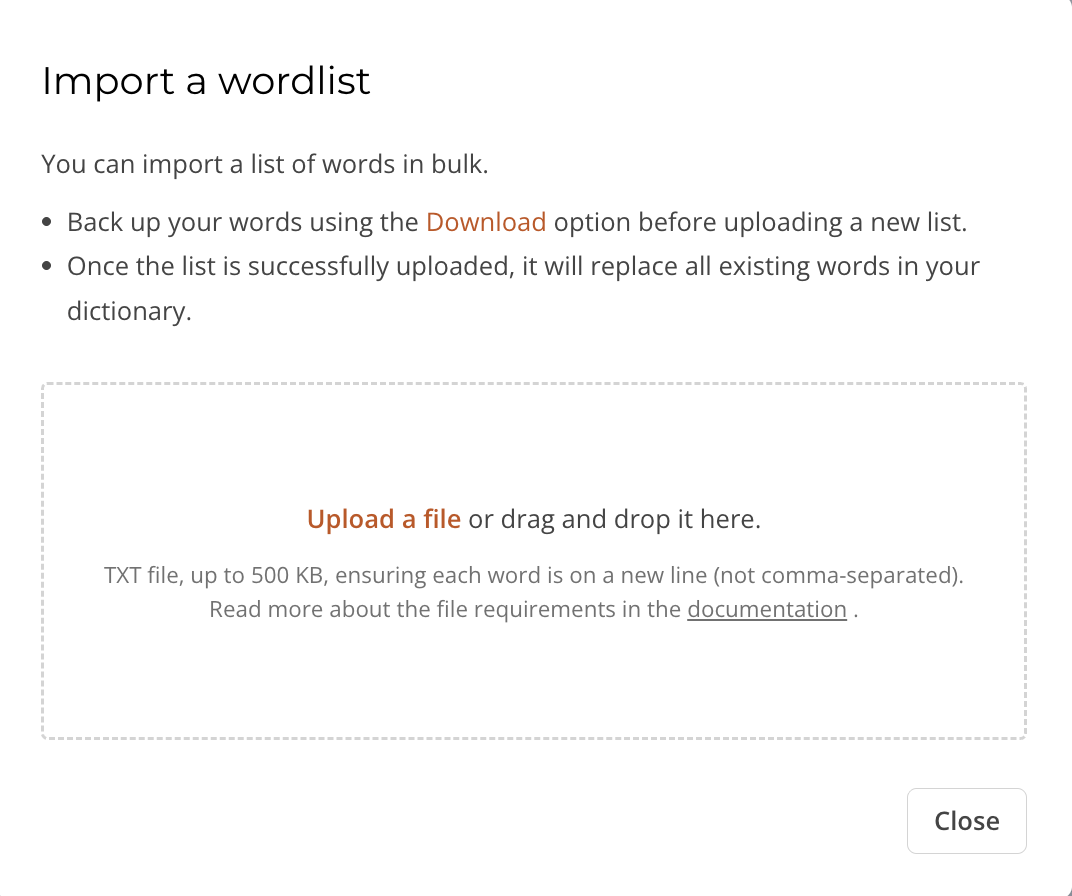
* **Importing words in bulk.** Click **Import wordlist** to upload a TXT file. The file must contain one word per line (not comma-separated) and must not exceed 500 KB. Importing replaces all existing words in the dictionary. Back up your current wordlist using the **Download** option before importing.
* **Downloading the wordlist.** Click **Download** to export the full wordlist as a file.
* **Searching words.** Use the "Search word..." field to find specific words in the dictionary.
* **Deleting words.** Click the **×** icon next to a word to remove it.
The wordlist view includes pagination at the bottom with a configurable number of words per page.
For word rules and validation details, refer to the [Organization dictionary →](/features/custom-dictionary/organization-dictionary.md).
### Editing a dictionary name
In the dictionary list, click the pencil icon next to the dictionary name. Enter the new name (max 50 characters, must be unique) and save.
### Enabling or disabling a dictionary
Toggle the **Status** switch in the dictionary list row. Disabled dictionaries are excluded from spellcheck but aren't deleted. They can be re-enabled at any time. A sync notification will appear confirming changes are being synchronized.
### Deleting a dictionary
Click the trash icon in the dictionary list row. If your web application configuration references this dictionary by ID using `customDictionaryIds`, update the configuration accordingly.
### FAQ
#### Why don't my dictionary changes take effect immediately?
Changes to dictionaries require a short time to synchronize. A notification in the admin panel will confirm when synchronization is complete.
#### What happens when I import a wordlist?
Importing a TXT file replaces all existing words in the dictionary. Always download your current wordlist as a backup before importing.
#### What file format does the import accept?
The import accepts TXT files only. Each word must be on a separate line (not comma-separated). The file must not exceed 500 KB.