> For the complete documentation index, see [llms.txt](https://docs.wproofreader.com/llms.txt). Markdown versions of documentation pages are available by appending `.md` to page URLs; this page is available as [Markdown](https://docs.wproofreader.com/deployment/installation/windows/install-on-windows-with-iis.md).
# Install on Windows with IIS
This step-by-step guide is intended to outline the main steps for the WebSpellChecker application installation on a Windows on-premise with Internet Information Services (IIS) web server. In this guide we will run you through the whole installation process from downloading installation packages to embedding spell/grammar checking functionality to your web-based system.
Before you begin:
1. Check if your environment configuration meets [Installation requirements](/deployment/installation-requirements/installation-requirements.md).
2. Acknowledge with [Architecture diagram](/deployment/installation-requirements/architecture-diagram.md).
3. Make sure that you have a valid license:
First of all you need to get a valid License Ticket ID to proceed with the license activation. Depending on the server license type, it may be a commercial (e.g. 1 year) or a 30-day trial license. Except the validity period, there is no difference between ticket types from the technical perspective.
**Good to know:**
* If you do not have a license yet, you can obtain it using one of the following ways:
* request [a 30-day trial license](https://webspellchecker.com/free-trial/) for evaluation and testing purposes;
* acquire a commercial license by contacting our [sales department](https://webspellchecker.com/contact-us/).
* Starting from v5.8.1 released on December 30, 2020, the license is no longer validated by or tied to the hardware characteristics of a machine or server. License for older versions of the packages is hardware-dependent.
* If you have problems with your license, [contact us](https://webspellchecker.com/contact-us/).
* [1. Prepare for installation](#draft-installonwindowswithiis-1.prepareforinstallation)
* [2. Install WebSpellChecker](#draft-installonwindowswithiis-2.installwebspellchecker)
* [3. Activate license](#draft-installonwindowswithiis-3.activatelicense)
* [4. Configure grammar engine](#draft-installonwindowswithiis-4.configuregrammarengine)
* [5. Verify operability](#draft-installonwindowswithiis-5.verifyoperability)
* [6. Further steps](#draft-installonwindowswithiis-6.furthersteps)
* [7. Troubleshoot](#draft-installonwindowswithiis-7.troubleshoot)
### **1. Prepare for installation**
1.1. Download installation package
Request the latest available WebSpellChecker on-premise version contacting us at for your operating system (OS).
1.2. Enabled two IIS modules on your machine to configure your web server to act as a **reverse proxy server**:
* [URL Rewrite](https://www.iis.net/downloads/microsoft/url-rewrite)
* [Application Request Routing (ARR)](https://www.iis.net/downloads/microsoft/application-request-routing)
1.3. Download on your machine **64-bit version** of Java 17 or higher, which is required to run the Grammar engine.
### 2. Install WebSpellChecker
2.1. Run the installation package (e.g. wsc\_app\_x64\_release\_6.x.x.x\_xxx.exe).
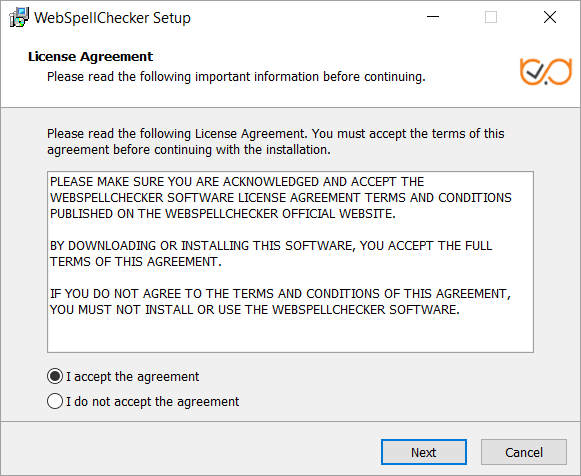
2.2. Before proceeding with the installation, read and confirm **WebSpellChecker Software License Agreement**.
Visit [WebSpellChecker Software License Agreement](https://webspellchecker.com/legal/software-license-agreement/) page to acknowledge the full terms and conditions of WebSpellChecker Software.
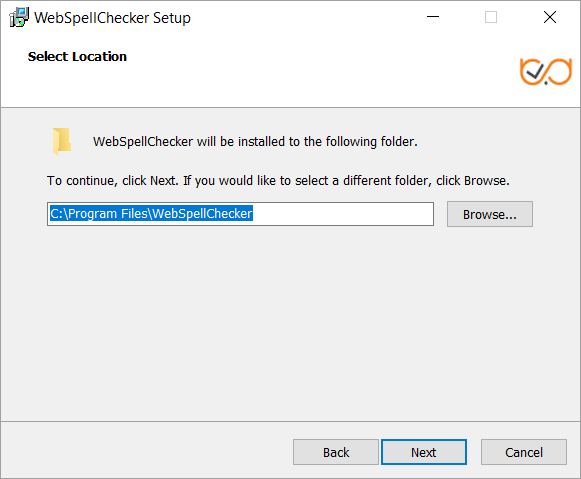
2.3. Select WebSpellChecker installation location and click **Next** to proceed. The default WebSpellChecker installation folder is **C:\Program Files\WebSpellChecker**. Click **Browse…** and specify a different installation location if it is necessary.
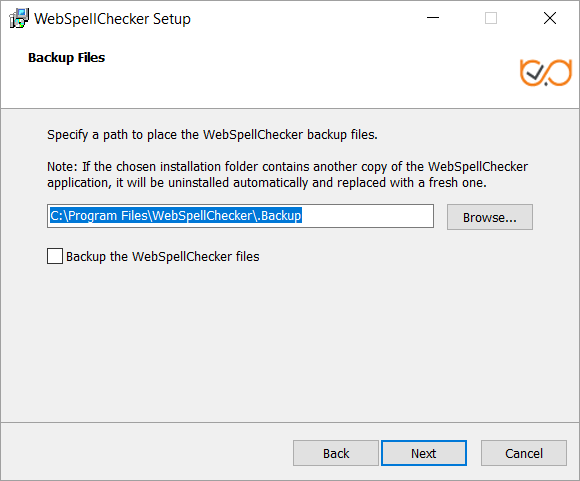
2.4. Variative step. If you have already installed some WebSpellChecker version on your machine, in the next step you will receive a suggestion to backup the files. Check the box to "Backup the WebSpellChecker files". The default WebSpellChecker backup folder is **C:\Program Files\WebSpellChecker\\.Backup**. Click **Browse…** and specify a different backup location if it is necessary.
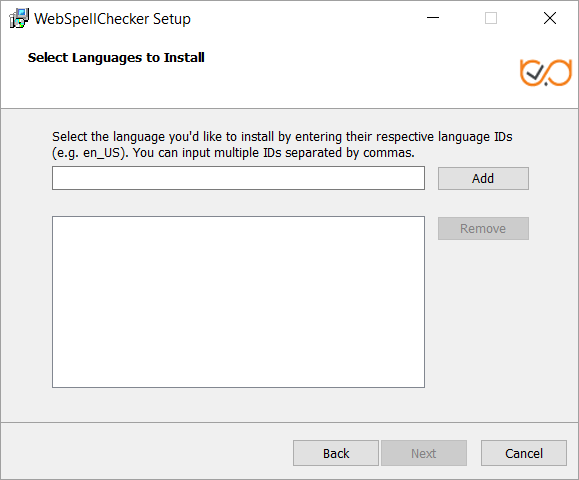
2.5. Select languages to be downloaded and installed. Also installer windows allows you to remove the selected languages. [Here](/features/supported-languages.md) you can find the list of supported languages with their shortcodes.
{% hint style="info" %}
An internet connection is required to download language models started by the WebSpellChecker version 5.31.0.0.
{% endhint %}
{% hint style="warning" %}
If you choose the shortcode that is not appropriate you will receive one of the two messages:
1\) Error. The language ID 'xx\_XX' is not recognized.→ In case you used incorrect shortcode. So you will need recheck the list of the specified shortcodes and fix the mistake.
2\) Warning. The language ID 'xx\_XX' has been skipped and won't be installed. → For all AI-based languages that you can chose on the next step.
{% endhint %}
{% hint style="info" %}
On the next step you can install AI-based models for the appropriate languages that were chosen in step 2.5. For example, if you want to install all the available AI-based languages you have to chose English, German and Spanish languages in the step 2.5. For example: en\_US, en\_GB, en\_NZ, de\_DE, es\_ES, es\_MX. Otherwise these models will be not available for selecting and you will need to come one step back to add languages.
{% endhint %}
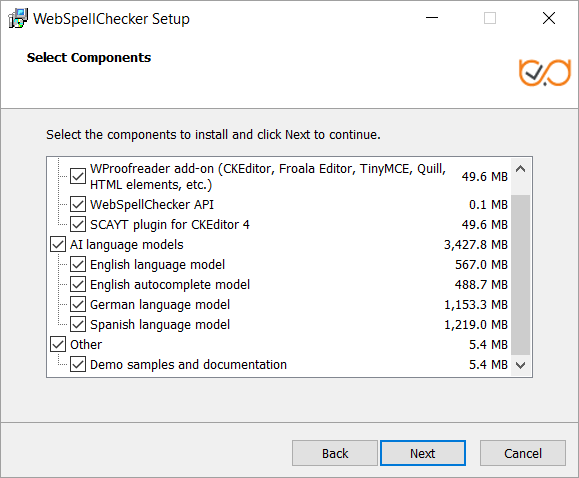
2.6. Select the components to install and click **Next** to proceed. By default, the WProofreader add-on for RTEs, demo samples and documentation are chosen.
{% hint style="info" %}
WSC Dialog plugin for CKEditor 4 and FastCGI protocol (SSRV.CGI component), which was used to run the product, was deprecated, no longer supported and is not included in the package. Please chose the modern products and configuration. If you have WSC configuration on your side, you have to remove it as well as the [WSC plugin from the CKEditor 4](https://docs.wproofreader.com/deployment/installation/windows/pages/INBLRm65fL9a2sfZGBkE#initializingwproofreaderinckeditor4-4.removeoldplugins).
{% endhint %}
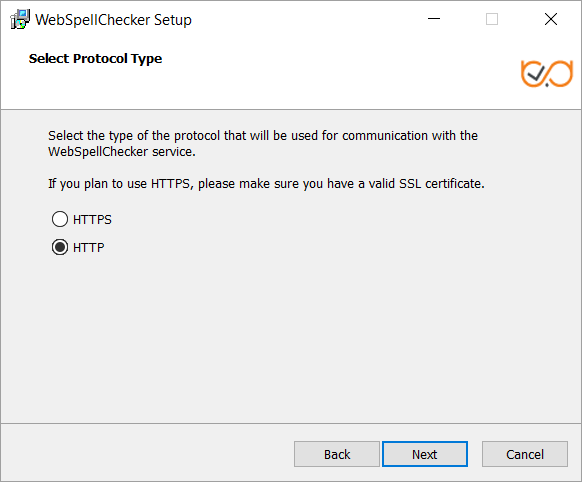
2.6. Select the type of protocol that will be used for communication with the WebSpellChecker service and a web server (IIS) and click **Next** to proceed. By default, **HTTP** is selected.
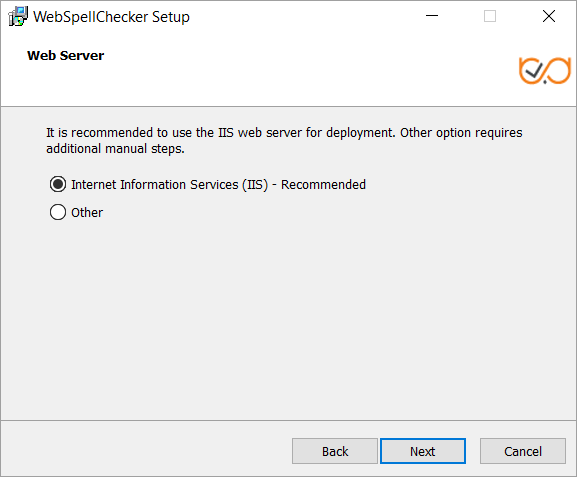
2.6. Select **Internet Information Services (IIS)** as a web server and configure its settings.
2.7. Variative step. If you didn't install the [required IIS modules](#draft-installonwindowswithiis-1.prepareforinstallation), you will see the additional windows with the link to install them.
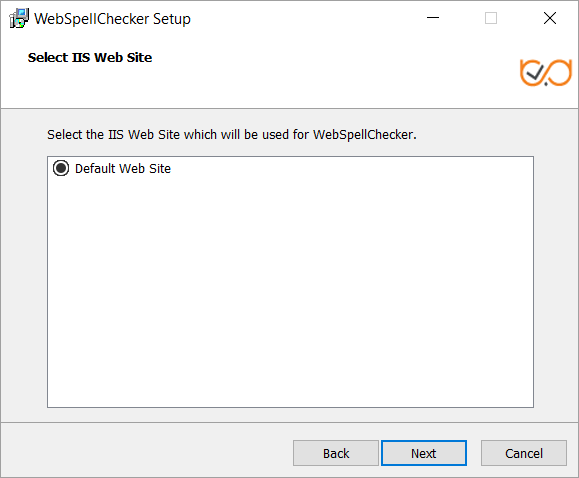
2.8. Select one of the **Web Site**(s) from the list of proper and available ones and click **Next** to proceed. Here we use **Default Web Site** option for the installation.
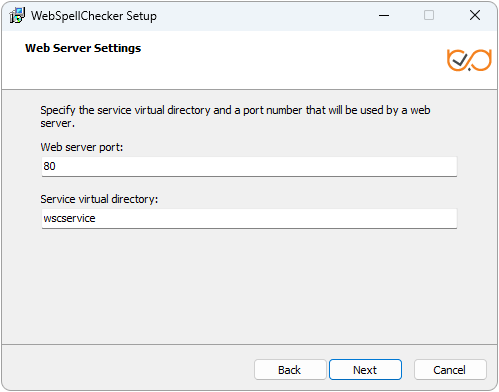
2.9. Define the settings of the selected web server and click **Next** to proceed.
* Specify a port number of a web server. The installer will suggest the port number based on the specified protocol and selected web server. The default ports for web servers are 80 for HTTP and 443 for HTTPS protocols. Make sure that the port is enabled in your web server.
* Provide the name of the virtual directory for WebSpellChecker service. The default value is **wscservice**, and it is recommended to keep it as it is.
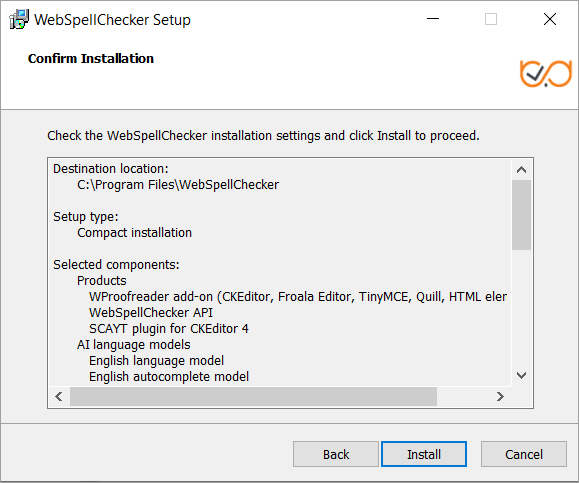
2.9. In this step, the installer summarizes the information that you have entered in the previous steps. Click **Install** to proceed with the installation process or return to previous steps if you want to make any changes.
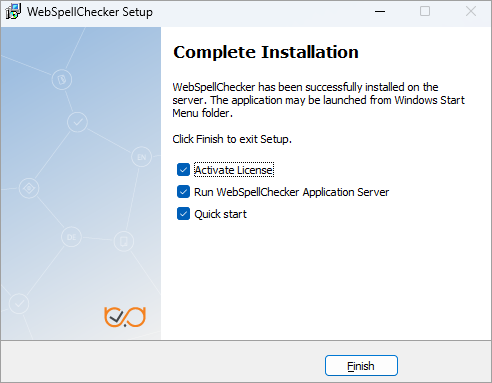
2.10. As soon as the installation process is finished, select **Activate License** and then click **Finish** to close the installation dialog. You can view the samples and verify application operability in newly opened web browser tabs, namely the samples page, a page with status check, and a page with version check.
All these options are selected by default. Keep **Activate License** selected unless you are reinstalling exactly the same version and keeping the existing license. A license is tied to the product version, so an upgrade on the same server also requires activation. See [Upgrade application version](/deployment/installation/upgrade-application-version.md).
### 3. Activate license
Refer to the [License Activation on Windows](/deployment/licensing/license-activation-on-windows.md) guide if you are installing WebSpellChecker Server for the first time to find out how to activate a license on a Windows-based server.
### 4. Configure grammar engine
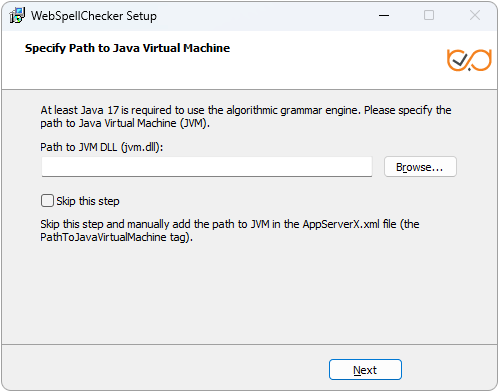
The Grammar engine [requires](https://docs.webspellchecker.net/display/WebSpellCheckerServer55x/WebSpellChecker+Server+System+Requirements) **64-bit version** of Java 8 or higher. The installation wizard will try to auto-detect a path to an existing Java Virtual Machine (JVM). If no path is found, you will be asked to specify the path to JVM using.
### 5. Verify operability
Check the status and version of AppServer to verify if WebSpellChecker Server works properly. To do so, use the links below to navigate to the detailed commands and responses descriptions:
* [Check AppServer version](https://docs.wproofreader.com/deployment/installation/windows/pages/IA2KNQLXDh85TwDivL4y#mainappservercommands-3.checkappserverversion);
* [Check AppServer status](https://docs.wproofreader.com/deployment/installation/windows/pages/IA2KNQLXDh85TwDivL4y#mainappservercommands-4.checkappserverstatus).
### **6. Further steps**
**Option A. Integration Guides**
Visit [Products and integrations guides](/integrations/supported-browsers.md) to learn more how to get started with WebSpellChecker products, one of them being [WProofreader](https://webspellchecker.com/wsc-proofreader/).
[**WProofreader**](https://webspellchecker.com/wsc-proofreader/#demos) is multilingual proofreading tool for web applications. It enables grammar and spell check while you type or work with your text in a dedicated dialog. It detects editable fields in focus, be it HTML editable controls or WYSIWYG editors, and enables spelling and grammar checking there. View the [full list of supported integrations](/integrations/supported-browsers.md).
WProofreader benefits:
* Available as a standalone secure solution on your server or as an annual subscription to the service hosted by WebSpellChecker.
* All modern[ web browsers are supported](/integrations/supported-browsers.md) including the latest stable versions of Chrome, Firefox, Safari, MS Edge, and Internet Explorer 11 and mobile web browsers such as Chrome for Android and iOS Safari;
* [Over 80 languages](/features/supported-languages.md) as well as specialized medical and legal dictionaries are [available to extend the default languages set](broken://pages/5dWbZbJhERL3JFFONXPf);
* [Global custom dictionaries](broken://pages/eSGHaBOkssGCntH7iSSf) managed by system admins and intended for all WProofreader users;
* [Personal user dictionaries](broken://pages/rDpQxE3Zc0Wo1NDJtett) for end-users;
* [WAI-compliant](https://www.w3.org/WAI/), up to [WCAG 2.1](https://www.w3.org/TR/WCAG21/) and [Section 508 accessibility standards](https://www.access-board.gov/guidelines-and-standards/communications-and-it);
* Operation and installation via HTTPS protocol is supported to fulfill strict security requirements.
In the on-premise version, all the application data is securely processed on your own server. Refer to the [Get started with WProofreader Server (autoSearch)](/integrations/rich-text-editors/froala-editor.md) guide for more details.
WProofreader allows users to see and correct spelling and grammar problems on the fly while they are typing directly in the text input field. Every misspelled word found will be underlined with a red wavy line and every grammar problem detected will be marked with a green one respectively. The user just needs to hover a marked word or phrase and replace it with a proper one from the list of given corrections.
**Option B. Demo Samples**
Depending on the type of elements, namely HTML native elements or rich text editors where the spelling and grammar check is needed, you may choose and use the demo samples that are shipped with the package.
To access the default samples, go to http(s)://your\_host\_name:port/wscservice/samples/ where port is the **port** of your IIS web server. The default samples contains all the necessary samples and instructions that will help with the integration of the WebSpellChecker products. Moreover, each sample contains detailed development documentation with a list of methods and parameters available.
### **7. Troubleshoot**
In case you experience any issues with the installation of the server-side elements of WebSpellChecker, please check our [troubleshooting guide](/troubleshooting/server-side-backend/how-to-troubleshoot-the-service-issues.md). Then if necessary contact us at with the details, which are mentioned in the [doc](/troubleshooting/server-side-backend/how-to-troubleshoot-the-service-issues.md).